
Voice agents: overview and getting started
What a voice agent is, how to create one, and how the agent list, Call view and Settings view are laid out.
A voice agent is an AI assistant that answers calls for your business, or makes calls on your behalf. It holds a real spoken conversation. It can answer questions from information you approve, take a message for your team, book an appointment into a connected calendar, and put the caller through to a person when that's the right thing to do.
You'll find voice agents under Call flow in the sidebar, then Voice agents. Everything you change is kept as a draft until you press Publish, so you can explore an agent without affecting a single caller.
Voice agent or auto attendant? An auto attendant plays a fixed menu and sends callers wherever the key they press leads. A voice agent listens to what the caller says and responds. Choose an auto attendant for a simple "press 1 for bookings" menu. Choose a voice agent when you'd like callers to get answers and get things done without waiting for someone to be free.
The Voice agents workspace
The Voice agents area has its own small menu down the left side, in two groups called Voice agents and Shared resources:
- Agents is the list of your voice agents. This is where you start.
- Campaigns is where an outbound agent calls a list of people. See Campaigns.
- Knowledge holds the libraries of approved information your agents answer from. See Knowledge.
- Calendars opens the Calendars section of Settings, because calendars are shared with the rest of your account. The link is marked in Settings so you know you're leaving, and the Calendars page offers a way back to Voice agents. See Calendars.
On a phone, the same four items appear as tabs across the top of the screen instead.
The agents list
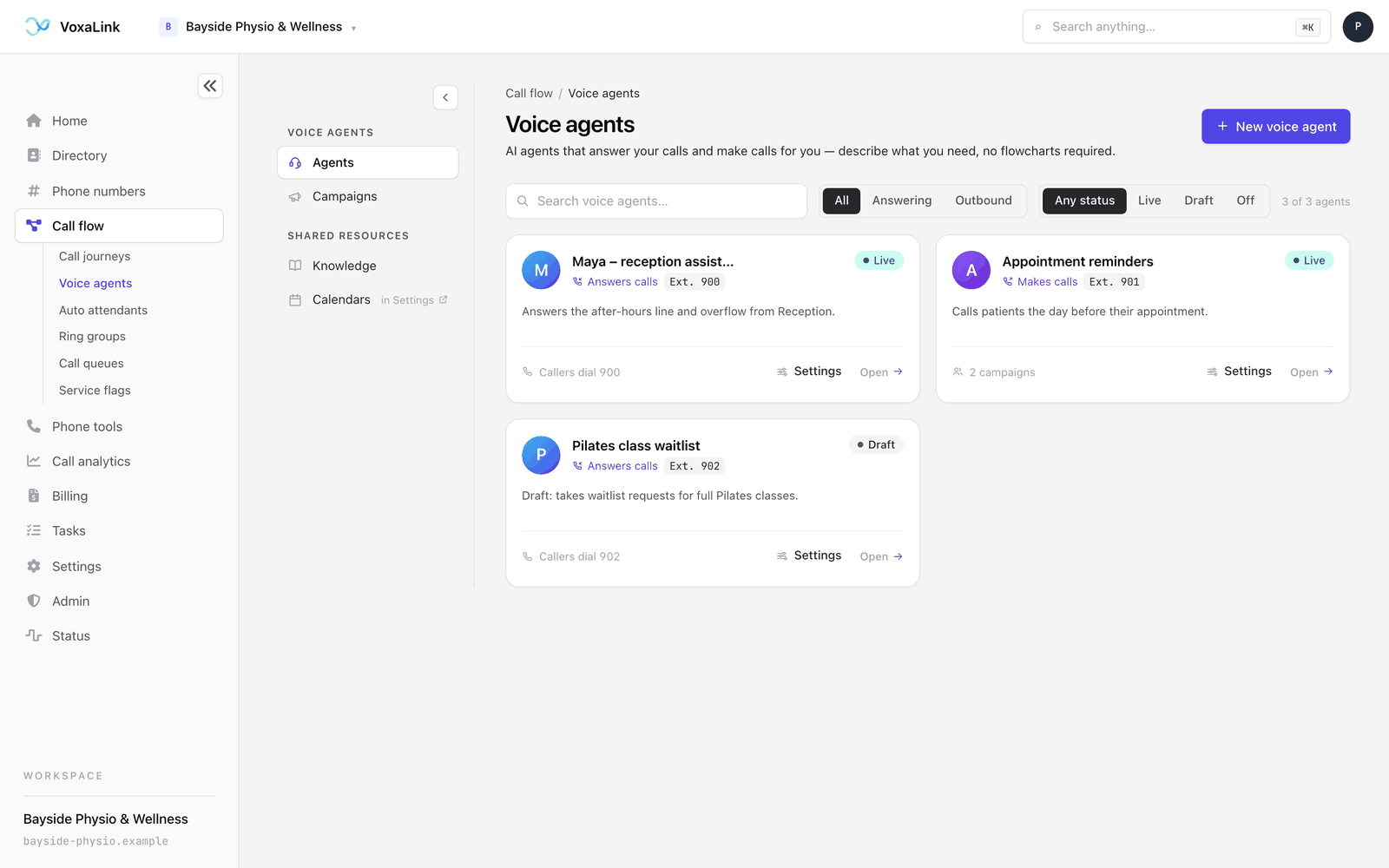
Each agent has a card. The card shows the agent's name, whether it Answers calls or Makes calls, its internal extension number, a short description and its status. The status is Live when callers are reaching the published agent, or Draft when it has never been published. You may also see Off. Nothing in the portal turns an agent off, so if one of your agents shows Off, ask your VoxaLink provider about it. To stop an answering agent taking calls, take it off its phone number instead, as described in Taking an agent off a number.
At the bottom of the card, an answering agent shows Callers dial followed by its extension number, or Internal only if it has no extension yet. An outbound agent shows how many campaigns it has.
Above the cards you can search voice agents by name, description or extension, filter by All, Answering or Outbound, and filter by Any status, Live, Draft or Off. A count beside the filters reads, for example, "2 of 3 agents". If a search finds nothing, you'll see a message saying no voice agents match, with a way to clear the search. Click anywhere on a card to open the agent. The Settings button on a card opens the same agent straight at its settings.
Creating a voice agent
Press New voice agent at the top right of the list. If you have no agents yet, the button sits in the middle of the page instead, under No voice agents yet. Creating an agent takes three short steps, and a back link at the top of each step returns you to the one before. On the first step it returns you to the list.
Step 1 says "You can change everything later", and nearly everything can be changed. The one exception is the choice you make on the first card. An agent that answers calls can't become an agent that makes calls, or the other way round. If you pick wrong, create a new agent.
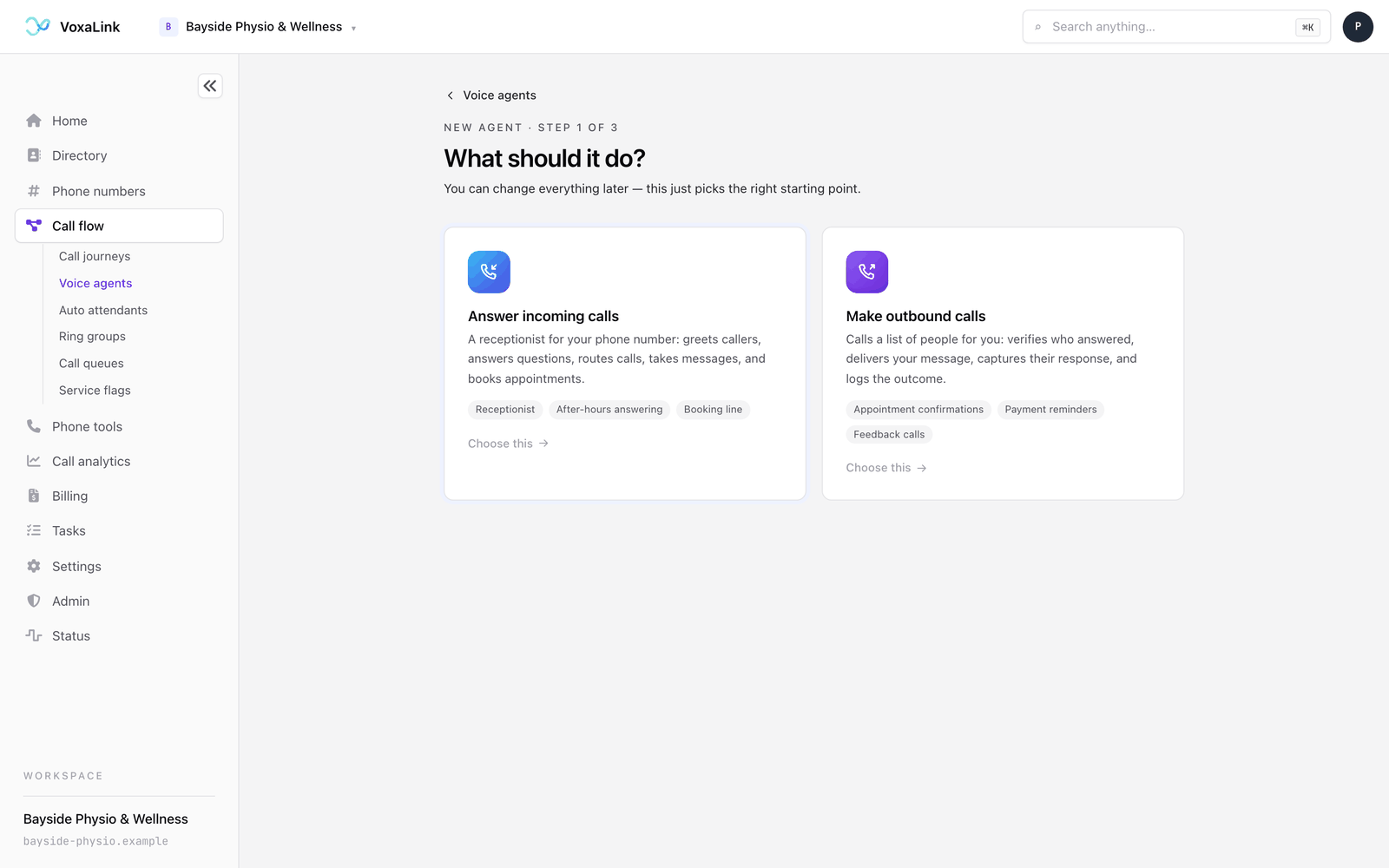
Step 1: What should it do?
Pick one of two cards:
- Answer incoming calls is a receptionist for your phone line. It greets callers, answers questions, routes calls, takes messages and books appointments. Most businesses start here.
- Make outbound calls calls a list of people for you. It checks it has reached the right person, delivers your message, records their answer and logs the outcome. Appointment reminders are a typical use.
Step 2: Pick a starting point
Templates are grouped by industry, for example Healthcare, Legal or Trades & home services, and each one fills in a sensible first version of the whole call. A physio clinic might pick Medical clinic front desk, which already handles bookings, script and referral requests, and billing questions, with safety rules that stop the agent giving clinical advice. If nothing fits, Start from scratch has a blank agent.
You can type your Business name (optional) above the templates and it will be filled in for you.
Step 3: Tell it about your business
This step has three cards.
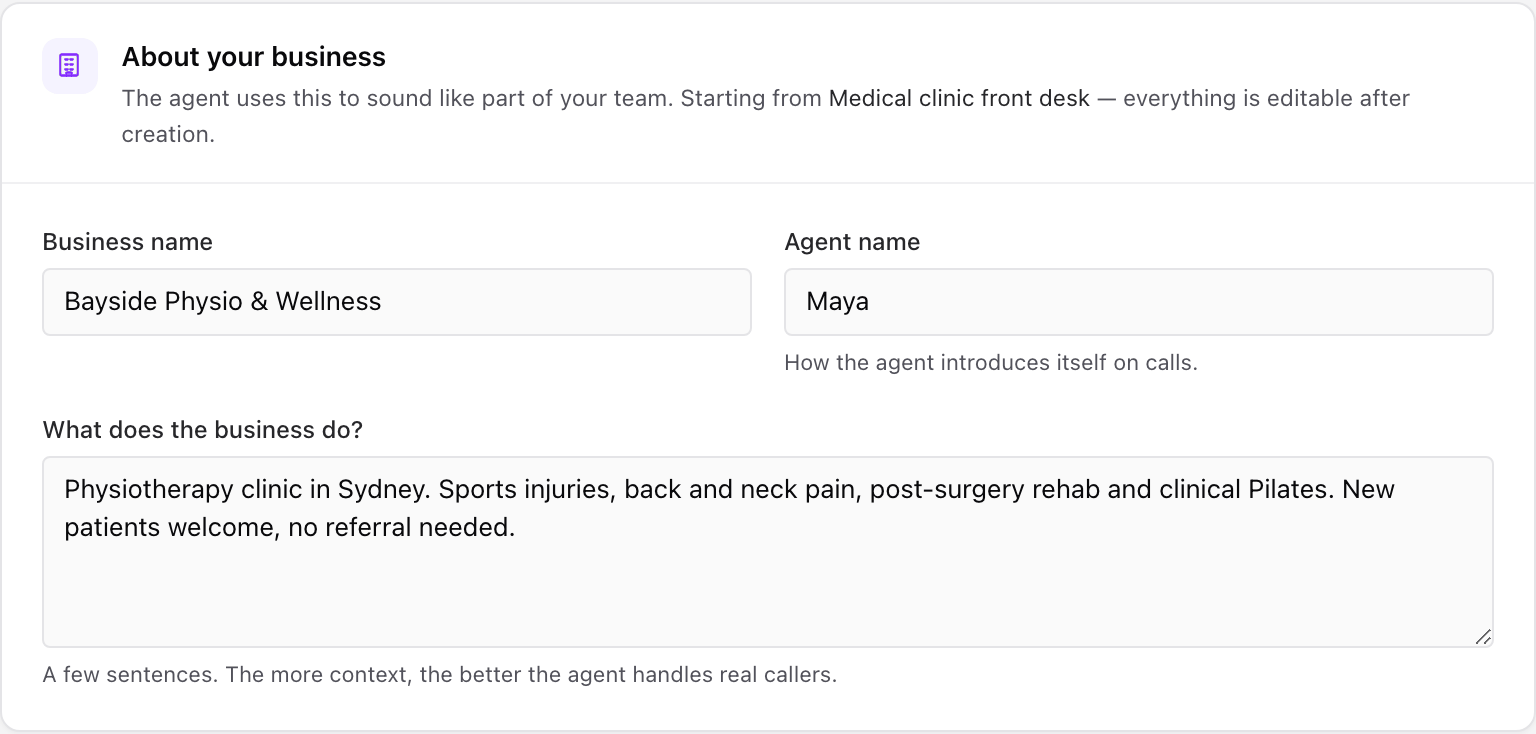
About your business
- Business name.
- Agent name is how the agent introduces itself on calls, for example "Maya". Pick a name callers will be comfortable hearing.
- What does the business do? takes a few plain sentences. The agent leans on this a lot, so describe what you do, who you help and anything callers often ask about.
Voice and call handling
- Voice lists the voices you can choose from. Press the play button beside it to hear a short sample. Standard and Advanced share one list and Grok has its own, so the list changes when you pick a different choice under How it handles calls.
- Language offers English, English (Australia), English (UK) and English (US). The variant steers the agent's accent and spelling. Standard and Advanced always speak the language you choose, so other languages aren't available with them. Grok adds a Follow the caller's language switch under Language, described in Persona, voice and instructions.
- How it handles calls asks you to choose Standard, Advanced or Grok. Standard handles everyday calls and requests. Advanced suits calls that need more involved reasoning. Grok is a separate engine that, by default, answers in the caller's language and switches when the caller does. Standard and Advanced sound the same. Each choice shows its price per minute, and a choice your account can't use is greyed out with the reason. You can change this later in Settings. See AI engine for what each one does and how Grok gets switched on.
Portal details
- Agent label in your portal is the name on your agents list. Only your team sees it.
Press Create agent. The agent is created as a draft and given its own internal extension number automatically. You don't need to choose one.
If your account doesn't have voice agents switched on, you'll see Voice agents are not activated yet instead of the steps. Ask your VoxaLink administrator to turn them on.
The setup walkthrough
A new answering agent opens with a five-step walkthrough across the top of the screen: Greeting, Handles, Knowledge, Hours and Go live. Each step opens the part of the agent it's about, and a banner explains what to do there. Press Continue to move on and Finish at the end. Nothing is published when you finish. You'll see a reminder to review and publish when you're ready.
On a wide screen, the panel on the right offers Or let Ellis draft it. Ellis is the VoxaLink assistant. The card says Ellis will fill in the greeting, what the agent handles and its hours, but it does less than that. When you type a description of your business and press Draft my agent, it does only two things. It saves your text as the agent's business description, and the box starts with whatever you already wrote there. It also adds a standard opening line, "Thanks for calling" followed by your business name and agent name, if the opening line is empty. Then it jumps to the last step so you can review everything. It doesn't change what the agent handles or its hours. Those come from the starting point you picked and from the steps you work through yourself.
You can press Skip walkthrough at any time. Outbound agents skip the walkthrough and open straight into the editor.
Inside an agent
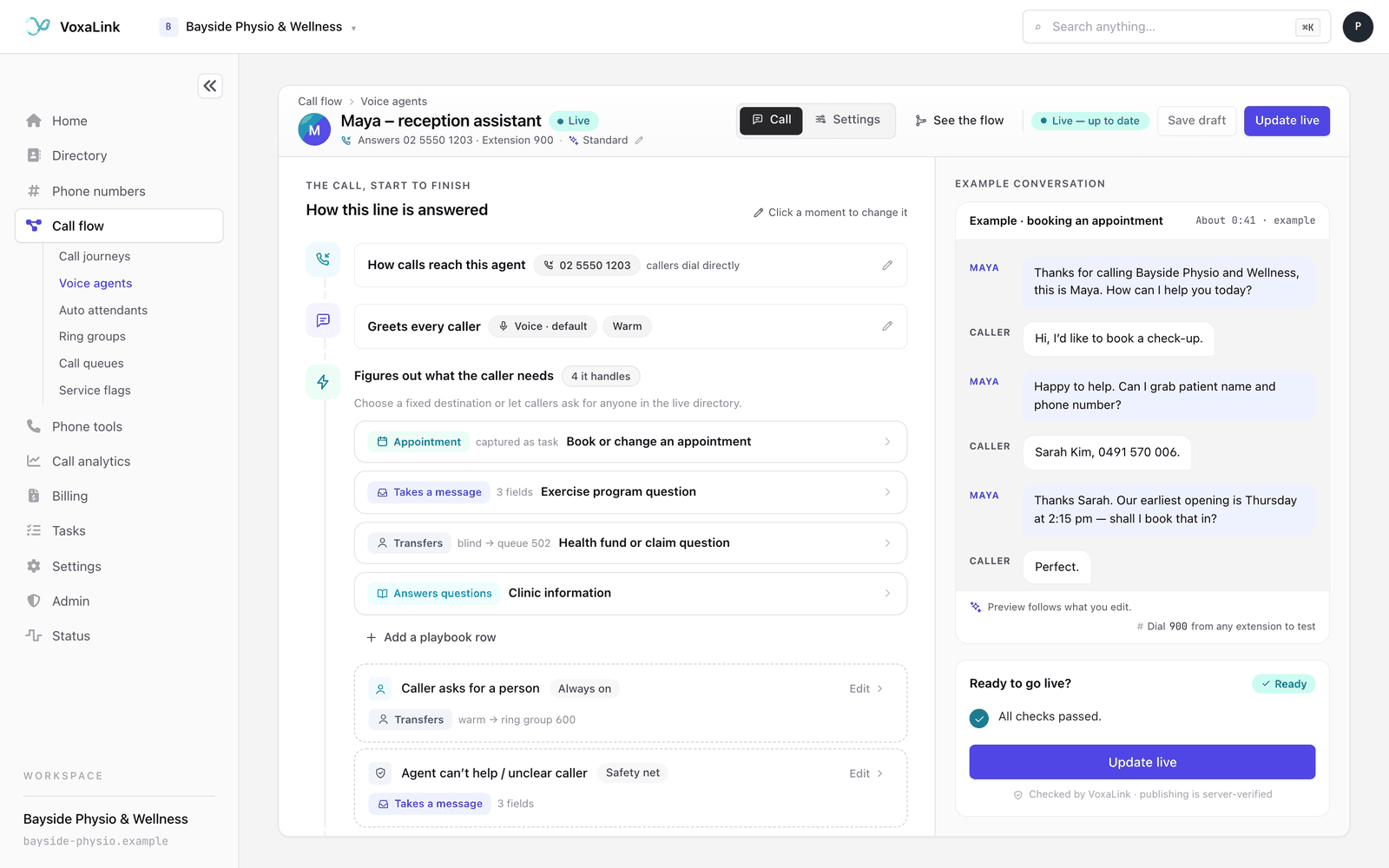
Opening an agent takes you into the editor. The bar along the top shows the agent's name and status, how it's reached and whether it's on Standard, Advanced or Grok. Click the name to jump to its settings. Above the name, a path reads Call flow then Voice agents. Click Voice agents to go back to the list, or Call flow to leave for the Call flow page. If you have unsaved changes, you're asked first whether to discard them.
The rest of the top bar holds:
- Call and Settings, which switch between the two views described below.
- Campaigns, on outbound agents only.
- See the flow, which appears in the Call view and opens a read-only map of how your call is wired.
- A small status label that tells you whether you have unsaved changes, a saved draft that isn't live yet, or a live agent that's up to date.
- Save draft and Publish. Once an agent has been published, Publish becomes Update live.
The Call view
The Call view, headed The call, start to finish, reads the call from top to bottom in the order a caller meets it. Each step is called a moment. Click a moment to open it, change it, and click it again to close it.
For an answering agent the moments are:
- How calls reach this agent: its own phone number, or internal only.
- Greets every caller: the opening line, voice, language, personality and sign-off. See Persona, voice and instructions.
- Figures out what the caller needs: the playbook of requests the agent handles, plus the two built-in rows for callers who want a person and callers the agent can't help. See The playbook and transfers.
- Under Capabilities, Answers from your knowledge and Texting on request. See Knowledge.
- The hours moment, titled Answers around the clock until you set opening hours, and Instant escalations. See Business hours and escalations.
- Every call, a reminder that each call is logged as a task with a summary for your team.
An outbound agent has its own set of moments: What these calls are for, Who it's calling, Verifies the right person, Delivers the message, Captures their answer, Logs the outcome, If they don't answer, Instant escalations and How it wraps up. See Campaigns.
On a wide screen, about 1,280 pixels or more, a panel on the right shows an Example conversation. It's a short written sample of a call, built from your current settings, and it updates as you edit. It's text only, there's no audio. Below it, Ready to go live? lists anything that needs fixing before you publish. On a narrower screen both panels are hidden. The checks still run when you press Publish, and the publish window lists anything that needs fixing. See Testing and publishing.
The Settings view
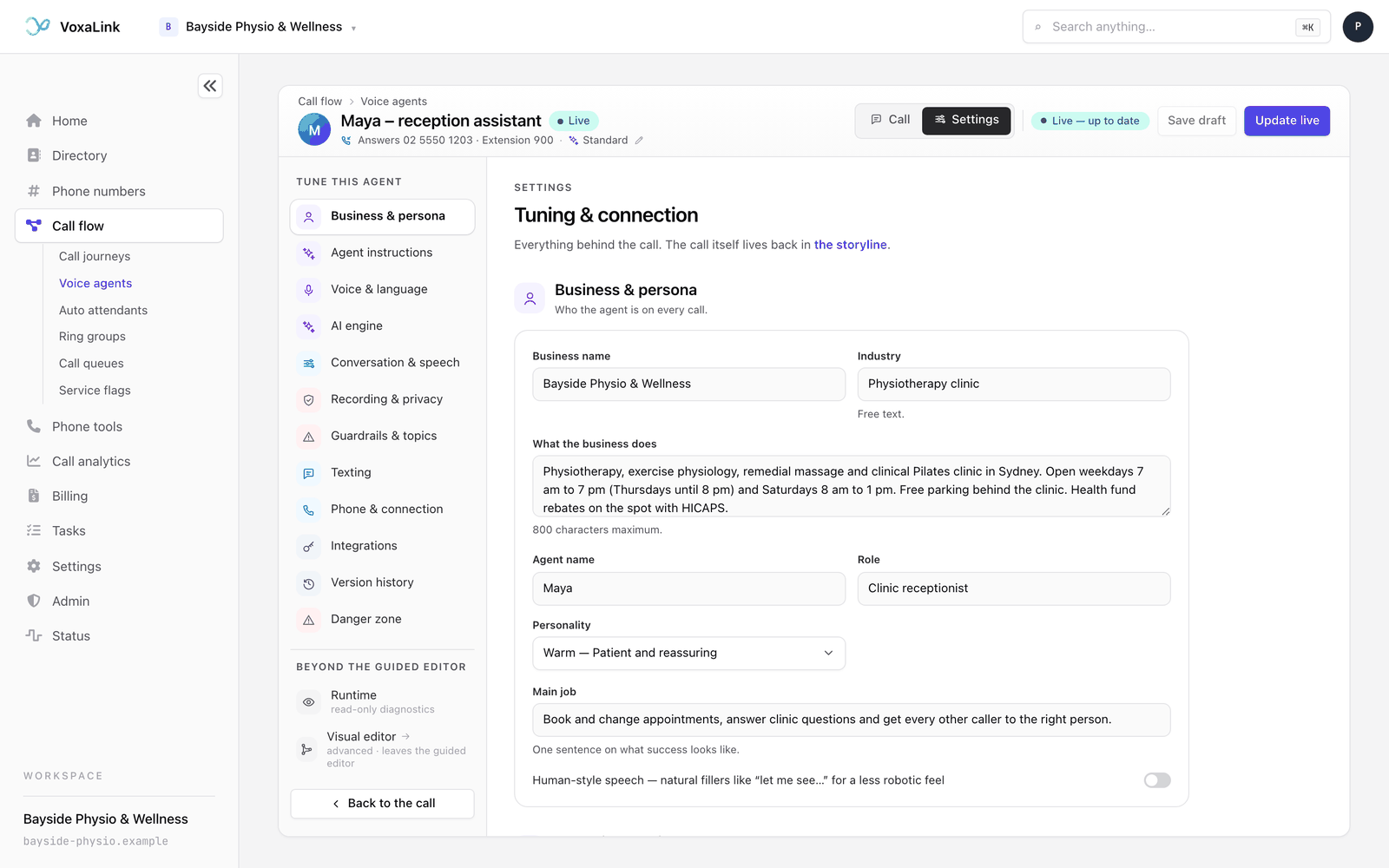
Settings, headed Tuning & connection, holds everything behind the call. On a screen at least 1,024 pixels wide, a menu headed Tune this agent runs down the left and jumps between twelve groups. Below that width the menu is hidden and the groups simply follow one another down the page. You can scroll through them either way, and the Call and Settings switch at the top still takes you back to the call. The groups are:
- Business & persona, Agent instructions, Voice & language, AI engine, Conversation & speech and Guardrails & topics shape who the agent is and how it talks. They're explained in Persona, voice and instructions.
- Recording & privacy sets Call recording to Off, Record, Transcribe or Record + transcribe. When recording is on, the agent speaks the Disclosure spoken in the greeting, which starts as "This call may be recorded for quality and training purposes." With full recording off, an answering agent can instead Record key moments: just the part of the call where it takes a message or an appointment request, so names and numbers can be checked later. You switch on Record while taking a message and, if the agent has an appointment row, Record while taking an appointment request. Each clip is attached to the staff task. You can also tick Also transcribe each recorded clip, and edit the Recording notice spoken before each key moment. Callers are told the call is being recorded but are not asked for permission. If a caller objects, the agent stops recording and hands off to a team member.
- Texting picks the number the agent sends text messages from and shows where texting is used. If your account can't send texts yet, it says so here.
- Phone & connection has the Agent label (in your portal) with its own Rename button, how calls reach the agent, and its extension number. Renaming saves straight away and doesn't wait for Save draft. An outbound agent also has Place a call here for test calls.
- Integrations stores sign-in details for systems the agent sends information to. See Notify a system.
- Version history lists saved versions and lets you restore an earlier one. See Testing and publishing.
- Danger zone is where you delete the agent. See Deleting an agent.
Below the menu, under Beyond the guided editor, a live agent has Runtime, a read-only page showing what is handling its calls right now. Visual editor opens a drag-and-drop map of the call for advanced changes. Read the warning before you use it. Once you save a change in the visual editor, the agent can't be edited in this guided editor again, and opening that agent later shows a page that says "This agent uses the visual editor" instead. Most changes never need it. Back to the call returns you to the Call view. Runtime, Visual editor and Back to the call all live in that menu, so use a wider screen if you need the first two.
Draft and live
Your changes stay on your screen until you press Save draft. A saved draft is safe. Callers keep reaching the live version until you press Publish, or Update live for an agent that's already live. Calls already in progress are never changed mid-call. If something you publish doesn't work out, you can restore an earlier version. Testing and publishing covers this in full.
How a call behaves
- Transfers can be warm or blind. A warm transfer introduces the caller before connecting them. A blind transfer connects them straight away. When callers ask for someone by name, the agent always introduces them first. See The playbook and transfers.
- There is always a way out. Every agent has a path to a person and a fallback for anything that goes wrong. You choose where those go, and the agent won't publish without them.
- Callers speak, they don't press keys. Voice agents listen to speech. Don't design a call around callers pressing digits on their keypad.
- Every call becomes a task with a summary, so your team can see what happened without listening back.
Deleting an agent
Open the agent, go to Settings, and scroll to Danger zone, the last group on the page. Press Delete voice agent. A window titled Delete this voice agent? asks you to type the agent's name exactly as it appears at the top of the editor. The Delete voice agent button in the window stays greyed out until the name matches. Deleting removes the agent, all its versions and its extension on the phone system, and it can't be undone. If the agent answers one of your phone numbers, decide where that number should go first.
An agent that uses the visual editor has the same Danger zone at the bottom of its page.
Everyday tasks
- Build an AI receptionist → create an agent that answers incoming calls, then give it knowledge to answer from.
- Change how the agent sounds or introduces itself → see Persona, voice and instructions.
- Let callers book appointments → connect a calendar and add an appointment row to the playbook.
- Call a list of patients with a reminder → publish an outbound agent, then run a campaign.
- Try an agent before real callers reach it → see Testing and publishing.
- Check a limit or fix a problem → see Limits and troubleshooting.