
The playbook and transfers
Playbook rows, the built-in rows, transfers, Anyone in the directory, Notify a system and text confirmations.
Your voice agent answers the phone. The playbook is the list of things it knows how to deal with once it has said hello, and what it does about each one.
Each line in the playbook is a row, and a row has two halves:
When a caller wants this, do that.
"Wants to book an appointment" → take their details and book them in. "Asks how much a session costs" → answer from your knowledge. "Wants to speak to someone in billing" → put them through. That's the whole idea.
The playbook belongs to answering agents. Outbound agents follow a set script instead, covered in Campaigns.
Finding the playbook
Open the agent and stay in the Call view. The playbook is the moment headed Figures out what the caller needs, with a count beside it such as 4 it handles. Unlike the other moments, its rows are always on show. Each collapsed row shows a coloured label for what it does, such as Takes a message or Transfers, followed by the row's name.
Below your own rows are two built-in rows with dashed borders: Caller asks for a person and Agent can't help / unclear caller. They're explained further down.
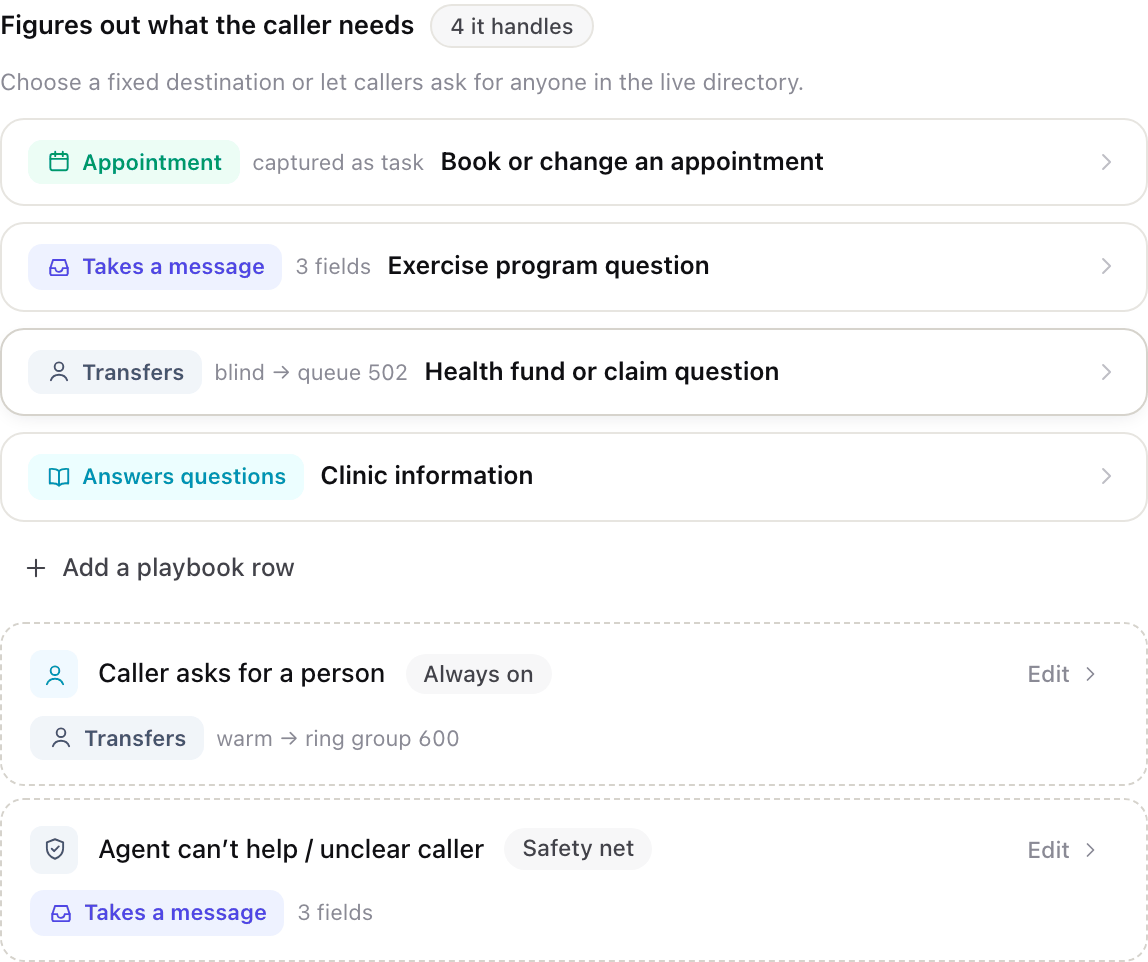
One row per kind of request, never one row per person You don't need a row for each staff member. If callers ask for people by name, set the built-in Caller asks for a person row to Anyone in the directory (below). That one setting covers your whole team, whether you have 5 people or 500.
Adding and changing a row
Press Add a playbook row under your rows. A new row called "New request type" appears, already open and set to take a message. Click any row to open it. Only one row or moment is open at a time.
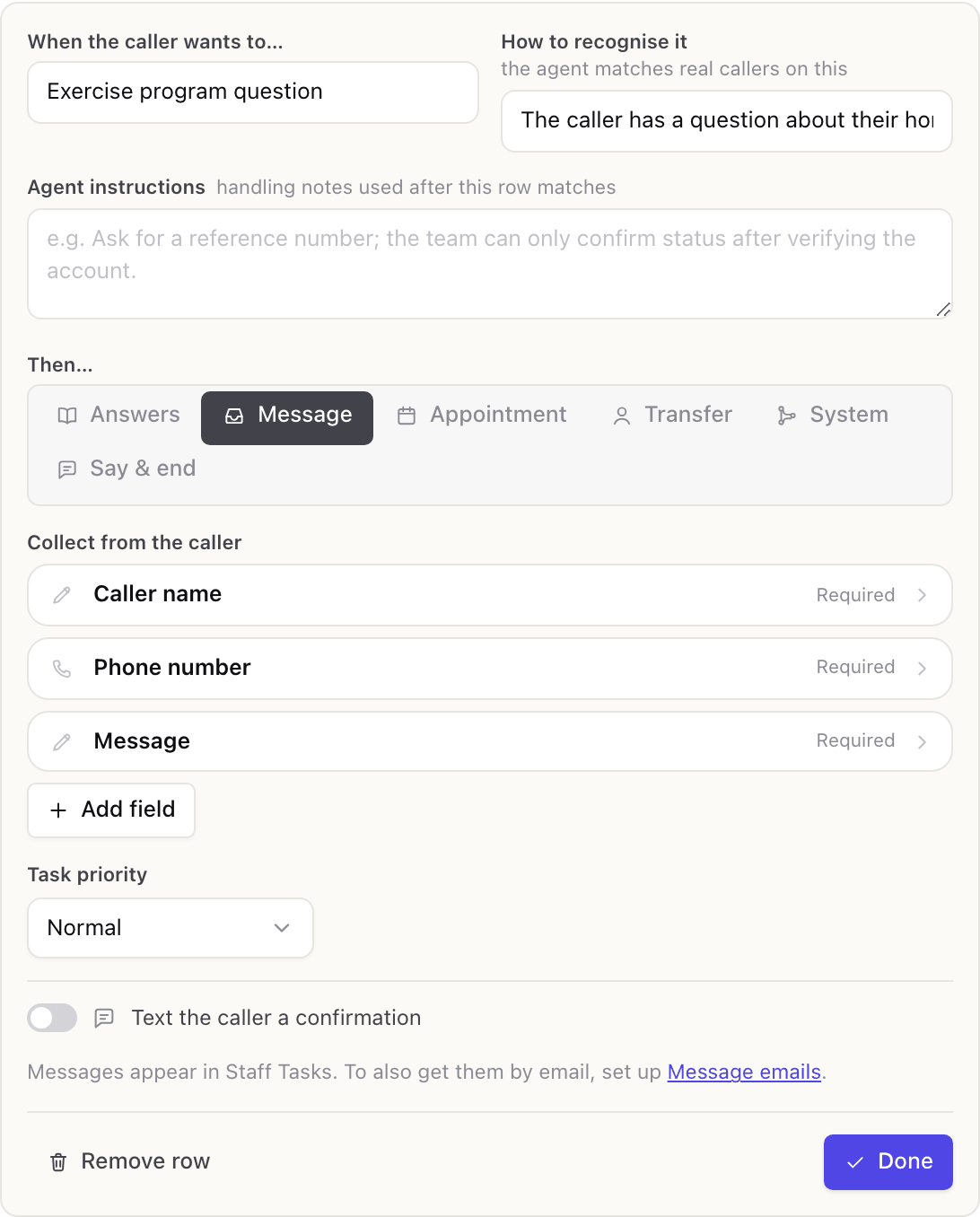
An open row has four parts:
- When the caller wants to… is a short name for the request, like "Book or change an appointment". It's mostly for you, but it also helps the agent tell its options apart, so make it descriptive.
- How to recognise it describes what a caller who wants this sounds like. The agent compares real callers with this description, so write it the way people speak: "wants to book, move or cancel a session, asks if there's anything free this week". A sentence works better than a list of keywords.
- Agent instructions is optional, up to 1,000 characters. These notes only apply once this row has been chosen, for example "Ask whether they've seen us before, and if they have a referral." They can't override your guardrails, the details the row collects or where the call goes.
- Then… is what the agent does. It's explained in the next section.
When you've finished, press Done to close the row, or Remove row to delete it. Remember to press Save draft afterwards.
There's no limit on rows, but a handful of well-described rows works better than dozens of similar ones. The more alike two rows sound, the harder it is for the agent to pick the right one.
What a row can do
The Then… choice has up to six options. Each one shows short settings underneath once you pick it.
| Option in Then… | Label on the row | What the agent does |
|---|---|---|
| Answers | Answers questions | Answers from your approved knowledge |
| Message | Takes a message | Collects details and creates a task for your team |
| Appointment | Appointment | Collects details and can book into a calendar |
| Transfer | Transfers | Puts the caller through to a person, team or number |
| System | Notifies a system | Sends the details to another system you use |
| Say & end | Says & ends | Reads out a message, then ends the call |
Answers
The agent answers from the information in your knowledge libraries, and nothing else. If the answer isn't there, it doesn't guess. It follows the When there is no approved answer setting in the Answers from your knowledge moment instead.
Answers only appears when Answer questions from knowledge is switched on in that moment. If you switch it off, every row set to Answers changes to take a message, so callers are still looked after.
Message
The agent collects the details you list, then creates a task for your team. Most playbooks lean on this one. The settings are:
- Collect from the caller, the list of details to ask for. How to set these up is on its own page: Collecting details from the caller.
- Task priority: Low, Normal, High or Urgent, shown on the task.
- Text the caller a confirmation, explained in Text confirmations.
Messages appear in Staff Tasks. To have them emailed as well, use the Message emails link under the row, which opens in a new tab so you don't lose your changes.
Appointment
This collects details exactly like Message, with the same priority and text confirmation settings. It adds Book appointments into a connected calendar. With that switched on and a calendar chosen, the agent checks what's free and books the slot for real. With it off, the request arrives as a task and your team books it. Setting up the calendar side is covered in Calendars.
Transfer
The agent puts the caller through somewhere else. See Transfers.
Notify a system
The agent sends the details from the call to another system you use, such as a booking or helpdesk system, while the caller is still on the line. Your developer or software provider will usually give you what to fill in.
- Name of the system is shown to your team, never to the caller, for example "Helpdesk".
- Web address (URL) is where the details are sent.
- Sign in with is None or a saved credential. Credentials are added in Settings, under Integrations, with Add credential. They can be a bearer token, an API key header or a basic username and password. Once saved, the values are never shown again.
- The row has its own list of details to collect, set up the same way as a message row.
- What to send (JSON) is the body of the message to the other system, written in JSON, a plain-text format your developer will know. Click a detail's button under the box to insert its placeholder where your cursor is.
- Reference from the reply is optional. If the other system replies with a reference number, say where to find it, such as /ticket/id.
- What the agent says when it works, for example "I've passed that on."
Under Try it, type example answers and press Send test. The other system receives a test using your examples, and the result appears underneath. A test doesn't create any call records.
A row with no web address can't send anything. The Ready to go live? checklist warns you, and until you add one, that row takes a message instead.
Say & end
The agent reads out the Message to read, then ends the call politely. It suits simple answers that need nothing else, such as your address or parking instructions.
The two built-in rows
Every answering agent has two rows that are always there and can't be removed:
- Caller asks for a person, marked Always on, handles "Can I speak to someone?" and requests for a particular person or team.
- Agent can't help / unclear caller, marked Safety net, catches any caller the agent can't match to one of your rows.
Each shows a summary of what it does. Press Edit to change it and Done when you've finished. Both rows offer only the three choices that always leave a caller somewhere sensible: Transfer, Message and Say & end.
Transfers
A transfer sends the call to a destination you pick. Under Send the call to, choose the type:
- Extension, Ring group, Call queue, Auto attendant or Another voice agent, then pick it under Destination.
- Voicemail box, then the extension whose mailbox should take the message.
- External number, then type the Phone number, such as a mobile.
- Anyone in the directory, on the Caller asks for a person row only. See below.
Transfer style decides how the caller is handed over:
- Warm introduces the caller first.
- Blind connects the caller straight away.
Announce to the caller before transferring is optional. It's what the caller hears just before the transfer, for example "Connecting you to our front desk now."
Anyone in the directory
Set the Caller asks for a person row's Send the call to to Anyone in the directory, and the agent no longer sends every request for a person to one fixed place. It matches what the caller asks for against your live directory: every named extension, ring group and call queue on your account.
Callers can then say things like:
- "Can I speak with Priya?" The agent finds Priya's extension and transfers the call.
- "Put me through to extension 104." The agent matches the number directly.
- "Can I talk to someone in admin?" Named ring groups and queues match too.
If more than one entry matches, say two people called Sam, the agent asks which one they mean. It only ever transfers to a real entry in your directory. It can't invent an extension or dial an outside number from this row.
Because the agent checks the directory live on every call, hiring, renaming or removing staff needs no change to the agent and no republishing. Keep people's display names accurate in People and the agent stays up to date by itself.
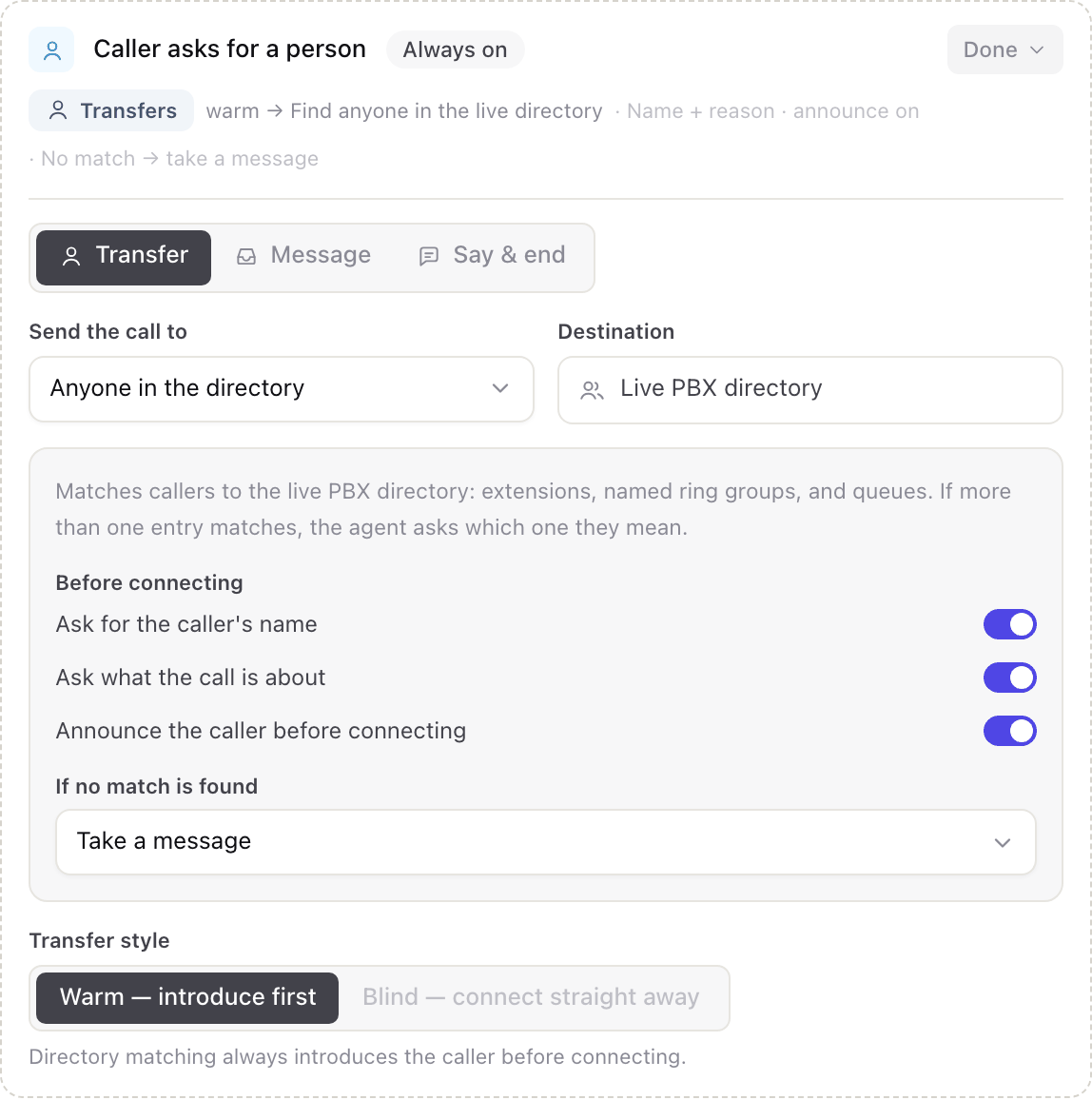
Before connecting
Three switches control what happens before the caller is put through. All three are on to begin with:
- Ask for the caller's name.
- Ask what the call is about.
- Announce the caller before connecting, so the person receiving the call hears who it is first.
Directory transfers are always warm, so Blind isn't available here.
If no match is found
Choose what happens when the agent can't find who the caller asked for, or the caller can't say which match they meant:
- Take a message collects their details and creates a task.
- Transfer to a fallback destination sends them to one fixed place, such as your Reception ring group. Pick it under Fallback destination.
The collapsed row sums up your choices, for example "Name + reason · announce on" and "No match → take a message".
Text confirmations
On a Message or Appointment row, Text the caller a confirmation sends the caller a text once their request has been captured. It needs your account to be able to send texts. If it can't yet, the switch is greyed out and a note explains why.
Switching it on adds a Phone number detail to the row if there isn't one, and locks it so it can't be removed while confirmations are on. Send texts from picks the number the text comes from. One number is shared by everything this agent texts.
The text is built from a template you write once. Under the template box, Insert buttons add placeholders: {businessName} for your business name, and one for each detail on the row, written like {{collected.preferred_date}}. On the call, each placeholder is filled with the answer the caller confirmed. The agent can't change the wording or add anything of its own.
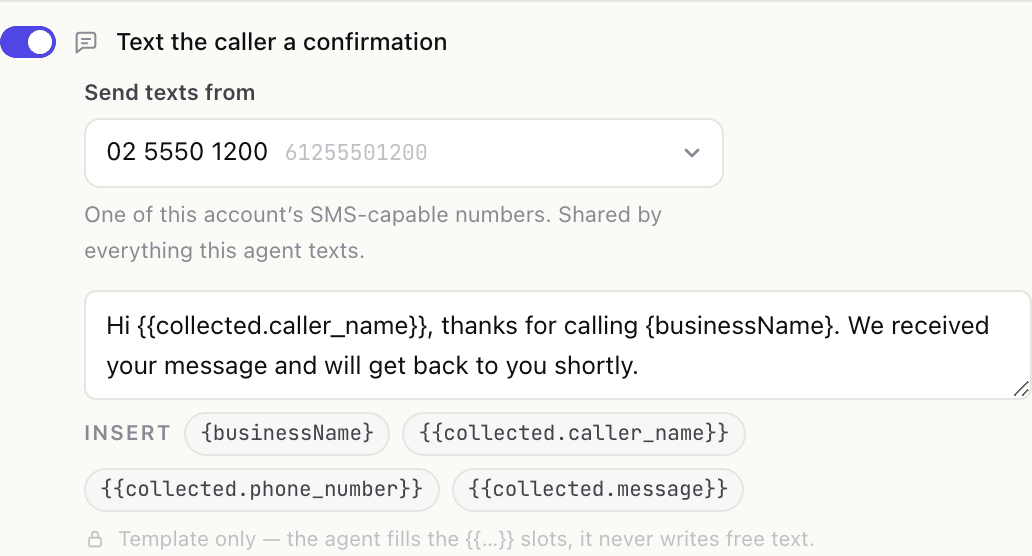
Two rules shape what you can do:
- One template per row. You can't send different wording depending on an answer.
- A placeholder with no value stops the text. If the template uses a detail that wasn't collected on that call, the text isn't sent. It never goes out with a gap in it.
The second rule is useful. Say a physio clinic offers sessions in the clinic or by video, and only video patients need a link emailed. Give the booking row a detail called "Session type" that accepts In clinic or Video, and an "Email address" detail that's required only when Session type equals Video. Then write:
{businessName}: thanks for booking a video session. We'll send the link to {{collected.email_address}}.
In-clinic patients are never asked for an email and never get that text. How to set up the choice and the "only when" rule is covered in Collecting details from the caller.
To text every caller whatever they chose, use only details the row always collects:
{businessName}: thanks {{collected.caller_name}}, we've got your request for {{collected.preferred_date}}. We'll call to confirm.
Common mistakes
| What you notice | Why it happens | What to do |
|---|---|---|
| A row set to System takes a message instead | The row has no web address | Add the Web address (URL). The checklist names the row |
| Answers is missing from Then… | Answering from knowledge is switched off | Switch on Answer questions from knowledge in the knowledge moment |
| A detail can't be removed and shows a padlock | Text confirmations need it | Switch off Text the caller a confirmation first |
| Some callers never get the confirmation text | The template uses a detail that wasn't collected on their call | Expected. Use always-collected details unless you want that effect |
| The agent picks the wrong row | Two rows have similar descriptions | Make How to recognise it clearly different for each row |
| More problems collecting details | See Collecting details from the caller |
Everyday tasks
- Let callers reach any of your staff by name → open Caller asks for a person, press Edit, set Send the call to to Anyone in the directory, then Save draft and Publish or Update live.
- Capture enquiries as tasks → add a row set to Message and list the details to collect. See Collecting details from the caller.
- Text the caller a confirmation → switch on Text the caller a confirmation on the row and build the template with the Insert buttons.
- Send new enquiries straight into another system → use a row set to System.
- Answer a simple question without involving anyone → use a row set to Say & end.
- Handle emergencies straight away → see Business hours and escalations.
Nothing changes for callers until you publish Row changes stay in your draft until you press Save draft and then Publish, or Update live if the agent is already live.