
People
Add, import and manage the people on your phone system: licences, who needs attention, and every setting on a person's page.
People is the list of everyone on your phone system. Each person has an extension, which is their internal number. Colleagues dial it to reach them, their desk phone and the VoxaLink app sign in with it, and it owns their voicemail box. Phone numbers, ring groups, call queues and call reports all point back to the people listed here, so this is the page you will open most often.
Every extension is one of two kinds. A person has their own sign-in and is the default. A shared deskphone is a phone that several people use, like reception. See Shared deskphones.
You'll find it in the sidebar under Directory, then People. This chapter walks through the People page, adding and importing people, and a person's own page, section by section.
The People page
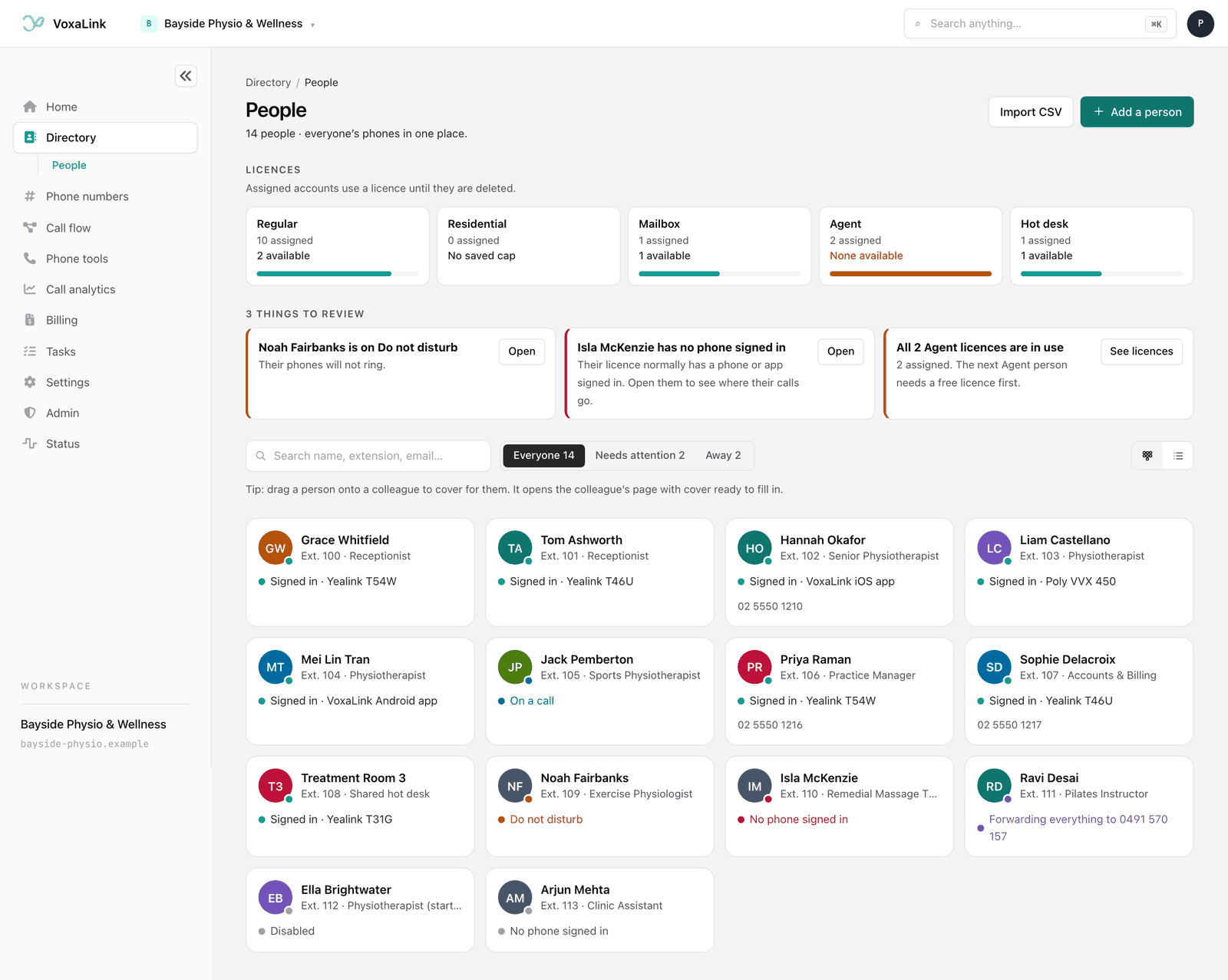
The page opens with a count of your people and two buttons at the top right: Import CSV and Add a person. Below that are three parts: your licences, the things that need a look, and everyone's tiles.
Licences
Every person uses a licence, and the licence type decides what kind of account they are. The Licences strip shows one card per type, with how many are assigned and how many are left. An account keeps using its licence until you delete it.
| Type | What it is for |
|---|---|
| Regular | A standard user with a desk phone, the app, or both, plus voicemail. Most of your staff. |
| Residential | A lighter account for a simple phone, with fewer features. |
| Mailbox | A voicemail box with no phone. Callers can leave a message and nothing rings. |
| Agent | A seat for someone whose job is answering call queue calls. |
| Hot desk | A shared-desk profile. The person signs in at any phone and their calls follow them there. |
Under each card you'll see one of these:
- N available means you can add that many more people of this type.
- None available means every licence of this type is in use.
- None on your plan means your plan has none of this type.
- No saved cap means no limit has been set for this type.
If a type is full, free a licence by deleting an account you no longer need or by moving someone to a different type. To get more licences, ask your service provider. You can't change the allocation yourself.
Things to review
Under the licences, VoxaLink lists anything that might stop calls reaching people. The heading counts the issues, for example 3 things to review. Each card has an Open button that takes you to the person, or See licences for a licence problem. You might see:
- Mia has no phone signed in. A Regular or Residential account normally has a desk phone or the app signed in. Open the person to see where their calls go instead.
- Sam is on Do not disturb. Their phones won't ring.
- Couldn't read Sam's settings. VoxaLink couldn't check this person. Open them to look.
- All 4 Hot desk licences are in use, or No Agent licences on your plan when someone already has that type.
Mailbox, Agent and Hot desk accounts with nothing signed in aren't flagged, because they usually don't need a phone of their own.
When nothing needs attention, a green line says that nobody is on Do not disturb and everyone whose licence normally has a phone has one signed in.
Finding someone
Type in Search name, extension, email… to narrow the list. The search also matches job titles and direct numbers, and typing "shared" finds your shared deskphones. Three filters sit beside it, each with a count:
- Everyone shows all your people, for example Everyone 12.
- Needs attention shows only people with something under Things to review. Its count is people, not issues, so it can read Needs attention 1 while the heading above says 3 things.
- Away shows people on Do not disturb or forwarding all their calls.
At the far right, two small icon buttons switch the view. The first is Board view, which shows everyone as tiles. The second is Table view, which shows a list with Person, Extension, Direct number and Status columns. They have no text label, so hover over one to see its name. Click a tile or a name to open that person.
What a tile tells you
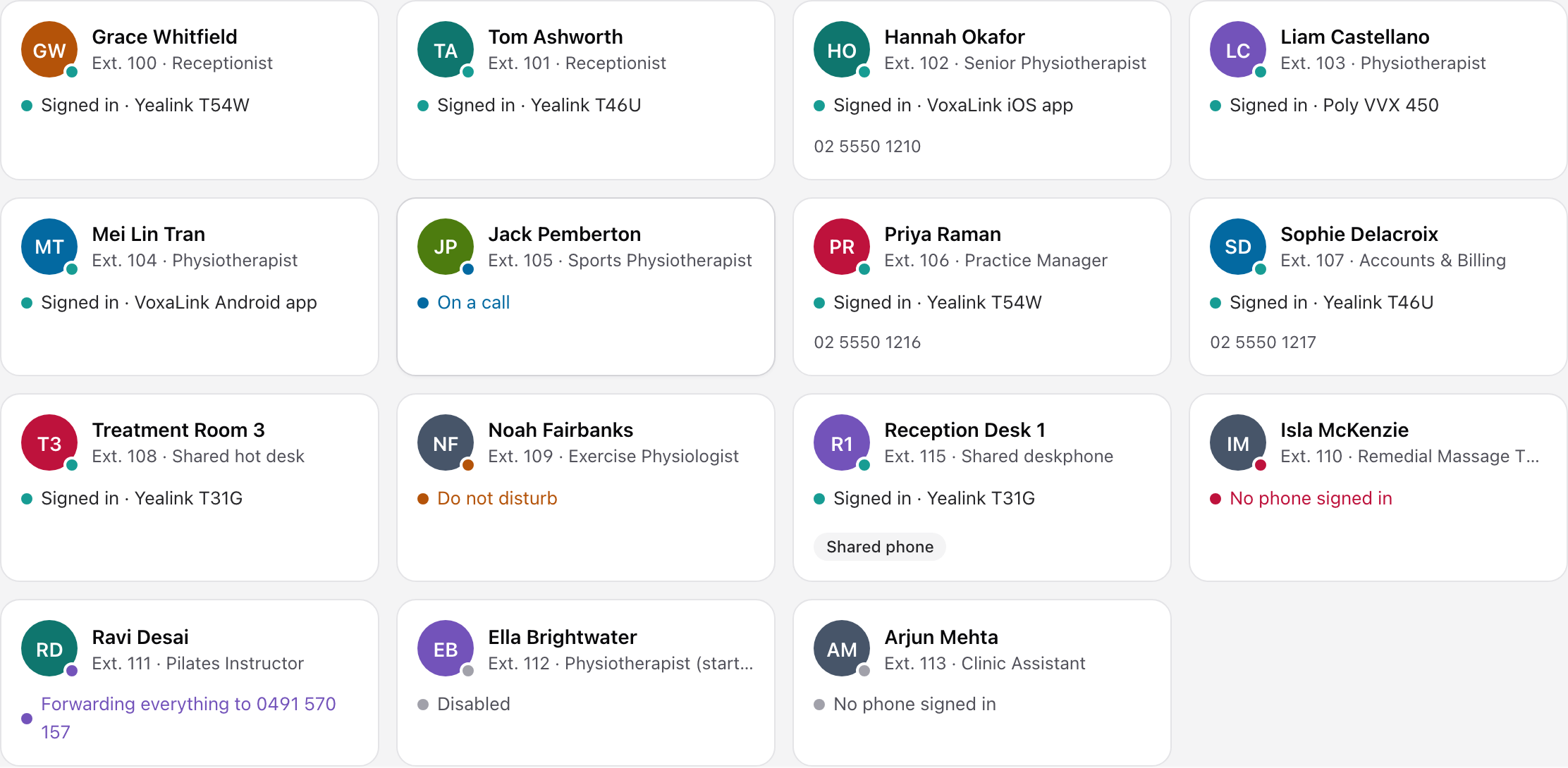
Each tile shows the person's initials, name, extension, job title and direct number, with a coloured dot and a line of status:
- Signed in means a phone or the app is connected. If it's a desk phone, the make and model follow.
- On a call means they are talking right now.
- Do not disturb means their phones won't ring.
- Forwarding everything to a number or colleague means every call goes there instead.
- No phone signed in means nothing is connected. The dot is red when their licence normally has a phone.
- Disabled means the account is switched off.
A shared deskphone has a small Shared phone label on its tile, and in the Status column of the table view. It shows the same status lines as a person. No phone signed in still applies, because a shared deskphone should have its desk phone signed in.
Covering for a colleague
You can drag one person's tile onto a colleague's. If Sam is going to cover for Mia, drag Sam onto Mia. Mia's page opens with the cover dialog ready, and nothing changes until you choose how and save. Setting up cover explains the choices.
Adding a person
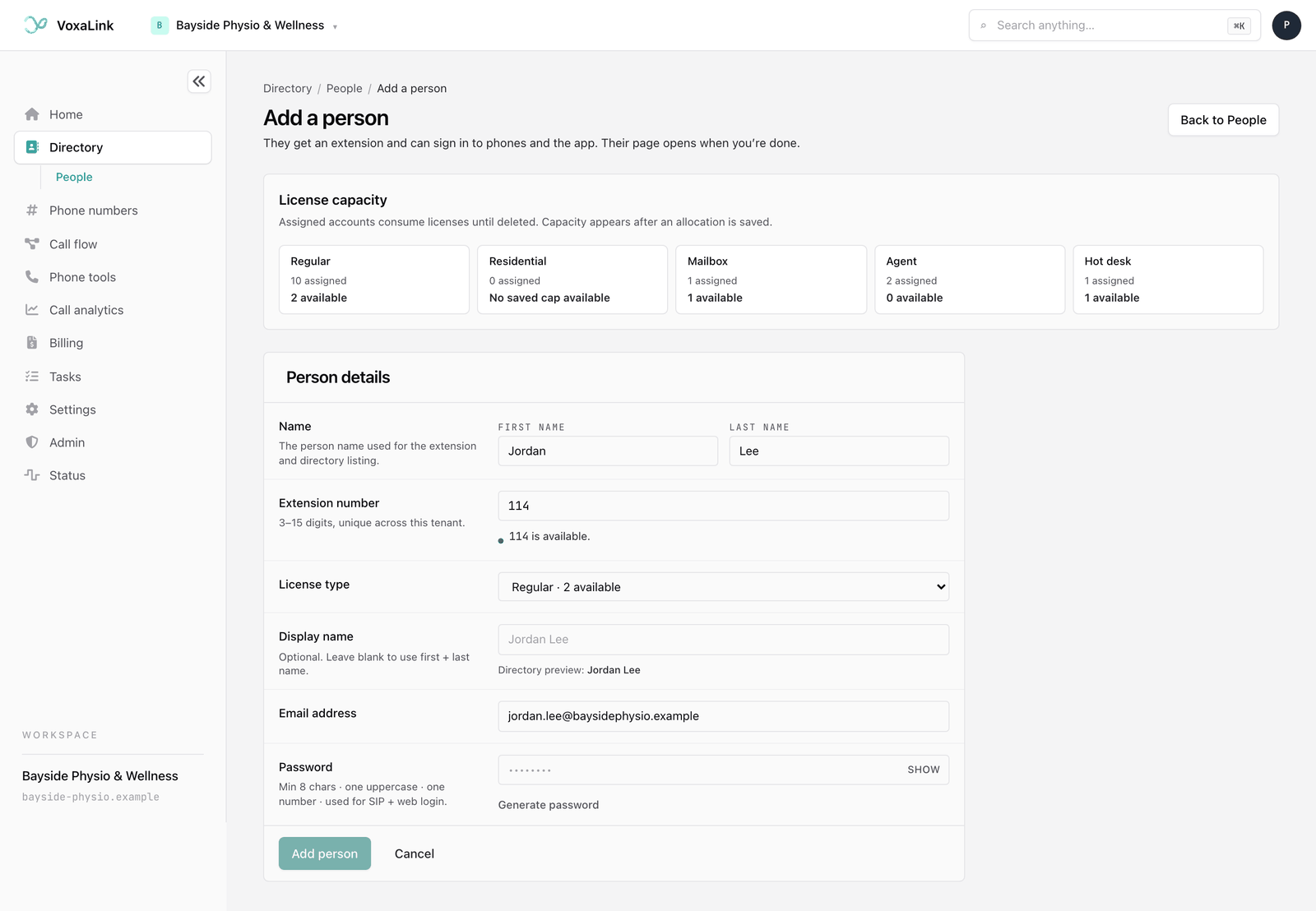
Click Add a person. A short form opens, with your licence counts above it. The button is greyed out when every licence type is full. The subtitle reads: "Add a person who signs in with their own email, or a shared deskphone like reception that only gets voicemail emails. The new page opens when you're done."
Fill in:
-
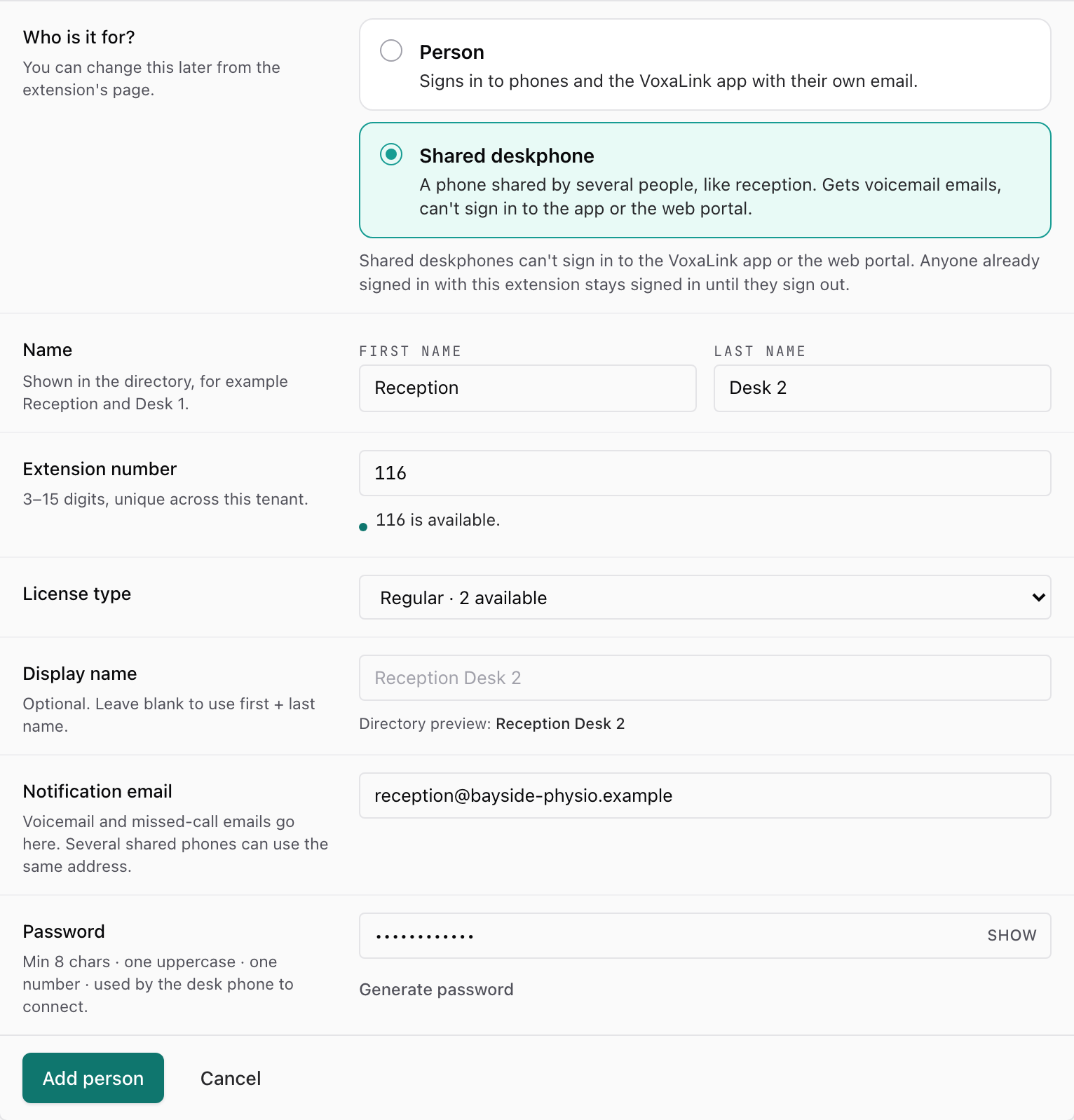
Who is it for? Pick one of two cards. Person is selected to start with.
- Person is for someone who "Signs in to phones and the VoxaLink app with their own email".
- Shared deskphone is "A phone shared by several people, like reception. Gets voicemail emails, can't sign in to the app or the web portal."
Choosing Shared deskphone changes the form a little. The email box becomes Notification email, with the hint "Voicemail and missed-call emails go here. Several shared phones can use the same address." The name boxes suggest "Reception" and "Desk 1", and the password hint says the desk phone uses the password to connect.
-
First name and Last name.
-
Extension number, 3 to 15 digits. As you type, the form tells you whether the number is free, for example "114 is available.", or which account already uses it.
-
License type. Each choice shows how many are left. If the type you pick is full, the form says so and won't let you continue.
-
Display name is optional. Leave it blank to use their first and last name in the directory.
-
Email address. This is where their welcome email goes. For a shared deskphone this is the Notification email instead, and you can use the same address on as many shared phones as you like. Every person still needs their own email.
-
Password, used for their phones, the app and their own web sign-in. It needs at least 8 characters, one uppercase letter and one number. Generate password fills in a strong one and shows it so you can copy it. Show and Hide toggle what you've typed. For a shared deskphone the password is only what the desk phone uses to connect.
Click Add person. Their page opens so you can set up the rest. If welcome emails are switched on for your workspace, VoxaLink emails a person their sign-in details. If that email couldn't be sent, a yellow note at the top of their page tells you, so you can pass the details on another way. A shared deskphone gets no welcome email.
Importing people from a spreadsheet
Import CSV opens Import people, which creates up to 50 people from a CSV file in one go. A CSV is a plain spreadsheet file; Excel and Google Sheets can both save one. VoxaLink checks every row before it creates anyone, and you can fix mistakes on screen.
1. Upload CSV
Click Download template for a file with the right headings. The first row must have these column names:
first_name,last_name,extension,email,license,display,password,kind
The kind column is optional. A file without it, ending at password, still works, and every row is a person.
| Column | Required | What to put |
|---|---|---|
| first_name | Yes | Their first name. |
| last_name | Yes | Their last name. |
| extension | Yes | 3 to 15 digits. In Excel, set this column to Text before typing so a leading zero isn't dropped. |
| Yes | Each person needs a different email. Shared deskphones can repeat an email, and can use an address that already exists. | |
| license | No | A number from 1 to 5, listed below. Leave it blank for Regular. |
| display | No | A directory name, if you want something other than their first and last name. |
| password | No | Same rules as Add a person. Leave it blank and VoxaLink generates one. |
| kind | No | person or shared. Leave it blank for a person. Use shared for a shared deskphone. |
The template has one example shared row: Reception, Desk 1, extension 102, reception@example.com.
The licence numbers are shown on the upload screen too:
license | Type |
|---|---|
| 1 | Regular |
| 2 | Residential |
| 3 | Mailbox |
| 4 | Agent |
| 5 | Hot desk |
2. Review
Your rows appear in a grid with a status for each:
- Ready rows will be created. A shared row says "Ready to create as a shared deskphone."
- Invalid rows have a mistake, marked in red under the cell. Fix it in the grid and the row is checked again.
- Collision means the extension or email already belongs to someone. Shared rows don't collide on email, only on extension.
- Skipped means there aren't enough licences of that type. If you have five Regular licences left and six Regular rows, the sixth is skipped until you change its type or free a licence.
The grid has a kind column for each row. You can change it between "person" and "shared (deskphone)" in the grid, and the row is checked again. A shared row with no password gets one generated that nobody sees. The hint beside it says to set a password on the phone's page when you connect the desk phone.
If welcome emails are switched off and any row has no password, tick the box confirming that those people won't get an email. You can switch welcome emails on later and resend.
Click Confirm · create N ready people. Only Ready rows are created, one at a time. If you close the tab, the import stops after the person it's working on.
3. Results
The results list each row: created, created with warnings, failed or not attempted. Open to finish appears for anyone whose account was made but whose settings didn't save. Passwords are never shown here. Importing the same file twice doesn't create people twice, because their extensions and emails already exist.
A person's page
Click anyone on the board to open their page. It's one long page arranged by task, with a list of sections down the left so you can jump straight to one.
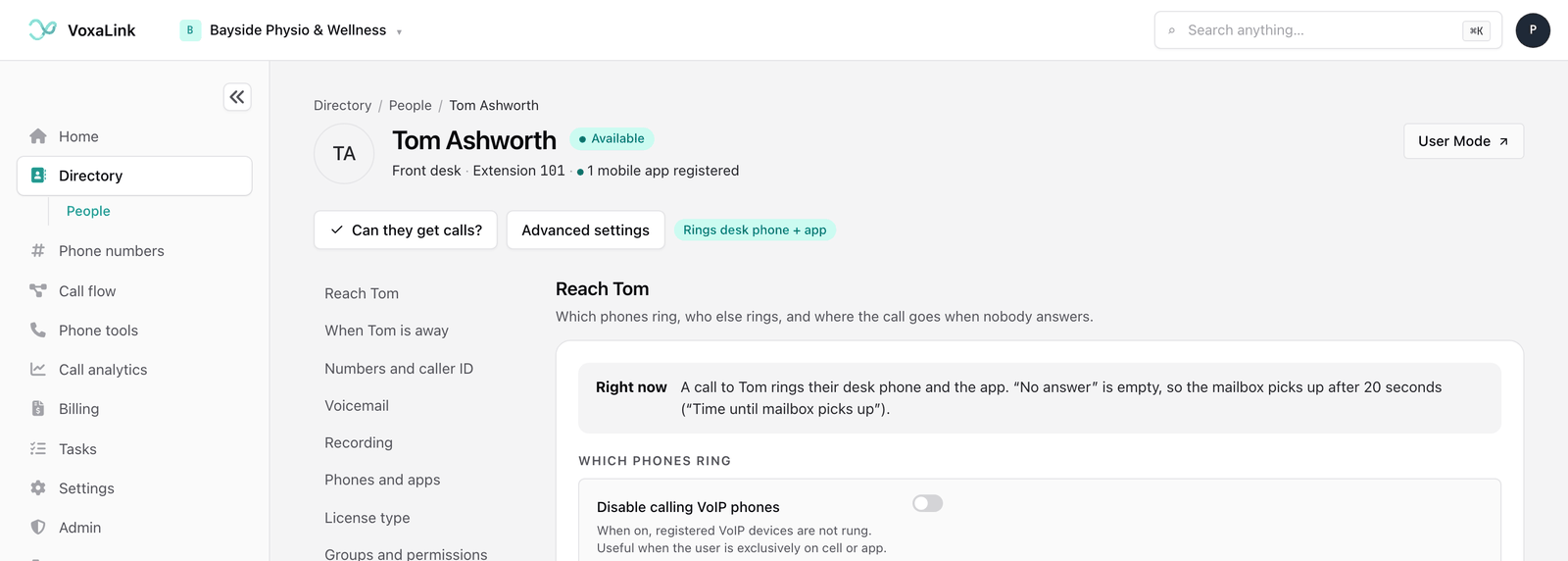
The top of the page
The breadcrumb reads Directory People followed by their name, so you can step back to the board. Under it you'll see their name, their extension, and a status badge:
- Available means at least one phone or app is registered. Offline means none is.
- Next to it, a line such as "1 phone · 1 mobile app registered · last active 5m ago". A registration is a phone or app that has connected to this extension.
User Mode, at the top right, opens this person's own web phone view in a new tab, signed in as them. Use it to see what they see, or to set something up on their behalf. It needs their current password to be stored. If it isn't, a red note under the button asks you to set a password first. If the stored one is out of date, the note asks you to update the password. Either way, set a new password in Details, save, and try again.
Below the header are two buttons and a badge:
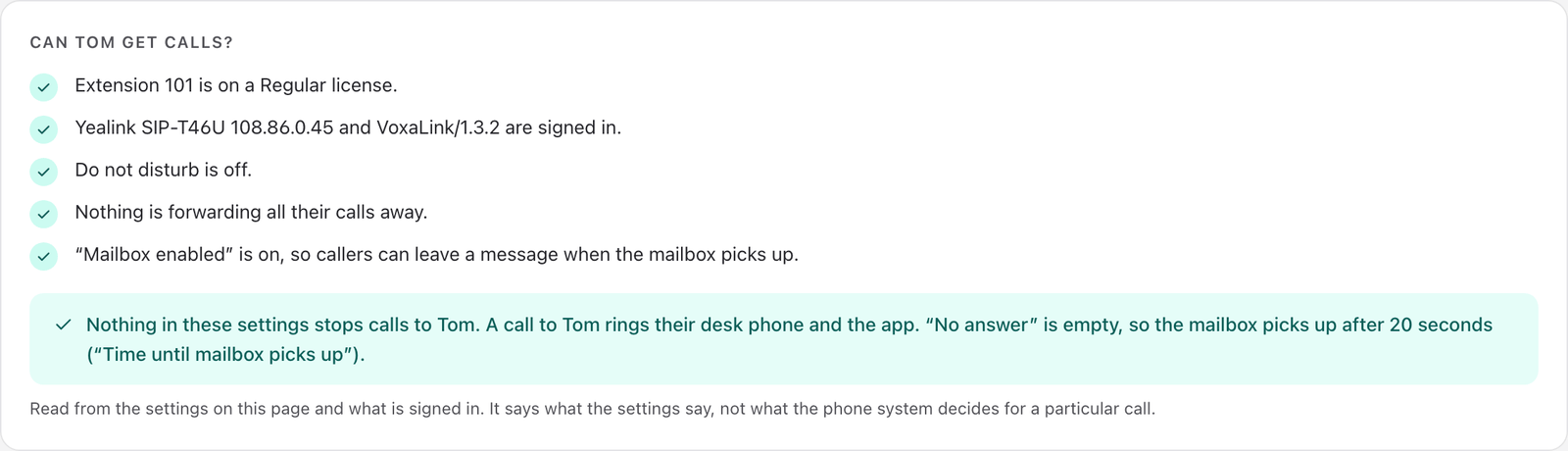
- Can they get calls? runs a quick check. Each line gets a tick, a cross or a warning: their licence, whether a phone or app is signed in, whether Do not disturb is on, whether all calls are forwarded away, whether their mailbox is on, and whether they have a caller ID. Some lines have a fix button: Turn it off for Do not disturb, Stop forwarding, or Go to Phones and apps. A fix only changes the form, so nothing happens until you save. The check reads the settings on the page. It can't predict what happens on one particular call. Click Hide the check to close it.
- Advanced settings opens the less common settings. See Advanced settings.
- The badge sums up where their calls go now, such as Rings desk phone + app, Do not disturb or No phone signed in.
The sections below appear in this order for most people. A Mailbox account starts with Voicemail, because that's all it does.
Reach
The first section is titled with their first name, such as Reach Mia. It covers which phones ring, who else rings, and where the call goes when nobody answers.
At the top, Right now describes in a sentence what happens when someone calls this person, for example that the call rings their desk phone and the app, and goes to voicemail after 20 seconds. It updates as you edit, and says Right now, with your unsaved changes until you save. When the sentence can't tell which of two settings wins, it says so.
Which phones ring
- Disable calling VoIP phones stops their desk phones ringing. Use it for someone who only works from the app or a mobile.
- Disable calling the app stops the VoxaLink app ringing.
- Disable calling mobile phone numbers stops calls going through to their mobile.
- Mobile phone numbers holds their mobile numbers, separated by spaces.
- When calling the extension directly decides whether their mobile rings too, and after how many seconds.
Who else rings
- Also ring these extensions when called rings colleagues at the same time.
- Condition for including other extensions is Always, or When extension is in a call so colleagues only ring while this person is busy.
When Mia can't answer
- No answer timeout is how long to ring before the No answer setting takes over.
- No answer is where the call goes when nobody picks up.
- When busy is where new calls go while they are on a call.
- Not registered is where calls go when no phone or app is signed in.
- Enable call waiting lets a second call beep through during a call: Yes, Only for external calls, Only for internal calls or No.
Setting up cover
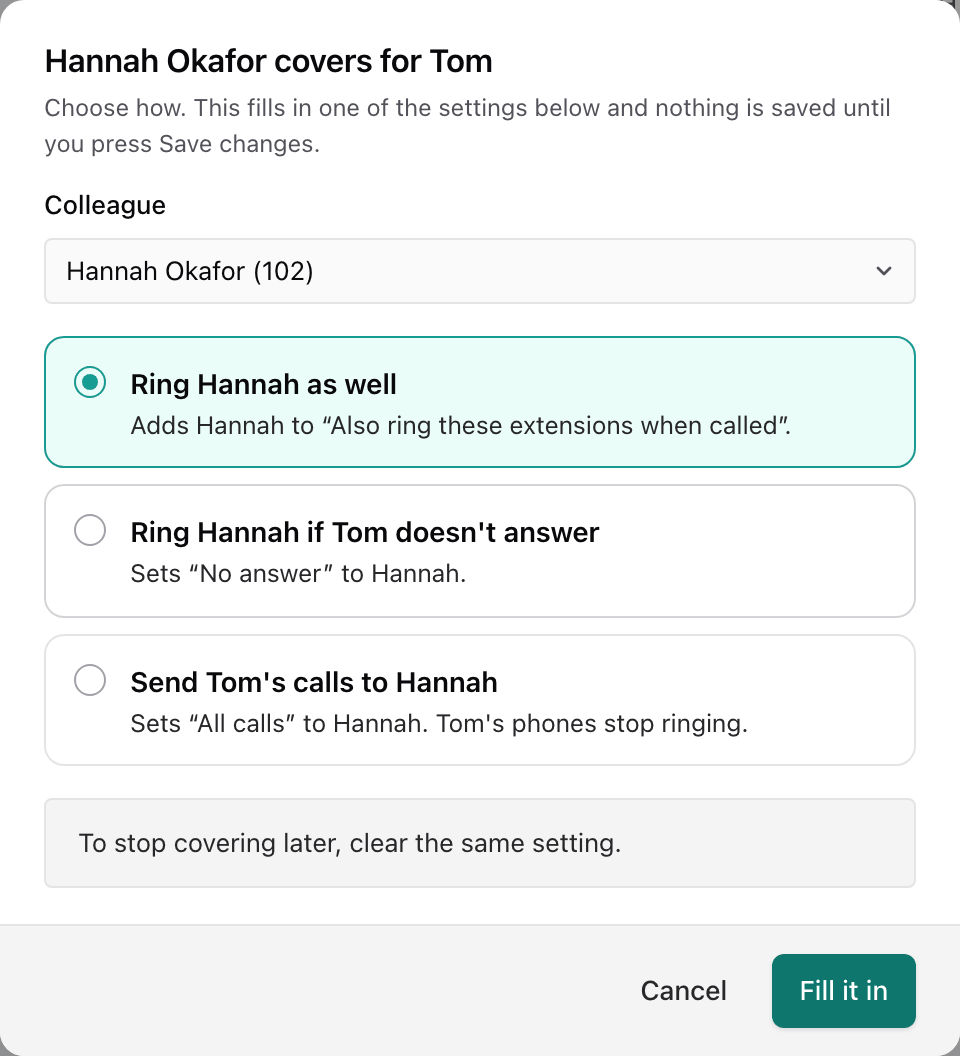
Set up cover… at the bottom of the Reach section opens Who covers for Mia? Pick a colleague, then choose how they cover:
- Ring Sam as well adds Sam to Also ring these extensions when called.
- Ring Sam if Mia doesn't answer sets No answer to Sam.
- Send Mia's calls to Sam sets All calls to Sam, and Mia's phones stop ringing.
Each choice tells you what it replaces. Click Fill it in to put it on the form, then Save changes. To stop the cover later, clear the same setting.
When they're away
This section is titled with their name, such as When Mia is away.
Do not disturb
- Do not disturb stops their phones ringing.
- Reason for DND shows a reason on their status, such as Break, Meeting or Vacation.
- Default duration for DND switches it off automatically after a set time, from 1 minute up to 24 hours or For the rest of the day. No automatic reset leaves it on until someone turns it off.
- Forward calls when DND to sends calls to a colleague, group or number while Do not disturb is on. Leave it empty and callers go to voicemail.
Forward everything
- All calls sends every call straight to another extension or number. Their phones don't ring at all.
Numbers and caller ID
The numbers people see when this person calls or texts, and what they're allowed to dial.
Calls
- Caller ID lists the numbers they may show when they call out. If none is set, calls use your workspace default.
- Caller ID for emergency calls is the one number shown when they call emergency services. Make sure it matches where they work.
- Block outgoing caller-ID hides their number on outgoing calls.
- Dial plan sets the rules for their outgoing calls. Leave it on the default unless you have a reason to change it. See Dial plans.
Text messages
- SMS numbers are the text-capable numbers that belong to this person. Texts to these numbers arrive with them.
- Send text messages as picks which of those numbers their texts come from. It takes one number.
Voicemail
When the mailbox answers and where messages go.
Mailbox
- Mailbox enabled is Enabled, Disabled or FAX. FAX turns the extension into a fax receiver instead of a voicemail box.
- Time until mailbox picks up is how long a call rings before voicemail answers.
- Email addresses for extension receives all of this person's email notifications. Separate several addresses with semicolons.
- Send a mailbox message by email: Do not send an email, Send email without attachment, or Send message as attachment to email.
- After sending a message: Keep message as new message, Mark message as read, or Delete the message.
- Send email on missed calls sends an email whenever a call goes unanswered.
Two panels open below:
- Greetings and messages chooses which recording plays in each situation: Greeting 1 to Greeting 5, Greeting when on do not disturb, Greeting when in another call, Greeting when out of office hours, and how their name is announced in the mailbox and in auto attendants. For each greeting you can type text to be spoken, upload an audio file, or use Generate with AI. A star code next to each slot lets them record it from their own phone.
- Stored voicemails lists their messages with the caller, time and length. You can play, download, email or delete each one.
Greetings save on their own The greeting panels have their own Save prompts and Save audio buttons, which apply straight away. They aren't part of Save changes at the bottom of the page.
Recording
Which of this person's calls are recorded, and transcribed where your workspace allows it. There's a setting for Incoming calls to extension, Outgoing calls to internal numbers, Outgoing calls to external numbers and Outgoing calls to emergency numbers. Email address for sending recorded calls emails each recording after the call ends.
Phones and apps
What is signed in for this person, and how to sign in a new phone or the app. A shared deskphone has no app or web sign-in, so its block looks different. See Shared deskphones.
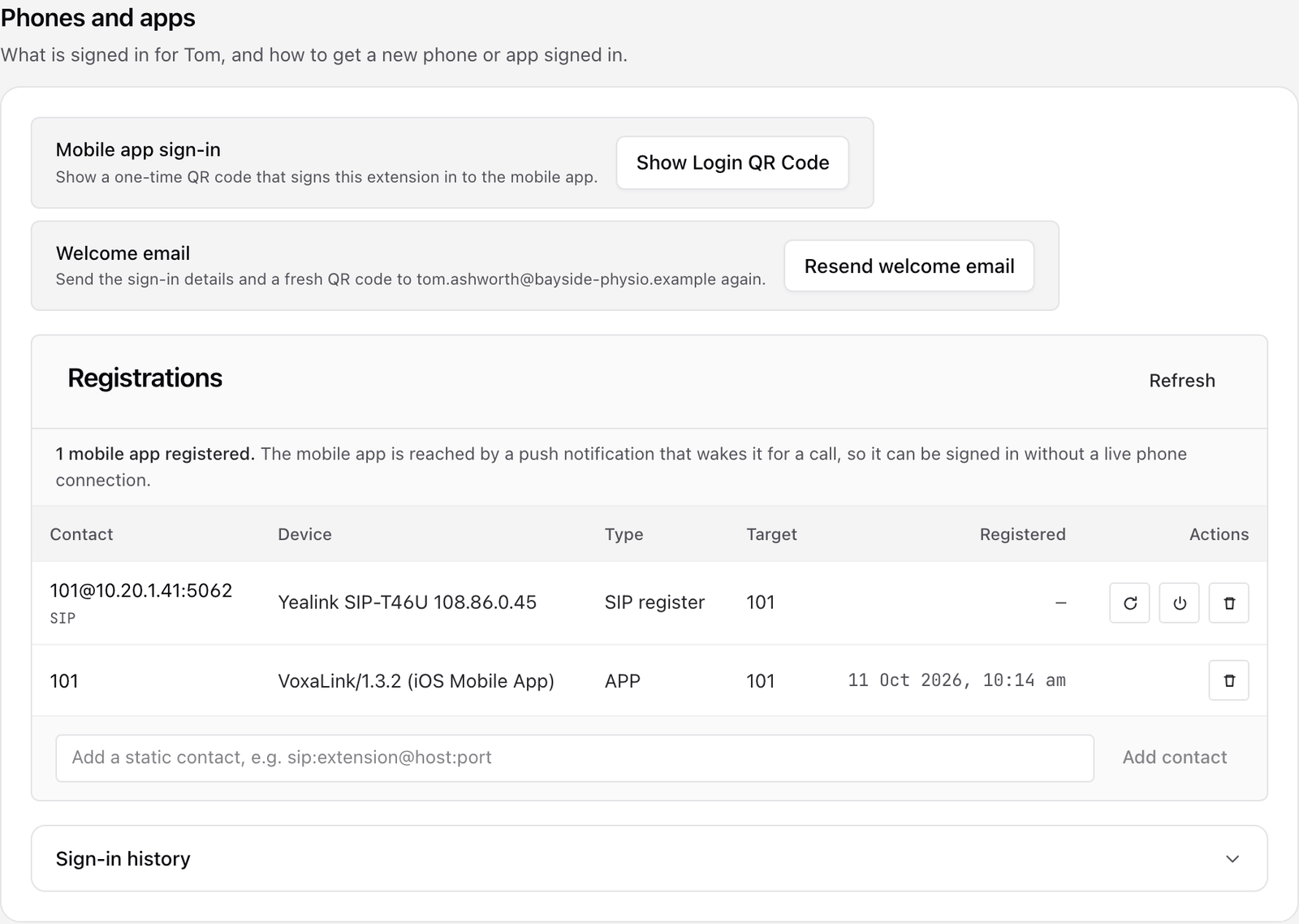
For a person, the block has these parts:
- Mobile app sign-in has a Show Login QR Code button. Scan the code with the VoxaLink app to sign it in as this person. The code works once, expires after a short time, and the app asks for their password.
- Welcome email has a Resend welcome email button. It asks you to confirm, then sends their sign-in details and a fresh QR code to their email address.
- Registrations lists every phone and app connected to this extension, with its device name, type, and when it registered. Refresh updates the list. For desk phones there are buttons to resync the phone's settings or reboot it. To see what a phone has downloaded from VoxaLink, open it in Devices. The bin removes a registration; click it twice to confirm.
- Sign-in history shows past connections and disconnections. It's the place to look when a phone keeps dropping off.
For a person there is also a quiet link, Make this a shared deskphone…, for a phone several people share, like reception.
For a shared deskphone, the sign-in and welcome email cards are replaced by one line: "Shared deskphone — no app or web sign-in. Voicemail and missed-call emails go to" followed by its notification email. The registrations list and sign-in history work the same way, and a link, Change to a person…, turns it back into a person.
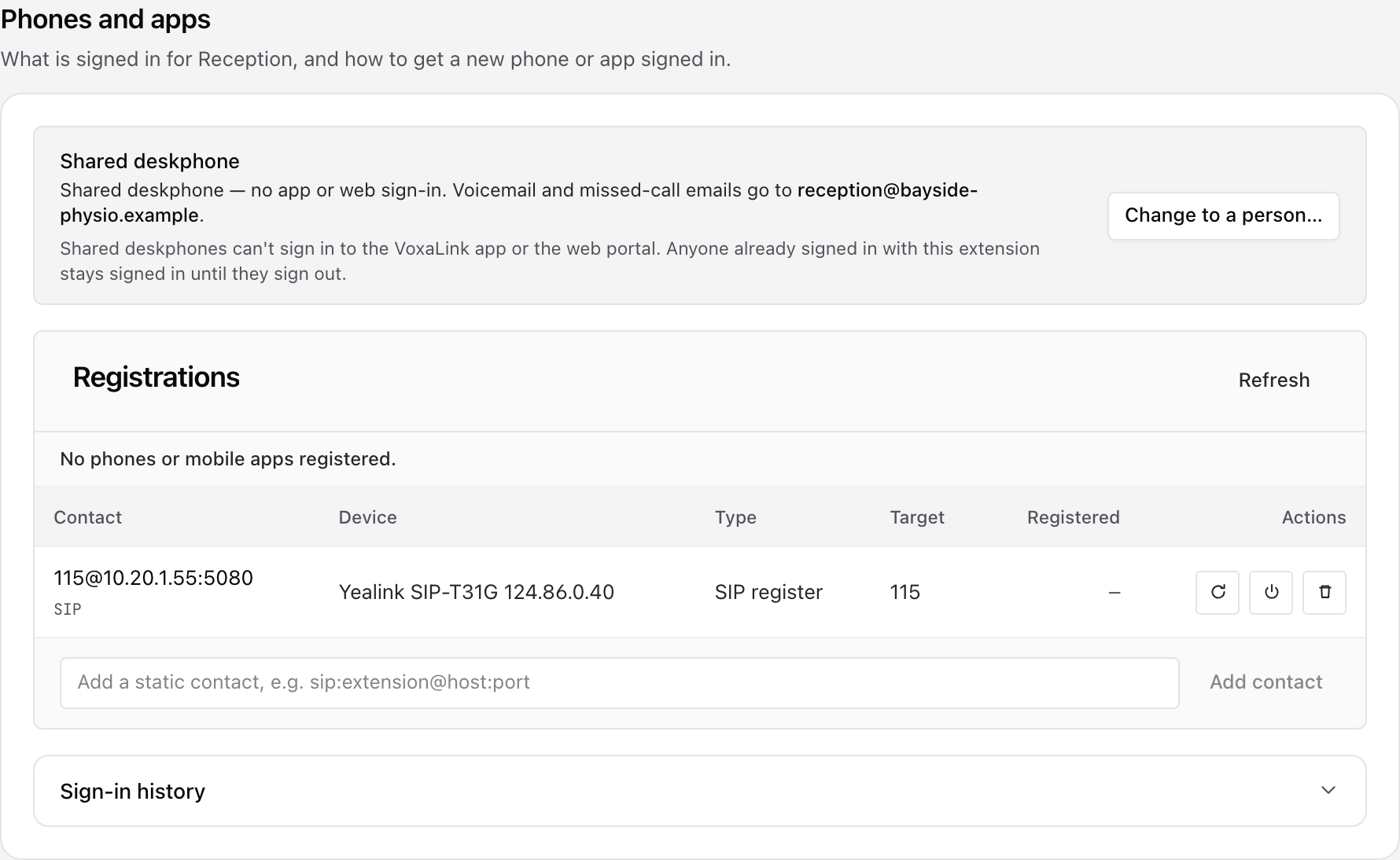
Above the table, a line counts what's registered, for example "1 phone · 1 mobile app registered." This is the same count as the header. The app can count as registered even when it isn't connected right now. A notification wakes it when a call arrives, so it still rings. When VoxaLink can't tell whether two app entries are the same device, it says "at least" and explains why. If nothing is connected you'll see "No active registrations."
License type
The licence this person uses. Each type is a card showing how many are assigned and how many are free, and their current type is marked current. A type with none free is greyed out, with the reason. Changing type takes effect when you save, and it counts against your licences like adding a person does.
Groups and permissions
Groups decide what this person is allowed to do, such as listening in on calls or managing call queues. Each group they belong to is listed with its priority and the permissions it gives them. When two groups disagree, the one with the higher priority wins.
You add people to groups in Settings, then Groups. See Settings. Removing someone from a group here asks you first, then takes effect straight away.
Details
- First name and Last name appear on internal and external calls.
- Short name is a compact label for small screens, such as the keys on a desk phone.
- Account number(s) are the numbers that reach this person. The first is their extension.
- Timezone sets the time used for their voicemail and anything else time-related. It can follow your workspace setting.
- IVR language is the language of the system's spoken prompts and their desk phone's display.
- Password is used for their phones and their web sign-in. They can't reuse an old one. On a shared deskphone it is only the desk phone's connection password.
- PIN is 3 to 6 digits, for checking voicemail from another phone and for hot-desking.
Profile picture opens below, where you can add or change their photo.
Buttons and graphs
Two views aren't on this page. Links at the bottom open them: Buttons sets up the programmable keys on their desk phone, and Graphs shows their call and registration activity over the last day. Buttons stays empty until a desk phone is set up for this person. See Devices.
Shared deskphones
A shared deskphone is a physical phone that several people use, like reception, a treatment room or a workshop. Nobody owns it, so it doesn't need a login of its own.
It keeps everything else a person has on the phone system: its extension, the desk phone, its licence, voicemail, call routing, and its place in ring groups and call queues. You set those up on its page the same way you would for a person.
What is different
- It needs a notification email. Voicemail and missed-call emails go there. Several shared phones can use the same address, so six reception phones can share one inbox. The address can also be a person's own login email. A person's email still has to be different from every other person's.
- It can't sign in. Shared deskphones can't sign in to the VoxaLink app or the web portal. Anyone already signed in with this extension stays signed in until they sign out.
- It gets no welcome email and no sign-in QR code. Its Phones and apps block shows a note instead. See Phones and apps.
- Its password only connects the desk phone. Set it on the phone's page and enter it on the handset.
Anyone who can open the notification inbox can hear every voicemail left on the phone, so point it at an inbox the business trusts. A shared reception inbox is the usual choice.
Make a person a shared deskphone
Do this when an extension that was set up for a person is really a phone the team shares.
- Open the person and go to Phones and apps.
- Click Make this a shared deskphone….
- Read the box titled Make this a shared deskphone? It says that the app and web portal sign-in are removed and the stored login is deleted. It also says that the extension, desk phone, licence, voicemail and call routing stay, and that voicemail and missed-call emails go to the person's saved email. It repeats the sign-in rule above.
- Click Make shared deskphone. The block now says "Now a shared deskphone."
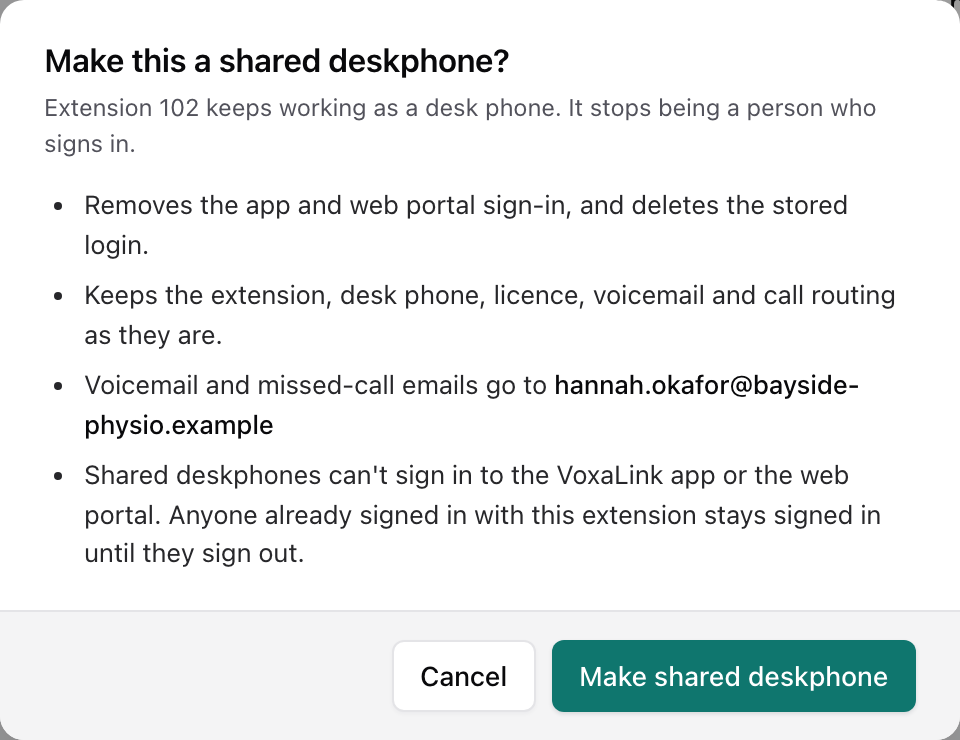
If the person has no saved email, the box tells you to add one in the page's settings and save first, and the button stays greyed out. Come back once the email is saved.
Change a shared deskphone back into a person
- Open the shared deskphone and go to Phones and apps.
- Click Change to a person…. The box is titled Change to a person?
- Enter a Login email. It must be a valid address that no other person uses. Voicemail emails go there too.
- Enter a Password with at least 8 characters, one uppercase letter and one number, or click Generate password. The desk phone's own password doesn't change.
- Click Change to a person. The block now says "Now a person. They can sign in with the email and password you set." If welcome emails are on for your workspace, VoxaLink sends them the sign-in details.
If the change doesn't go through
Changing kind is always its own confirmed step. It is never part of Save changes. You may see one of these messages:
- "That email is already used by another login. Use a different email address." Pick another address.
- "This extension is already being changed. Wait a moment, then try again."
- "The phone system didn't confirm the change. Nothing was changed on the portal; try again."
Advanced settings
Everything less common lives in Advanced settings, which opens from the button at the top of the page or the link at the end of the section list. Settings already on the person's page aren't repeated here.
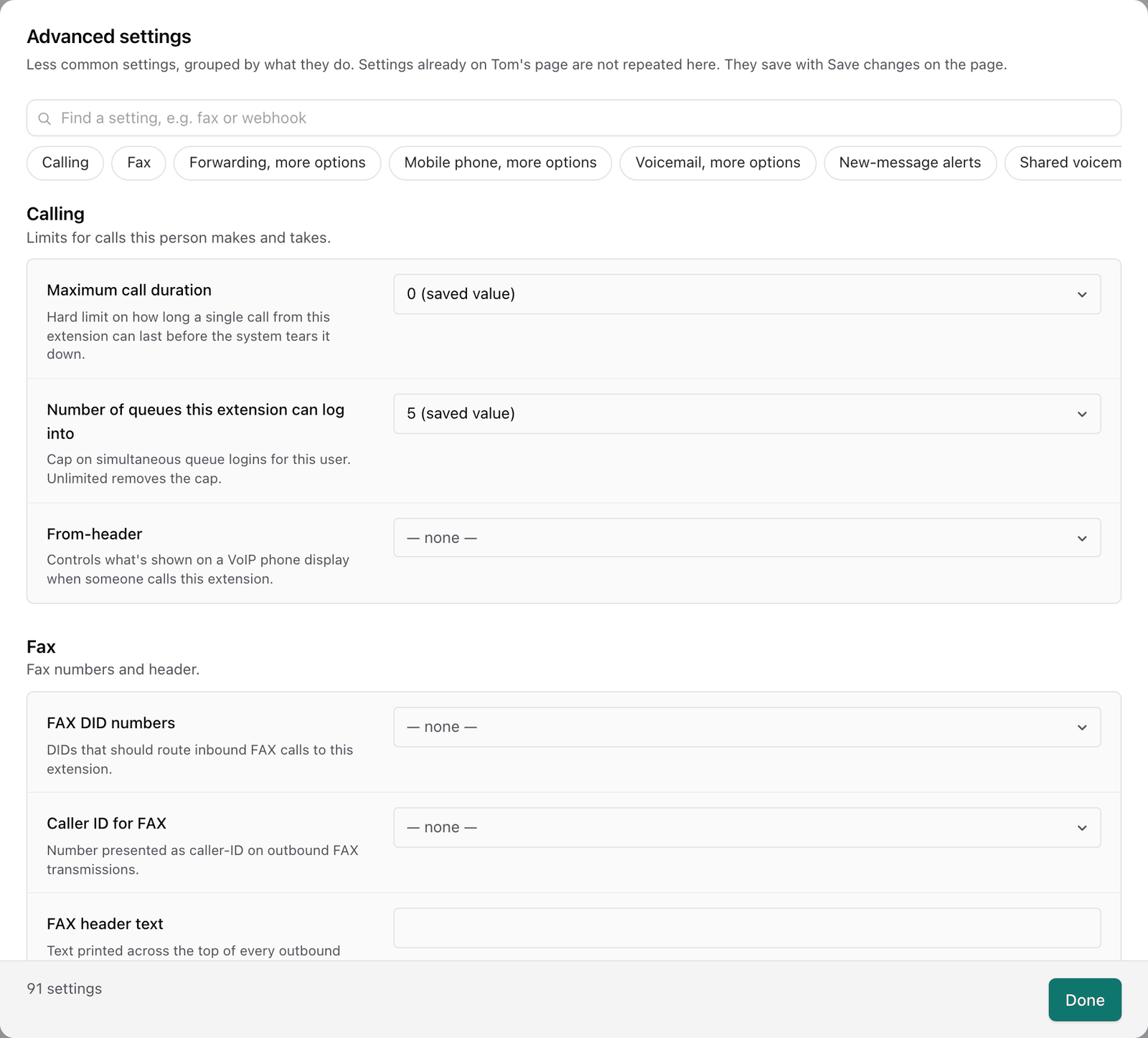
Type in Find a setting to filter the list, for example "fax" or "webhook". The row of section names under it jumps to a section. The footer counts the settings shown and any unsaved changes. Done closes the dialog. Your edits here save with Save changes on the page, so close the dialog and save.
Calling
- Maximum call duration ends any call from this person after a set time.
- Number of queues this extension can log into limits how many call queues they can join at once. Unlimited removes the limit.
- From-header decides what a desk phone shows when someone calls this person, such as the caller's number or the group name.
Fax
FAX DID numbers are the numbers that send faxes to this person. Caller ID for FAX is the number their outgoing faxes show. FAX header text prints across the top of each page they send. The two T.38 settings control fax handling and are best left on Default.
Forwarding, more options
- Hot Desking at sends their calls to another extension while they're working at that desk.
- Call forward to group hands their calls to a ring group.
- Disconnect call with busy when extension is busy gives callers a busy tone instead of forwarding them while this person is on a call.
- Forward destinations limits where the person can forward their own calls from the app or their portal. Disabled stops them setting forwards at all. Allowed extensions lists the choices when it's set to Select extensions to show.
Mobile phone, more options
- Mobile phone numbers (inbound only) are numbers that count as this person when they call in, but are never called.
- Numbers that will never get to the mobile phone and Numbers that will always ring the mobile phone filter which callers go through to their mobile.
- When calling the extension in a ring group, When calling the extension in a Call Queue and Include mobile phone for web callback decide whether their mobile rings in those cases: Don't call cell phone, Include cell phone, or Only when extension is unregistered.
- Specify time when system calls the mobile phone limits their mobile to set hours on each day.
- Offer special menu when call is answered on mobile plays a short menu so they can accept or decline before the call connects.
- Don't offer personal virtual assistant when this mobile calls in and Send text messages to mobile phone cover calls and texts from their own mobile.
Voicemail, more options
- Maximum number of messages caps the mailbox. 0 plays the greeting without recording anything.
- Send warning when mailbox gets full emails a warning at a fill level you choose.
- Automatic deletion of messages sets how long messages are kept.
- Mailbox explanation prompt decides whether "leave a message after the tone" plays after their own greeting.
- Play envelope information before playing the mailbox message reads out who called and when before each message.
- Offer calling cell phone when entering user's mailbox lets callers press a key to try their mobile first.
New-message alerts
- Call cell phone when new message arrives rings their mobile about a new message, with Attempts to call cell phone and Duration between attempts.
- Call supervisor when message was not retrieved calls a supervisor if a message sits unheard for the time you pick. You can set up to five supervisors in turn, each with its number of attempts and the wait between them. It suits mailboxes where a missed message matters.
Shared voicemail
- Mailbox escape account is where callers go if they press 0 during the greeting.
- Allow access to agents of Call Queues and ring groups lets those teams read this mailbox.
- Copy new messages into the following mailboxes sends a copy of every message to other people, which suits a shared inbox.
- Make messages available in the following mailboxes lets others read the messages without copying them.
- When message is read, delete copies removes the copies once one is dealt with.
Email notifications
- Send email at the end of every call emails a summary after each call.
- Send email on status changes emails when a phone connects or disconnects.
- Send email when mailbox is full and Send email if the call was rejected because of blacklisted number cover those two events.
- Send daily CDR report to and Send daily CDR report at email a daily list of their calls. CDR stands for call detail record, which is one line per call.
Sounds
- Direct to ext, Call transfer and Include additional ext pick a different ringtone for each kind of call, so they can tell by ear.
- Ringback source is what callers hear while this person's phone rings.
- Ringback when busy is what callers hear when this person is on another call.
- Music on hold source replaces your workspace's hold music for this person's calls.
Pickup, park and address book
- Explicitly specify pickup preference chooses whose ringing calls this person can pick up.
- Explicitly specify park orbit preference chooses which parked calls they can pick up. See Park orbits.
- Address book visibility and Include accounts in the phone address book decide who appears in their phone's address book.
Phones and registration
Technical settings for desk phones and apps. Leave them alone unless your installer asks.
- Lines is how many calls the extension can handle at once. 0 uses the phone's own default.
- Max. number of concurrent registrations per extension limits how many devices can sign in at once.
- Off hook dial dials a number as soon as the handset is lifted, which suits a lobby phone.
- General codec preference and Codec preference for mobile apps set the audio formats offered for calls.
- Enable multiple mobile phone registrations lets the app run on more than one device, such as a phone and a tablet.
- Log registration changes records phone connections, or emails them to you or the person.
The app
Extensions to show, User will see calls of all users, Start new calls and Content for the home screen decide what the VoxaLink app shows this person.
Webhooks
A webhook tells another system, such as your booking software, when something happens on this account. Add a web address next to any event you need: a call comes in, is answered or ends, Do not disturb is turned on or off, an emergency call is made, or a new voicemail arrives. Workspace-wide webhooks are in Admin.
Saving your changes
Changes on a person's page, including Advanced settings, aren't applied until you save. The bar at the bottom of the page has:
- Save changes, with a count of what you've changed. When the save finishes, a green note lists the settings it saved.
- Discard changes, which puts everything back to the last save.
- Unsaved changes, shown while you have edits waiting.
If you try to leave with unsaved edits, you're asked what to do: Save and exit, Exit without saving, or Cancel to stay.
Some actions don't wait for Save changes. Removing someone from a group, the greeting panels, resending the welcome email, the registration buttons, and changing a person to or from a shared deskphone all take effect when you click them.
Removing a person
The last section of a person's page is the Danger zone. It says Delete this person, explains that deleting removes the extension, its settings and voicemail, and any AI assistant set up on it, and warns that phones and apps signed in to it stop working. Click the red Delete person button.
A box titled Delete person? asks you to type the extension number to confirm, because deleting can't be undone. The Delete person button in the box stays greyed out until the number matches. Click Cancel if you change your mind. The person's licence is freed straight away, and you return to People.
Removing a shared deskphone works the same way.
Everyday tasks
- Add someone new. Click Add a person, fill in the form, then Add person. See Adding a person.
- Set up six reception phones with one inbox. Add the first with Shared deskphone and your reception email as the Notification email. Add the other five the same way with the same address, or list them all in an import with
sharedin thekindcolumn. See Shared deskphones. - Add a whole team. Use Import CSV. See Importing people from a spreadsheet.
- Find out why someone isn't getting calls. Open them and click Can they get calls? See The top of the page.
- Turn a person's extension into a shared phone. Open them, go to Phones and apps, and click Make this a shared deskphone…. See Make a person a shared deskphone.
- Get the app working on someone's phone. Open Phones and apps and click Show Login QR Code, or Resend welcome email.
- Have a colleague cover while someone's out. Drag the colleague's tile onto theirs, or use Set up cover…. See Setting up cover.
- Ring someone's mobile as well as their desk phone. In Reach, add the number under Mobile phone numbers and set When calling the extension directly.
- Stop someone's phone ringing for a while. Turn on Do not disturb, with a Default duration for DND so it switches itself off.
- Send voicemails to email. Under Voicemail, add the address and choose Send message as attachment to email.
- Share a mailbox with the front desk. In Advanced settings, use Shared voicemail.
- Make sure an unheard voicemail gets noticed. In Advanced settings, set Call supervisor when message was not retrieved.
- Free up a licence. Delete an account you no longer need, or change someone's License type.
- Decide what people can change in their own portal. Use Admin, then User page control. See Admin.
Next: Phone numbers, the outside numbers that bring calls to the people you've just set up.