
Settings
Tenant-wide defaults — identity, caller IDs, voicemail, music on hold, permission groups, and shared audio — that everything else inherits from.
Settings holds the tenant-wide defaults: the values an individual extension, queue, or auto attendant uses unless it overrides them. Set something here and it applies everywhere that has not been given its own value. It has a main General page plus a handful of focused sub-pages down the left.
General
The everyday tenant basics. It is one long page split into sections (jump between them with the on-page links).
Identity
- Name of this tenant — the descriptive name shown in system emails and the portal title bar.
- Default dial plan — the dial plan applied to outbound calls when an extension has not picked its own (Phone numbers).
- Timezone — used for schedules, CDR timestamps, and time-of-day routing across the tenant.
- Default location — the physical location applied to extensions without their own.
Language & locale
- Default IVR language — the language used for system prompts, the web UI, and dial tones.
- The country whose ringback, busy, and dial tones callers hear.
Music & ringback
- Music on hold source — the default audio played to callers on hold.
- Ringback source / Ringback when busy — what the caller hears while a destination rings, or when it is busy.
- Ring melodies — default melodies for direct calls, added extensions, and transfers.
Caller ID
- Default ANI — the caller ID presented outbound when an extension has none of its own.
- Extensions may use star code to change ANI — whether users can override their presented number.
- Trust caller-ID — treat inbound caller ID as authentication; enable only on a trusted trunk.
- From-header and P-Asserted-Identity — the SIP header formats used on outbound calls.
Emergency
- Caller ID for emergency calls — the number presented when an extension dials an emergency service.
- Paging account for emergency call notifications and the audio file played — so staff are alerted when someone places an emergency call.
FAX & SMS
- Caller ID for FAX and FAX header text burned into outgoing pages.
- Default number for interactive text messages and the number for automatic text messages — the sender numbers for two-way and one-way SMS.
Mobile phone schedule
- When the PBX may ring an extension's mobile phone, per day of the week.
- Show extension mobile phone numbers to users — whether mobiles appear in the directory.
Call handling
Tenant defaults for DND (default duration, maximum ring duration, classroom DND control/override), park reminder and transfer reminder timing, camp-on, and the attended transfer tone.
Calendars
Connect Google Calendar or Microsoft Outlook/365 accounts at the tenant level — once connected, voice agents can check availability and book into the calendars you choose, and service flags can pull holiday events from them. A connected account shows its email address, provider, and status (Connected, or Reconnect needed if access has expired) — use Refresh to re-list its calendars after adding one on the provider's side, or Disconnect to remove it (with a confirmation step, since anything using that connection will stop working). Connecting is a one-click OAuth sign-in with the provider; nothing else to configure here.
Google Contact
- Google contacts client ID and client secret — the OAuth credentials used for Google contacts sync.
Other
Less-common toggles shipped with new tenants — for example don't log calls to star codes and send a welcome email when an extension is created.
Address book
The tenant's shared address book — contacts that appear on extensions' phones and apps (alongside each extension's local entries). Whether a given extension shows these is controlled per person under General → Address book (Directory).
Voicemail
Tenant-wide voicemail defaults — the baseline every mailbox inherits unless the extension overrides it (Directory). Sections:
Mailbox sizing & retention
- Time until the mailbox picks up — default ring time before voicemail.
- Compress mailbox messages — GSM compression to save storage at a slight quality cost.
- Default message caps and retention.
PIN
The tenant PIN policy for voicemail access — length and rules for the codes users dial in with.
Behaviour
- Mailbox escape account — where callers go if they press 0 in a greeting.
- Mailbox direct dial prefix — a prefix that jumps straight to a mailbox without ringing through.
- Alternative numbers for reaching the mailbox and an external voicemail system option (forward to, e.g., Microsoft Exchange instead of the built-in mailbox).
- Call forward on no answer timeout — default ring-before-voicemail behaviour.
Fax (T.38)
Tenant defaults for fax-over-T.38 handling.
Voice to text
Tenant default for voicemail transcription (speech-to-text of messages).
Feature codes
The voicemail feature/star codes users dial to check and manage messages.
Groups
Permission groups and their membership. Each group governs what its members can do — BLF visibility, call pickup, app access, and the rest of the permission set you saw on the extension's Permission tab (Directory). The list shows each group's Name and Members; + New group creates one, and Edit opens it. Because permissions are group-based, this is where you define a capability once and apply it to many people by membership.
Appearance
Brand the tenant's web interface and generate correctly-sized wallpaper images for provisioned desk phones.
- Web-interface logos — upload a light-background and a dark-background logo, shown across the portal depending on the viewer's theme.
- Phone background generator — pick the scope (a single extension or a whole model range), choose a light and dark background composition, then generate & upload — the tool renders correctly-sized wallpapers for each supported phone model automatically, with per-model previews before you push them out.
Music on hold
Manage the music-on-hold audio for the tenant — the source(s) callers hear while waiting. Extensions and queues can point at a specific source, or fall back to the tenant default set under General → Music & ringback.
Audio library
Upload and manage the tenant's audio files — greetings, prompts, and announcements used by auto attendants, queues, and mailboxes. Upload a file here once and reference it wherever a prompt is needed across Call flow.
LLM
Open Settings → General → LLM to find AI Summary and Ellis AI access. They serve different jobs.
- AI Summary uses a provider API key for call summaries, the Home dashboard's AI Briefing, and supported AI voice greetings for call-flow announcements. The provider bills API usage to the account that owns the key.
- Ellis AI access is where each person chooses how Ellis answers them: the Saved API key or My ChatGPT or Grok subscription. Administrators also set the workspace model for the saved key here, and whether people may use their own subscriptions.
These settings do not choose the engine for Voice Agents that answer phone calls. Voice Agents use VoxaLink's managed voice runtime. A subscription connected to Ellis does not turn on call summaries or replace an API key for them.
Set up AI Summary and the workspace API key
A tenant administrator sets this up in the AI Summary card. If your reseller manages AI Summary, the LLM section may be hidden; ask your reseller to change the workspace provider, key, or budget.
- Choose OpenAI, Anthropic (Claude), Google Gemini or xAI (Grok) in Provider. Don't have a key yet? See Get an API key for AI features.
- Paste a key from that provider into API key, then select Test connection. Connection OK confirms the key and loads the models available to it. A ChatGPT login is not an OpenAI API key.
- Choose a Model for call summaries. This model is separate from Ellis's chat model. If the list is unavailable, enter a model ID supported by your provider. If your saved model isn't offered by the key any more, it stays selected and is marked unavailable until you pick another.
- If the model supports it, Reasoning effort appears. It applies to call summaries, AI Briefing and call diagnosis. Provider default is a good start; higher effort can improve results but costs more and takes longer. If VoxaLink hasn't checked the model yet, select Check this model. It sends a tiny test request to the provider, which may cost a fraction of a cent on your key. Models that don't support reasoning don't show the setting.
- Turn on Enable AI Summary if you want call summaries, then select Save in the AI Summary card.
The same key powers AI Briefing and call diagnosis with all four providers. AI voice model appears for providers that offer greeting generation here, currently OpenAI and Gemini; it isn't available with Grok yet.
Generation mode controls call summaries: Lazy creates one when someone opens an eligible call; Eager creates them after eligible calls end. Minimum talk seconds skips very short calls. Monthly budget is in USD; leave it empty for no cap. Alert email receives notices at 50%, 80%, and 100% of that budget. Hard cap stops covered AI generation when the budget is reached. Under a hard cap, VoxaLink only runs models whose price it knows; a brand-new model may be refused until its price is published, usually within a few days. Leave System prompt override blank unless you need to change the summary instructions. The Usage this month panel shows recorded spend by feature.
Choose how Ellis answers
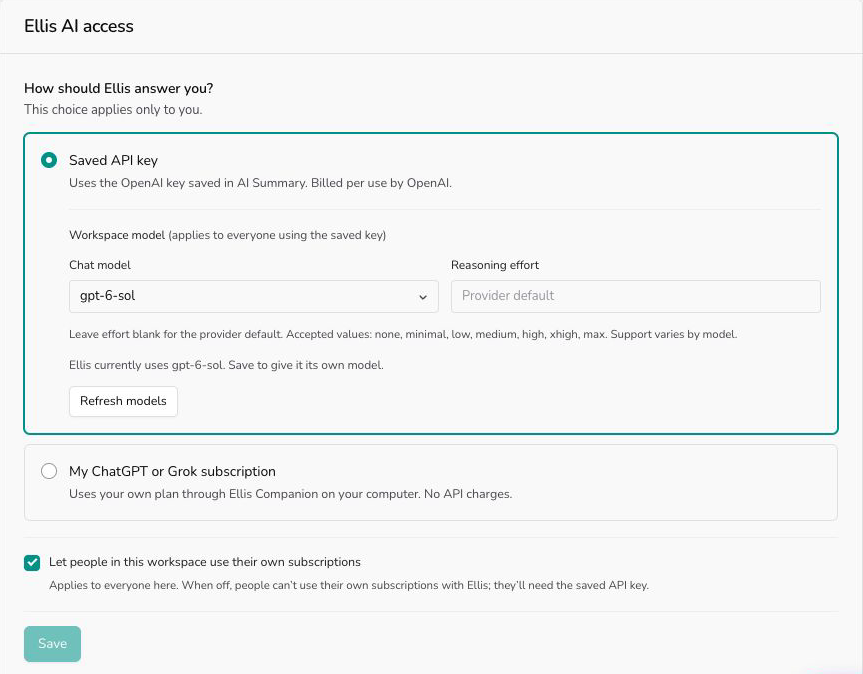
Under How should Ellis answer you? pick one option and select Save. Ellis confirms what it will use. This choice applies only to you; the same choice is in Ellis → Change.
- Saved API key uses the key saved in AI Summary above, billed per use by that provider. It's greyed out, with the reason, when no usable key is saved (Ellis can use OpenAI, Anthropic and xAI keys; not Gemini yet). Administrators also see Workspace model: the Chat model and Reasoning effort Ellis uses with the saved key for everyone. Reasoning effort only lists the settings the chosen model supports. These don't change the AI Summary model.
- My ChatGPT or Grok subscription uses your own ChatGPT, Grok or OpenCode plan through Ellis Companion, a small helper you install once on your computer; it updates itself and your sign-in never leaves your computer. Choosing it shows the install command and pairing code. See Use Ellis with your own ChatGPT or Grok subscription for the full steps, troubleshooting and removal.
Administrators also see Let people in this workspace use their own subscriptions, saved with the same Save. When it's unticked, nobody can use a subscription with Ellis; anyone who was using one is asked to switch to the saved API key. A subscription only changes Ellis; AI Summary still needs its provider API key. VoxaLink no longer offers a shared ChatGPT sign-in that runs on its servers.
Everyday tasks
- Rename the tenant / set the timezone → General → Identity.
- Change the default hold music → General → Music & ringback, or manage sources under Music on hold.
- Set the emergency caller ID → General → Emergency (and per-extension under Directory).
- Tighten the voicemail PIN policy → Voicemail → PIN.
- Give a set of people the same permissions → Groups, edit membership.
- Add a greeting you can reuse → Audio library, upload it, then pick it in the relevant auto attendant or queue.
- Connect a calendar for voice agents or holiday sync → General → Calendars.
- Upload your logo or brand a phone's wallpaper → Appearance.
- Set up call summaries or AI Briefing → General → LLM → AI Summary.
- Choose how Ellis answers you → General → LLM → Ellis AI access, or Ellis → Change (subscription guide).
Next: Admin — the technical plumbing: devices, webhooks, locations, and integrations.