
Use Ellis with your own ChatGPT or Grok subscription
Connect Ellis to your own ChatGPT or Grok subscription through a small companion on your computer that installs once, updates itself and can be checked and repaired without pairing again.

Ellis normally runs on your workspace's AI API key, which is billed per use. If you already pay for ChatGPT (through Codex) or Grok (through Grok Build), you can have Ellis use that subscription instead. Ellis then runs through a small helper on your own computer.
The helper is called Ellis Companion. You install it once with one command. After that it starts when you log in, runs in the background and updates itself.
Your sign-in stays on your computer
VoxaLink never sees your ChatGPT or Grok login. The companion uses the sign-in that is already on your computer, sends it Ellis's question, and returns the answer to the portal. Your subscription's own limits apply.
Before you start
You need:
- A Mac, Windows or Linux computer that you use while working in the portal. Supported systems are macOS 13.5 or later (Intel or Apple silicon), Windows 10 or later (x64 or arm64) and Linux with glibc 2.28 or later (x64 or arm64).
- Node.js 20 or later (nodejs.org). You need it to run the install, status and repair commands on this page. To check, open Terminal (Mac/Linux) or PowerShell (Windows) and run
node --version. Once installed, the background service looks after its own copy of Node.js (see Automatic updates). - Personal subscriptions allowed in your workspace. They are by default; an administrator can turn them off in Settings → General → LLM → Ellis AI access.
- At least one of these, installed and signed in on that computer:
| Subscription | Tool to install | Sign in with |
|---|---|---|
| ChatGPT (Plus, Pro, Business) | Codex CLI | codex login |
| Grok | Grok Build CLI version 1.0.52 or later | grok login |
Connect your computer
-
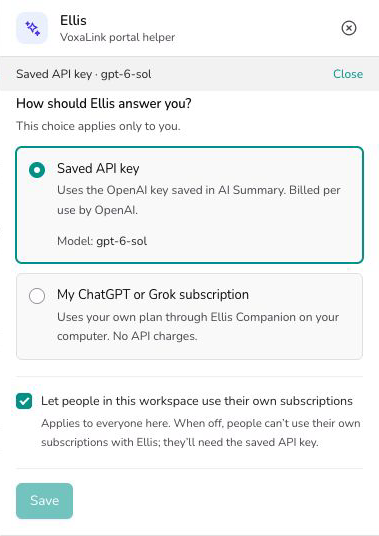
In the portal, open Ellis and select Change next to the current connection. (You can make the same choice in Settings → General → LLM → Ellis AI access.)
-
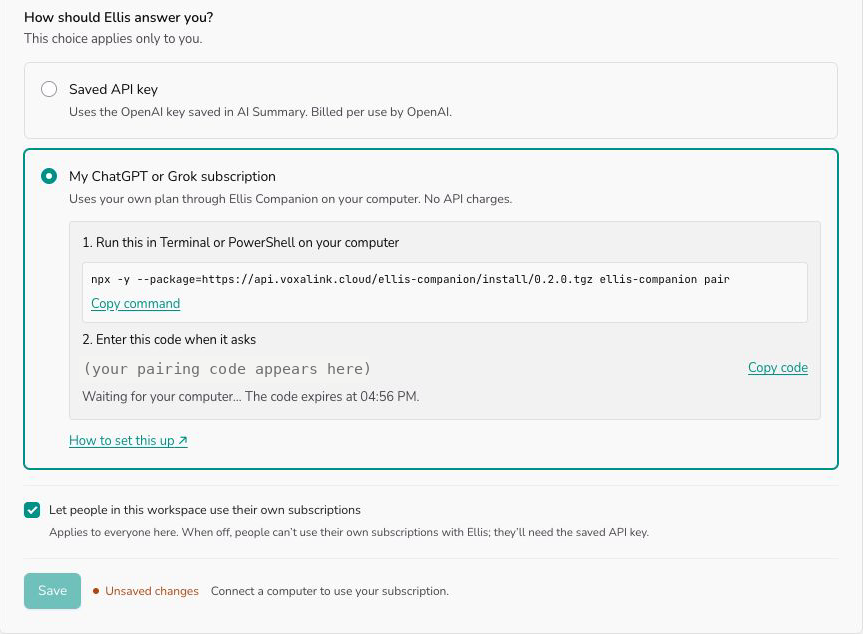
Under How should Ellis answer you?, choose My ChatGPT or Grok subscription. Ellis shows an install command and a pairing code.
-
Copy the command, paste it into Terminal or PowerShell on your computer and press Enter.
-
When it asks for the pairing code, type the code from Ellis. It stays hidden while you type.
-
You'll see
Paired. Ellis is connected in the background and will restart at login.In Ellis, your computer now shows as Online. -
Pick the Provider (ChatGPT or Grok), Model and, if you like, Reasoning effort, then select Save. Ellis confirms what it will use, for example "Saved. Ellis now answers using your ChatGPT subscription on MacBook-Pro."
This choice applies only to you in this workspace; other people keep whatever they've chosen. To go back to the workspace key, choose Saved API key and select Save. That option is greyed out, with the reason shown, when the workspace has no usable API key.
Ellis only works through your computer while it's switched on, online and running the companion. If your computer is offline, Ellis tells you. It does not switch to the API key by itself, so you won't be billed for API usage without choosing it.
For administrators
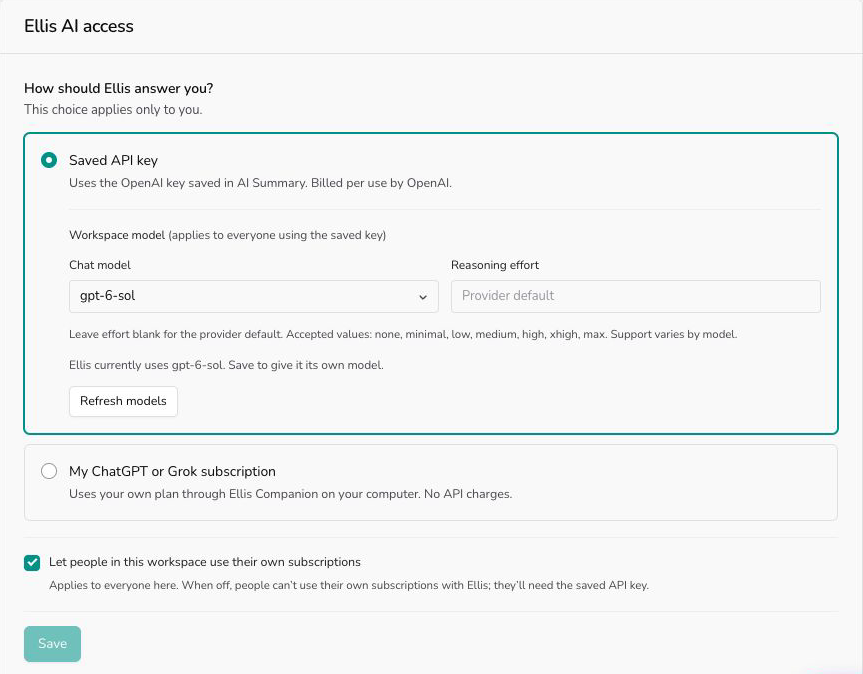
Below the choice, administrators see Let people in this workspace use their own subscriptions. Untick it and select Save to turn personal subscriptions off for everyone in the workspace (tick it and Save to allow them again). While it's off, nobody can pair a computer or choose a subscription, and requests waiting on a computer are cancelled. People who were using a subscription are asked to switch to Saved API key themselves; their computers stay paired, so turning it back on restores them. The same checkbox appears when a reseller manages your AI settings.
Current version and changelog
The badge at the top of this page shows the latest available release. It does not show the version installed on your computer. The changelog below is written for 0.2.2 and doesn't change when a newer version ships, so check the badge for what is current.
0.2.2, 22 October 2026
- The background service now runs on its own private copy of Node.js (24.22.1) instead of the Node.js you happened to use for the install. A later cleanup of your own Node.js can no longer break it.
- OpenCode is gone from the companion. Ellis stopped offering it on 14 October, and this release removes the last of it.
0.2.1, 14 October 2026
- Grok now runs with every tool denied, and long prompts reach it whole.
- Grok needs Grok CLI 1.0.52 or later.
- Ellis requires companion 0.2.1 or later. A computer on an older version stops taking Ellis requests until it updates.
0.2.0, 1 October 2026
- Signed automatic updates, with a safe rollback if a new version won't start.
Check your version
To see which version is installed on your computer, run this in Terminal or PowerShell:
npx -y --package=https://api.voxalink.cloud/ellis-companion/install.tgz ellis-companion status
It downloads the status command. It does not install or update the background service.
This example shows an installation of version 0.2.2:
Ellis Companion 0.2.2.
Background service runtime: private Node 24.22.1.
Automatic updates: staged 0.2.2.
codex: ready (7 models)
grok: ready (4 models)
Your provider lines and model counts will differ. A line saying Paired with ... (device ...) also appears between the update line and the providers.
How to read it:
- The first line. If the status tool is newer than what is installed, it prints something like
Ellis Companion 0.2.2 (installed: 0.2.1).The version in brackets is what is installed on your computer. Without brackets, the number is the installed version. staged. This marker for the version you're running can stay after an upgrade. It isn't a failure when the version and runtime look right and Ellis shows your computer as Online.node -vshows a different Node.js. That's your own copy. The background service uses its private runtime, as the second line says.- Not paired. If status says
Not pairedorNo matching local device, follow Connect your computer. The downloaded command's version alone does not mean a background service is installed. - Installed isn't the same as running. Status shows what is installed, not that the program is online. After checking it, confirm that Ellis shows your computer as Online in the portal, then send Ellis a message.
Automatic updates
The companion keeps itself up to date. When a new version is out, it downloads it in the background, waits until Ellis isn't in the middle of an answer, and restarts on the new version. You don't need to do anything.
- Every update is digitally signed by VoxaLink. The companion refuses any update that doesn't carry that signature, and it won't accept an older version as an update. The only time it goes back is its own rollback: if a new version fails to start, it returns to the last version that ran correctly.
- Ellis shows each computer's status: Up to date, Update available, Updating…, Update failed. Reinstall to fix it. or Reinstall once to get automatic updates. For the last two, see If Ellis stops responding.
Its own copy of Node.js
The background service downloads and tests a private copy of Node.js, then switches to it. That can take a little while after a release, so it isn't immediate. If Ellis doesn't reconnect on the new Node.js within 10 minutes, the service goes back to the one it used before. New Node.js versions arrive with signed Ellis releases. VoxaLink never changes the Node.js you installed or your ChatGPT and Grok tools.
On a system outside the supported list, such as Alpine Linux, the background service keeps updating the companion itself but stays on your installed Node.js. If you run the companion in a terminal window instead of as a service, it uses that terminal's Node.js and picks up a new companion version the next time you start it.
What the companion can and can't do
- It only passes Ellis's questions to your CLI and returns text answers. It turns off the CLI's tools, so it can't run commands, open your files or browse the web.
- It runs under your own user account and never asks for administrator or root access.
- Ellis can't choose which program runs or which folder it runs in.
- It doesn't keep the content of your questions or answers in its logs.
- The first install downloads the companion from VoxaLink over a secure (HTTPS) connection. Every automatic update after that is also signature-checked.
When something doesn't work
- My computer shows Offline. Check the computer is on and connected to the internet. If you restarted and it's still offline, follow If Ellis stops responding.
- "Not signed in" or no models listed for a provider. Sign in to that CLI again (
codex loginorgrok login). The companion picks it up within about 30 seconds. For Grok, also check that the CLI is version 1.0.52 or later. - "Your computer's Ellis connection needs an update." It usually updates itself within a few minutes. If it doesn't, follow If Ellis stops responding.
- The pairing code expired. Codes last 10 minutes. Select Get a new code.
- Ellis says the connection was revoked. Someone selected Disconnect for this computer. Pair it again.
- "Subscription turned off by your administrator." Your workspace doesn't allow personal subscriptions right now. Choose Saved API key and select Save, or ask an administrator to tick Let people in this workspace use their own subscriptions. Your computer stays paired, so it works again as soon as that's allowed.
If Ellis stops responding
Work down this list and stop when Ellis is back. The first three keep your pairing.
-
Check the computer is online. Wake it up, reconnect it to the internet and look for Online in Ellis. If Ellis is partway through an answer, wait a few minutes for it to finish.
-
Restart the computer, or log out and back in. The background service starts again at login.
-
Repair the background service. If Ellis shows a reinstall command for this computer, run that. Otherwise, copy the install command from the connect form in Ellis and change the last word,
pair, toinstall-service. You don't need a new code. For 0.2.2 the command is:npx -y --package=https://api.voxalink.cloud/ellis-companion/install/0.2.2.tgz ellis-companion install-serviceIf
nodeornpxis not found, install Node.js 20 or later from nodejs.org, open a new terminal window and retry.That example is for 0.2.2. For a later release, take the command from Ellis that matches the version on the badge above. Don't reuse an older command you saved, and don't use the unversioned address from the status command for repairs.
-
Pair again. For a new computer, or one whose connection was revoked, run the install command from Ellis and enter a fresh code from the portal. This creates a new pairing.
Remove the companion
-
Stop using it for Ellis: in Ellis, choose Saved API key and select Save.
-
Disconnect a computer: in Ellis, select Disconnect under that computer. It stops receiving Ellis requests immediately.
-
Uninstall it from your computer: run this in Terminal or PowerShell. It removes the local pairing and, once nothing else is paired, the background service:
npx -y --package=https://api.voxalink.cloud/ellis-companion/install.tgz ellis-companion unpairIf you paired the same computer with more than one workspace, it asks you to add
--deviceand a device ID. Run the same command withstatusinstead ofunpairto list the IDs.
Everyday tasks
- Use your ChatGPT plan for Ellis → install Codex and run
codex login, then in Ellis choose My ChatGPT or Grok subscription, connect your computer, pick ChatGPT and Save. - Switch from ChatGPT to Grok → run
grok login, then pick Grok as the provider and Save. - Go back to the workspace key → choose Saved API key and Save.
- Check which version you have → run the status command in Check your version.
- Use Ellis on a new computer → choose Pair another computer under your subscription. You can disconnect the old one there too.
- Use the same computer for another workspace → sign in to that workspace and connect the computer there too. One companion handles up to 10 workspaces.