
Service flags
Shared ON/OFF switches that follow your hours, holidays and holds, so ring groups, queues and menus change routing together.
A service flag is a shared switch that is either ON or OFF. It does not ring anyone by itself. Instead, other parts of your phone system look at it to decide where calls go. The most common use is one flag for your opening hours: every ring group, call queue and auto attendant checks it, and when you close, they all switch to their after-hours routing together.
At Bayside Physio & Wellness, "Open for business" follows the clinic's opening hours and public holidays, "Staff meeting" covers the weekly team meeting, and "Emergency override" lets reception close the phones at a moment's notice.
Service flag or do not disturb? Do not disturb belongs to one person and only affects their own calls. A service flag is shared. It can follow a schedule or be switched by hand, and any number of ring groups, call queues and auto attendants can follow it at once.
What turns a flag ON or OFF
This is the part worth reading slowly, because everything else on the page builds on it.
A flag is in one of two modes. The list shows which one under each flag's name.
- Manual: the flag stays ON or OFF until someone switches it. Its hours and dates are ignored. Someone switches it by changing Current state on its page and saving, by dialling the flag's number from a phone, or with a phone button. A new flag starts in Manual mode, switched OFF.
- Automatic: the flag follows its dates and hours. The page calls this "following the dates and hours". It works out ON or OFF for every moment of the week from three layers, described below.
The flag's page shows three layers under Who decides, strongest first. A stronger layer always beats a weaker one:
- Set by hand. Manual mode lives here, which is why a Manual flag ignores everything below it. A flag that follows its dates and hours can also be held here: a hold keeps it ON or OFF until a time you choose, then lets go.
- Holidays and special dates. On a date you list, the date's own setting replaces that day's normal hours. If a hold and a date cover the same time, the hold wins. A special date beats a public holiday on the same day. If two special dates overlap, the one added first wins.
- Weekly hours. On a normal day, the weekly hours decide, read with the Logic setting.
The Logic setting
Weekly hours are a set of times, such as Monday to Friday, 9 am to 5 pm. Logic says what those times mean:
- Specify times when flag is active: the flag is ON during the hours you enter and OFF the rest of the time. Use this for a flag that means "we are open" or "the staff meeting is on".
- Specify times when flag is not active: the flag is OFF during the hours you enter and ON the rest of the time. Use this for an "after hours" flag, where you enter your opening hours and the flag comes ON when you close. A new flag starts with this choice.
Any time you have not covered with hours gets the opposite state. That has one surprise worth knowing: a flag with Specify times when flag is not active and no hours at all is ON all day, every day.
Logic also decides what each special date and public holiday means. If you change Logic after adding dates, check them on the week view, because dates you saved as ON will now read as OFF and the other way round.
The list of service flags
Open Call flow, then Service flags. Each flag is a card showing:
- its name, its number, and Manual or Automatic
- a strip showing this week, with ON times coloured in
- its state right now, such as "On · until Fri 5 pm", or "Off · set by hand" for a Manual flag
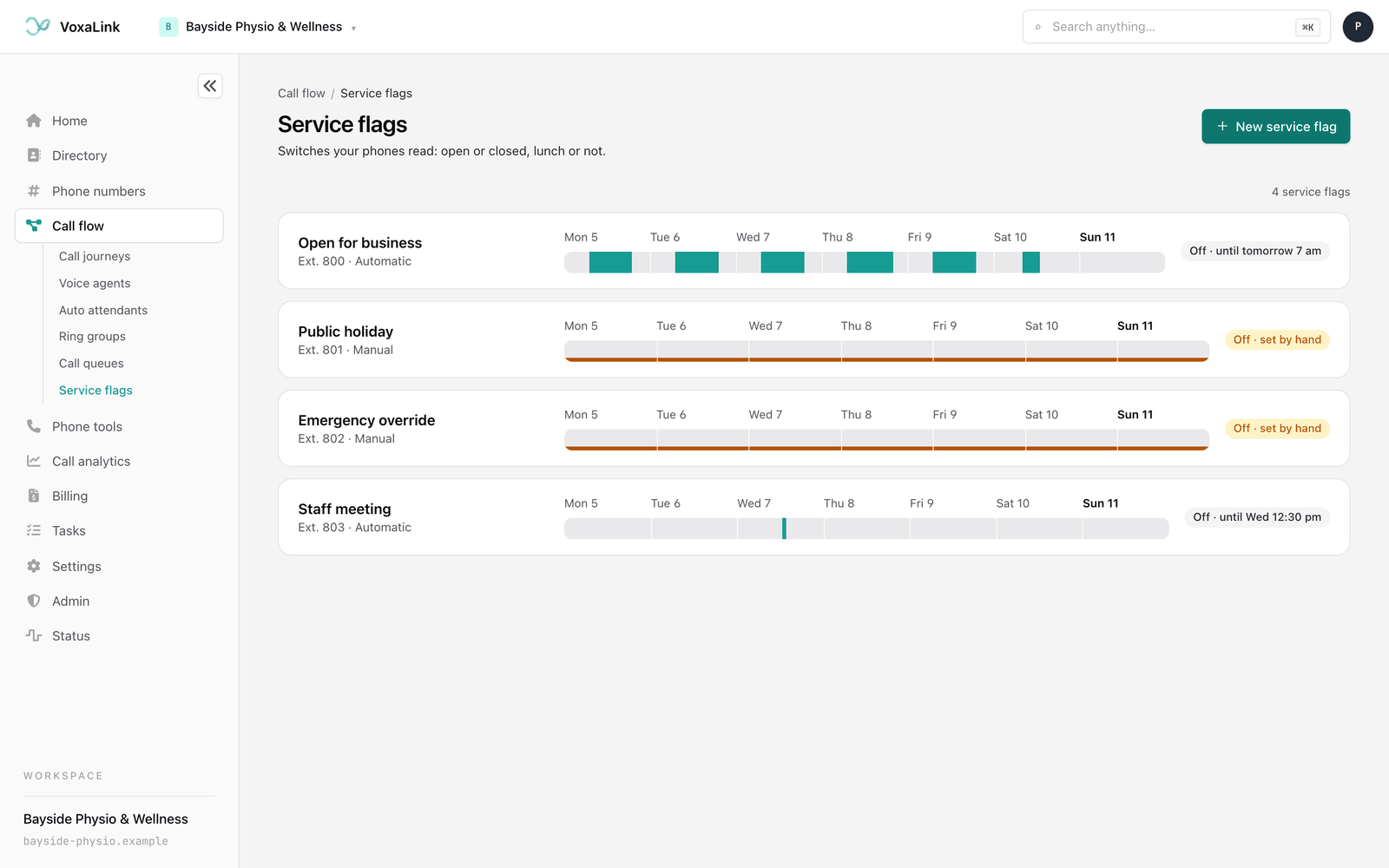
Click a card to open the flag. A count such as "4 service flags" sits above the list, and once you have more than eight flags a search box appears beside it. Type a name or a number to narrow the list, and press Clear search if nothing matches. Until you create your first flag, the page shows No service flags yet with a New service flag button.
Creating a flag
- On the list, click New service flag.
- Enter a Display name, for example "After hours".
- Enter the Account number(s), 3 to 15 digits, for example 7001. This is the number staff dial to switch the flag from a phone.
- Click Create service flag. The flag's page opens.
A new flag starts in Manual mode, switched OFF, with no hours. Nothing follows it yet, so creating it changes nothing for callers.
The flag's page
The page answers one question: is this flag ON or OFF, and why? It has four parts: the week at the top, Who decides, strongest first down the left, What follows it on the right, and three folded sections of other settings at the bottom.
The week
The card at the top shows this week, Monday to Sunday, as one strip. ON times are coloured and OFF times are grey. Drag along the strip, or use the arrow keys, to pick any moment. Everything else on the page then answers for that moment.
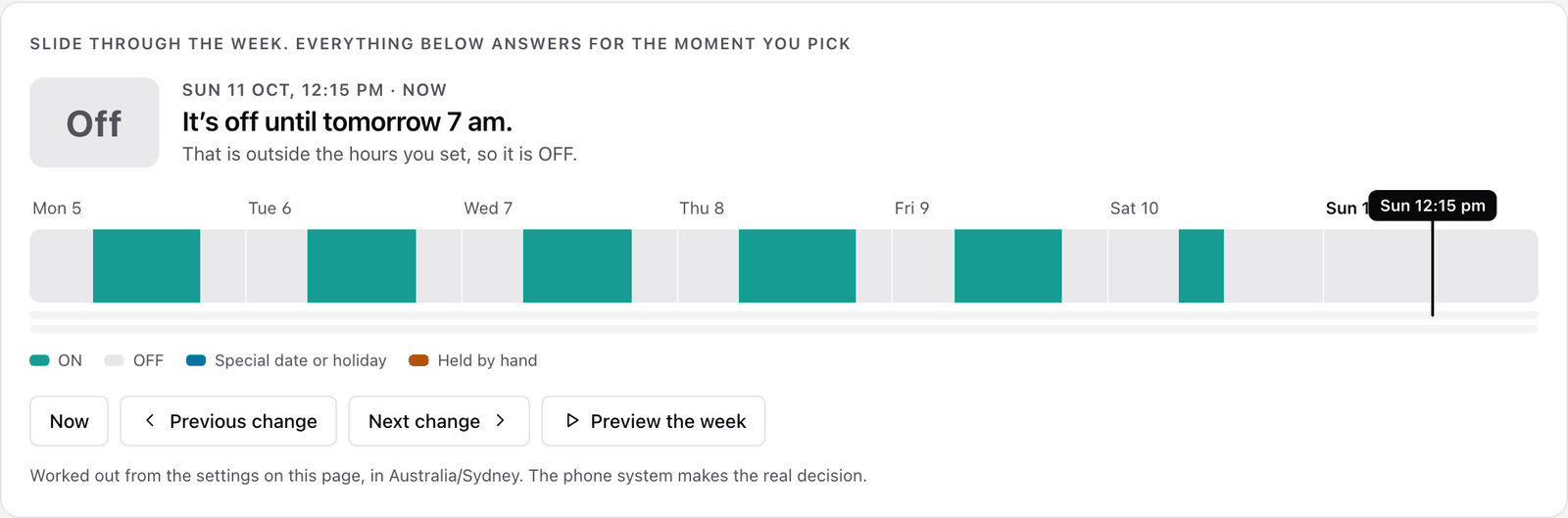
- The large On or Off tile and the sentences beside it say what the flag is at the moment you picked, until when, and why. For example: "It's off until tomorrow 8 am." and, underneath, "That is outside the hours you set, so it is OFF."
- Under the strip, a blue line marks a special date or holiday, and an amber line marks a time held by hand. A striped section on the strip means a date or a hold decided it rather than the weekly hours.
- Click a day's name to jump to 9 am that day.
- Now returns to the current moment. Previous change and Next change jump to the moments the flag switches. Preview the week plays the week through so you can watch the flag switch.
The week view includes your unsaved edits, and says Showing your unsaved changes when it does, so you can try an idea before saving it. It is worked out from the settings on the page. The phone system makes the real decision, but uses the same settings.
Who decides, strongest first
The three layers sit in a column, numbered 1 to 3. For the moment you picked, the layer in charge is highlighted and marked Deciding this moment. The others say why they are not, for example Overridden at this moment or Not used in Manual mode.
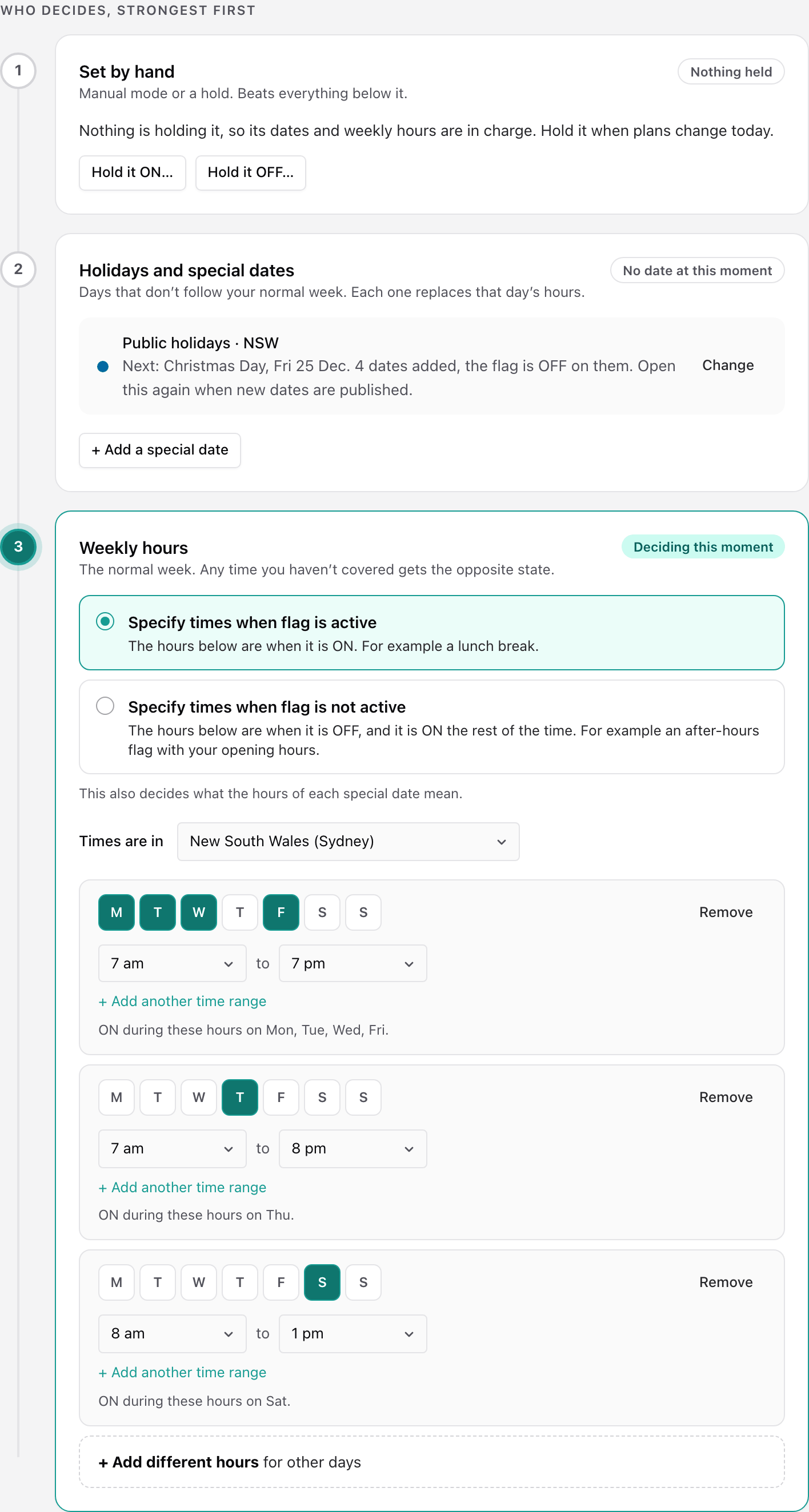
1. Set by hand
In Manual mode, this card shows Current state with two choices, Set · ON and Clear · OFF. The flag stays that way until someone changes it. The dates and hours further down are kept but not used. Click Follow the dates and hours again to switch to Automatic mode.
Before you click Follow the dates and hours again, look at the week view. If you have no weekly hours yet, the flag may be ON all day, as explained in Logic.
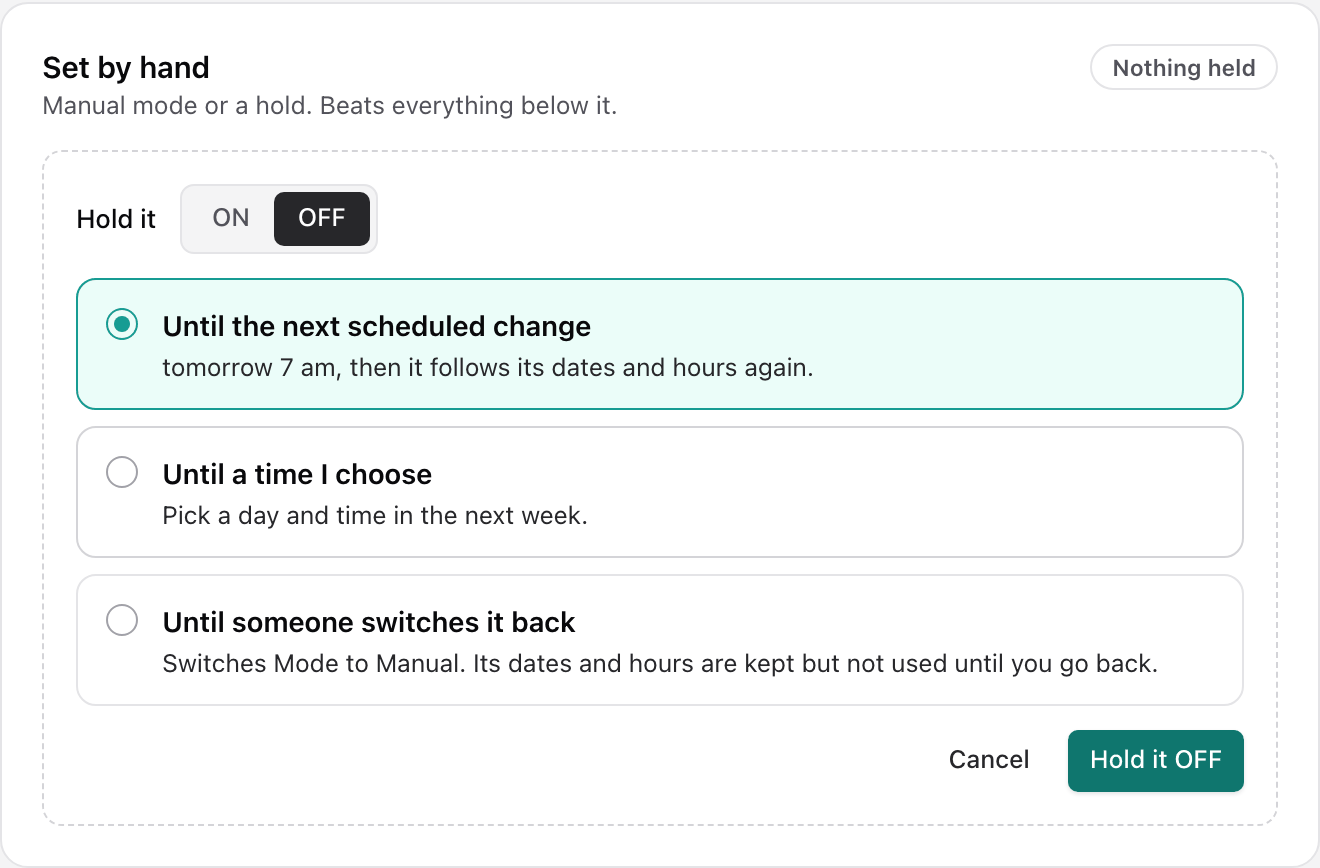
When the flag follows its dates and hours, this card is where you hold it for a while when plans change. Click Hold it ON… or Hold it OFF…, then choose how long:
- Until the next scheduled change: until the next time the hours or dates would switch it anyway, then it carries on as normal. This is unavailable if nothing changes in the next three weeks.
- Until a time I choose: pick a day in the coming week and a time.
- Until someone switches it back: this switches the flag to Manual mode. The hours and dates stay saved for when you go back.
Click Hold it ON or Hold it OFF to add it, then save. A flag has one hold at a time. While it lasts, the card says when it ends, and Release the hold removes it early. The hold is saved on the flag as a dated entry, which is why it shows on the amber line in the week view.
2. Holidays and special dates
Dates here replace your normal week for the days they cover.
Public holidays. Click Choose your state to open the Public holidays window:
- Choose one or more States.
- Under Include, choose Public, Regional or Both. Regional holidays only apply in some areas, such as a local show day.
- Under On these days the flag is, choose ON or OFF. The window suggests the choice that means "closed" for your Logic.
- Untick any day you open as normal.
- Click Apply to the flag. The dates are added to the flag, ready to save.
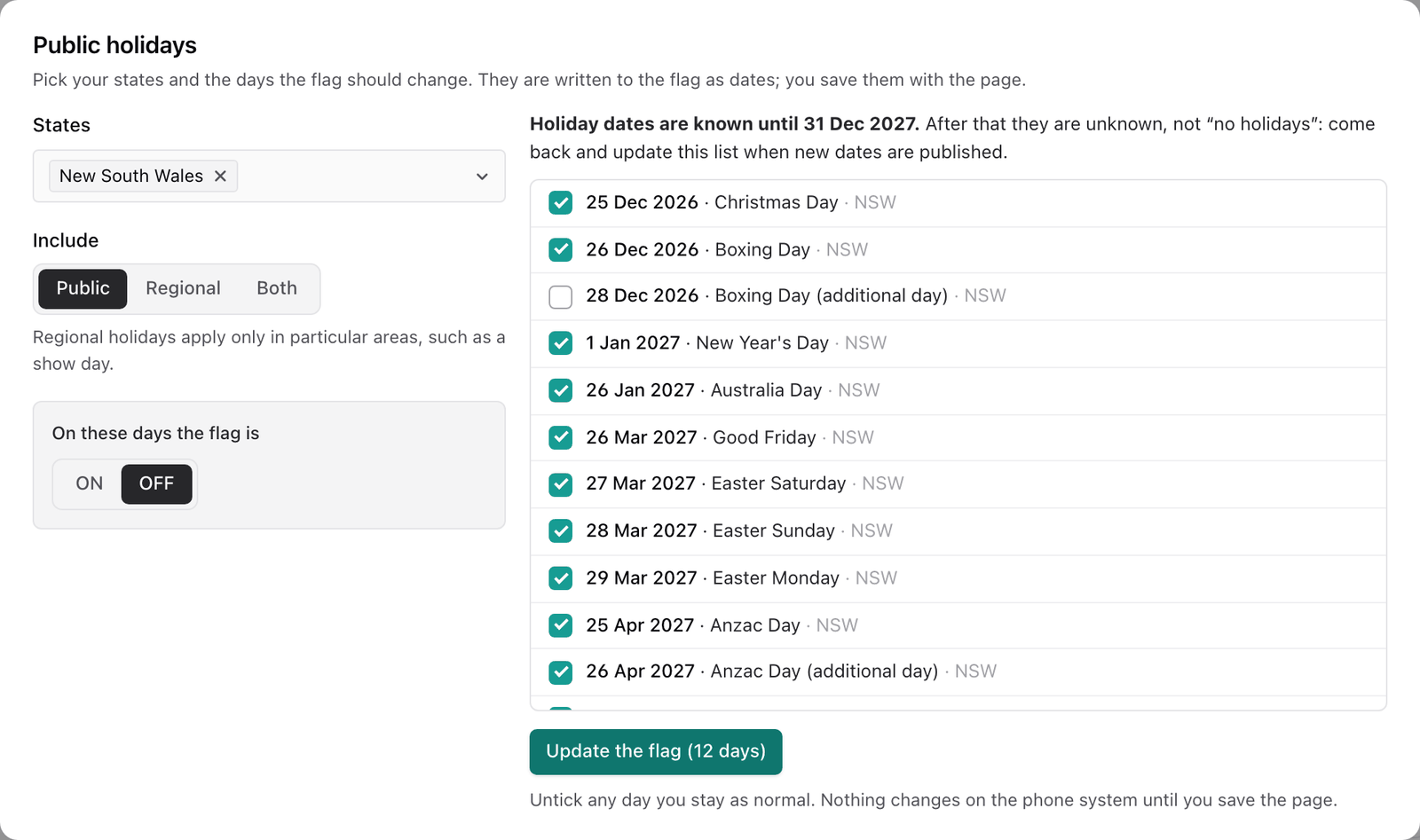
The window says how far ahead holiday dates are known. Dates after that are not added automatically, so open the window again with Change when new dates are published, and click Update the flag. To take the holidays off the flag, choose Remove public holidays from the flag.
Special dates. Click + Add a special date for a closure, a late opening or any other day that does not follow the normal week. Choose one of:
- ON for some days: the flag is ON all day, from one date until another, both included.
- OFF for some days: the flag is OFF all day for those dates.
- Different hours on a day: one date with its own hours. Enter the hours when the flag is ON, up to two ranges, and it is OFF the rest of that day.
Give it a Name, such as "Staff training", and tick Every year on this date if it repeats. Click Add to the flag, then save.
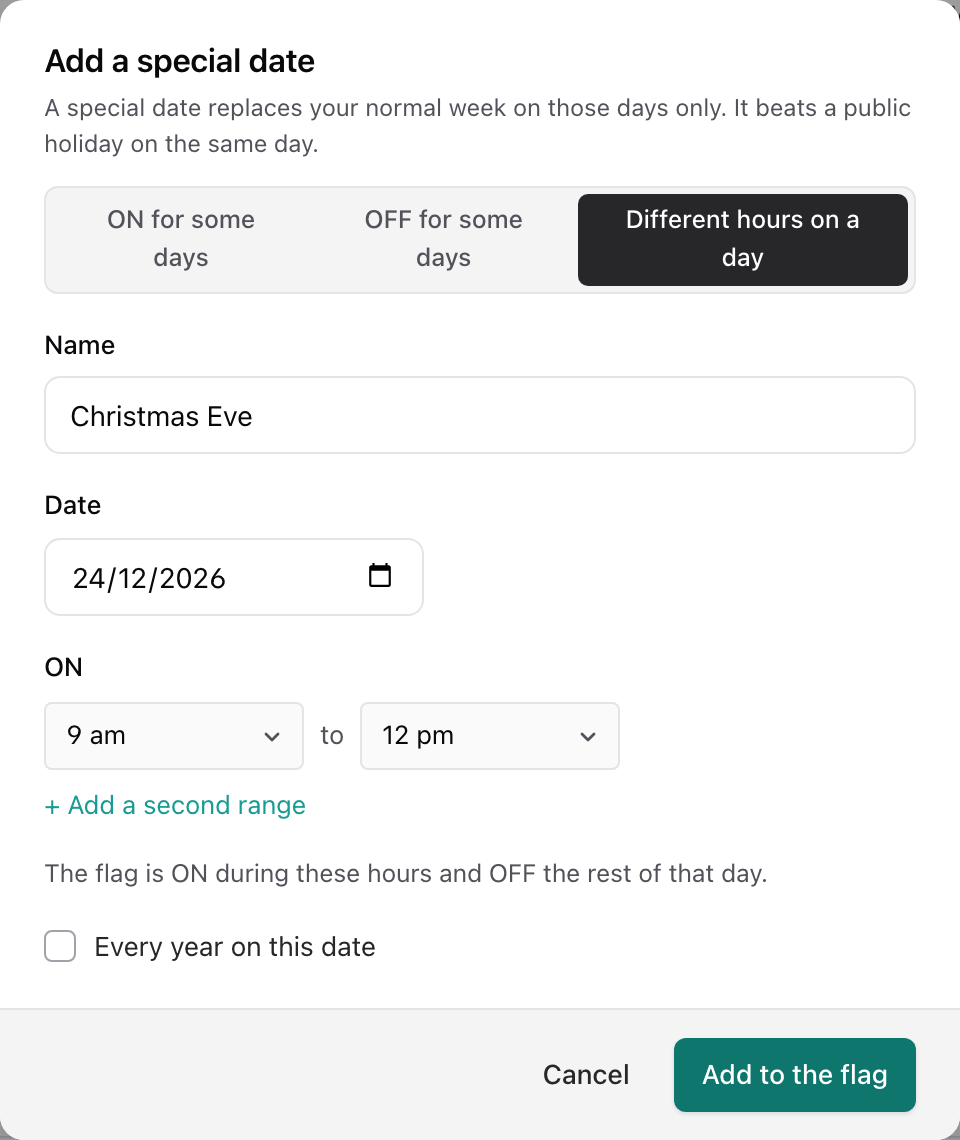
The card counts your special dates. Click Show them to see each one with its dates and what it does, and Remove to delete one. Once dates have passed, a button such as Remove 2 past dates tidies them away.
3. Weekly hours
This card holds your normal week.
- Choose the Logic that matches what your hours mean. See Logic.
- Check Times are in. The first option in the list starts with "inherit from". Leave it there to use your business's time zone, and the note beside it says which time zone the flag is using. Choose another time zone from the list if the flag should run on different local time.
- Click + Add different hours to add a set of hours. The first time, it fills in Monday to Friday, 9 am to 5 pm, ready for you to change.
- Click the day letters to choose which days share these hours, and set the times. Use + Add another time range for a split day, such as a lunch break, up to four ranges.
- For days with other hours, such as a Saturday morning, click + Add different hours again.
Under each set of hours, a line confirms what it does, such as "ON during these hours on Mon, Tue, Wed, Thu, Fri." Days with no hours get the opposite state all day.
What follows it
The card on the right lists the ring groups, call queues and auto attendants that follow this flag, and what each does While ON and While OFF: either "Sends calls to" a destination, or Normal routing. The side that applies at the moment you picked is highlighted, so you can drag through the week and watch where calls go.
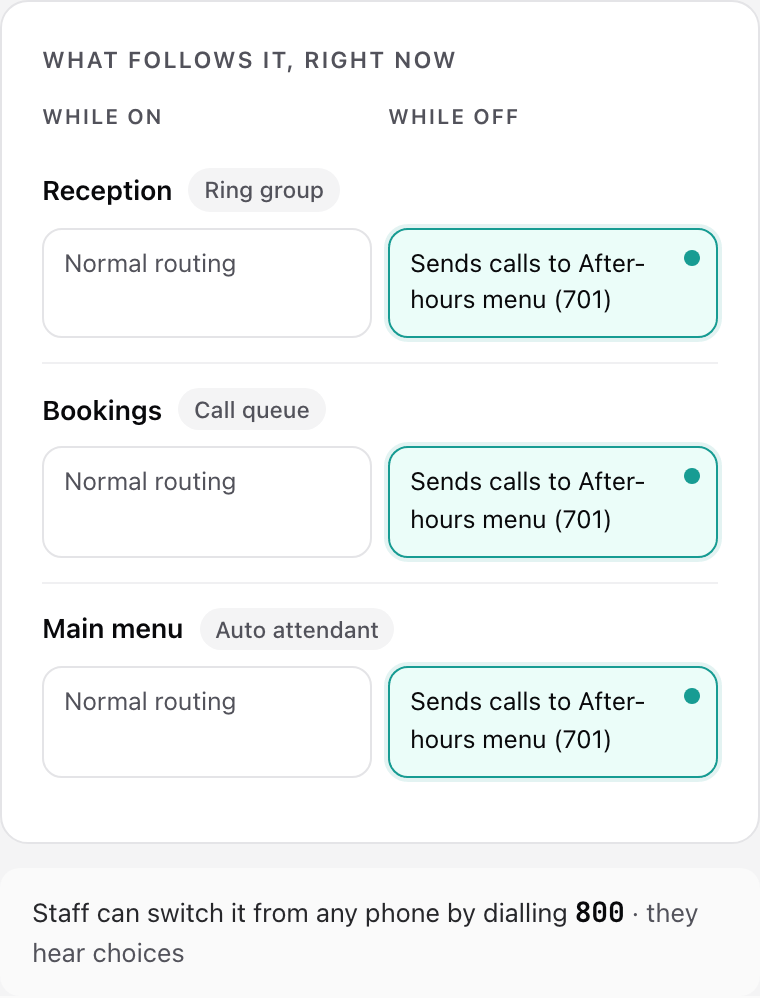
If nothing follows the flag yet, the card says so and tells you what to add. A flag only changes calls once something follows it. Voice agents that follow a flag for their business hours are not listed here.
Under the card, a note shows the number staff dial to switch the flag from a phone.
Other settings
Three folded sections at the bottom hold the rest. Click one to open it.
Name and number: Display name, Short name for small phone screens, Account number(s) and a Note field for your own notes. In Account number(s), type a number and press Enter, and add as many as you need.
Switching it from a phone:
- When user calls this service flag: Offer choices for changing state, so the caller hears a menu, or Toggle state without prompt, so dialling switches it straight away. In Manual mode dialling always switches it at once.
- Confirmation tone: what the caller hears afterwards: Beep tone, Service active / inactive, or Day / night.
- PIN code for changing state: a code callers must enter before they can switch the flag. Leave it empty for no PIN.
Automatic page: announce a change over a paging group whenever the flag switches. Choose the Page account, and optionally a Flag that controls the paging, a Sound at the beginning and a Sound at the end.
Saving
Everything on the page is a draft until you save, including Current state, holds, public holidays and special dates. When you have unsaved edits, a bar appears at the bottom: "The phone system keeps using the saved flag until you save." Click Save changes to apply them, or Discard changes to go back to what is saved. If you try to leave with unsaved edits, you are asked first.
Deleting a flag
Delete a flag when nothing needs it any more. The button is at the very bottom of the flag's page, below the other settings. Look for the box headed Danger zone with the line Delete this service flag.
- Open the flag from the list. First look at What follows it to see which ring groups, call queues and auto attendants use it.
- Scroll to the bottom and press Delete service flag. The button is greyed out while a save is in progress.
- A window titled "Delete Open for business?" (with your flag's name) says this removes the service flag from the phone system and that anything that follows the flag stops following it. If you had unsaved changes, it adds that they will be discarded.
- Type the flag's account number into the box, exactly as the window shows it. The red Delete service flag button stays off until it matches.
- Press Delete service flag. The button says Deleting… for a moment, then you land back on the Service flags list. Cancel closes the window without deleting anything.
If the phone system refuses the delete, the window shows a message and nothing is deleted. If the flag is deleted but VoxaLink can't finish tidying up its own records, the list shows an amber message naming the flag and what to do next.
Even though the window says anything that follows the flag stops following it, check the places that used it. Open each ring group, call queue and auto attendant you noted under What follows it and confirm its Redirection rules still send calls where you expect. Voice agents that follow a flag for their business hours are not listed there, so check those too.
Making calls follow a flag
A flag has no destination of its own. To route calls by it, open the ring group, call queue or auto attendant that should react, and add a Redirection rule:
- When service flag is active sends calls to the destination you choose while the flag is ON.
- When service flag is not active does the same while the flag is OFF.
At any other time, calls follow that object's normal routing. One flag can drive many rules, so you change the hours once and everything follows.
Worked example: an opening-hours switch
Bayside Physio & Wellness wants one flag that every part of the phone system checks to decide whether the clinic is open.
- Create the flag. Click New service flag, name it "Open for business", give it a number, and click Create service flag.
- Set the Logic. In Weekly hours, choose Specify times when flag is active, because the hours you enter are the hours you are open.
- Add the hours. Click + Add different hours and set Monday to Friday, 8 am to 6 pm. Click it again. It adds Saturday, and you set 8 am to 12 pm. Sunday has no hours, so it is OFF all day.
- Add public holidays. Click Choose your state, choose NSW, set On these days the flag is to OFF, and click Apply to the flag.
- Follow the dates and hours. In Set by hand, click Follow the dates and hours again, then Save changes.
- Check the week. Drag to Saturday afternoon. The tile shows Off and the sentence says it is outside the hours you set.
- Route calls by it. On the "Main menu" auto attendant and the "Bookings" call queue, add a Redirection rule When service flag is not active, pick "Open for business", and send calls to the "After-hours menu". Back on the flag, What follows it now lists both, sending calls to the After-hours menu While OFF.
From now on, a change to the opening hours is made once, on the flag, and every object that follows it changes with it.
Worked example: in hours to one extension, after hours to another
Say every call to the reception ring group should ring Extension 100 from 9 am to 5 pm, Monday to Friday, and go to Extension 101 at any other time.
- Create the flag. Click New service flag and name it "After hours".
- Set the Logic. In Weekly hours, choose Specify times when flag is not active. The hours you enter are your opening hours, so the flag is OFF while you are open and ON after hours.
- Add the hours. Click + Add different hours. It fills in Monday to Friday, 9 am to 5 pm, which is what you need.
- Follow the dates and hours. Click Follow the dates and hours again, then Save changes.
- Set up the ring group. Make sure the "Reception" ring group rings Extension 100. In its Redirection rules, add When service flag is active, choose "After hours", and set the destination to Extension 101.
- Check it on the flag. Drag the week to Wednesday at 11 am: the flag is OFF and What follows it shows Reception on Normal routing. Drag to Wednesday at 7 pm: the flag is ON and Reception sends calls to Extension 101.
- Test it with a call during opening hours and another after 5 pm.
You could build the same thing the other way round, with an "Open for business" flag using Specify times when flag is active and a When service flag is not active rule. Either works as long as the hours, the Logic and the Redirection rule agree. The week view and What follows it show you straight away if they do not.
Using the same flag for a voice agent A voice agent's business hours can follow a service flag. The agent treats the flag ON as after hours and OFF as open, so a flag built like this example drops straight in. See Business hours and escalations.
Everyday tasks
- How do I ring one extension in hours and another after hours? Follow the second worked example.
- How do I switch between day and night routing automatically? Set weekly hours and make sure the flag follows its dates and hours, not Manual mode.
- How do I close for a holiday? Add public holidays, or add a special date with OFF for some days.
- How do I keep public holidays up to date? Open the Public holidays window with Change when new dates are published, and click Update the flag.
- How do I close early today? On your opening-hours flag, click Hold it OFF…, choose Until the next scheduled change, and save. The hold ends the next time your hours would have switched the flag anyway, and it carries on as normal from there.
- How do I let reception close the phones from any phone? Use a Manual flag, such as "Emergency override", and have staff dial its number. Add a PIN code for changing state if you want only some people to do it.
- How do I announce a change over the floor? Set up the Automatic page section.
- How do I delete a flag? Open it and use the Danger zone at the bottom of the page. See Deleting a flag.
- Why does my flag show ON all day? It probably has Specify times when flag is not active and no weekly hours. See Logic.
- Why didn't my change reach callers? Check that you clicked Save changes, and that something follows the flag in What follows it.