
Business hours and escalations
Set when a voice agent handles calls normally, what it does after hours, and which urgent words make it act straight away.
Two settings change what a voice agent does no matter what the caller is asking about. Business hours decide when the agent handles calls normally and what it does once you're closed. Instant escalations watch for urgent words, such as "emergency", and act on them straight away.
Both are moments in the agent's Call view, below the playbook. A moment is one section of the call, and you click it to open it. For finding your way around an agent, see Voice agents overview.
Business hours
Business hours apply to agents that answer incoming calls. The agent checks them before it answers, and outside your hours calls follow the after-hours behaviour you set.
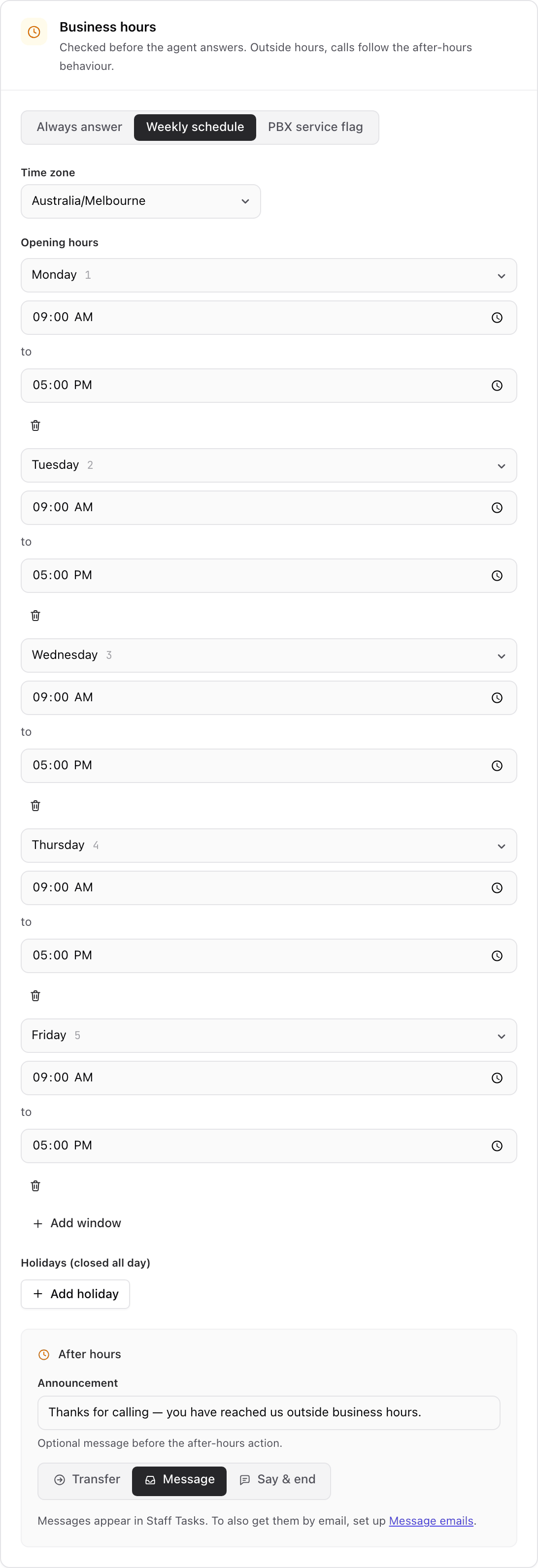
The moment's title shows the choice you've made: Business hours for a weekly schedule, Answers around the clock when it always answers, or a title beginning Hours follow and ending service flag when it follows a service flag. Open it and choose one of three options at the top: Always answer, Weekly schedule and the third, whose label ends in service flag.
Always answer
The agent handles every call the same way, day and night. Choose this when it makes no difference to callers whether you're open.
Weekly schedule
Choose Weekly schedule to set your own opening hours.
- Check the Time zone first. It starts as Australia/Melbourne, so a Sydney business like Bayside Physio should change it to Australia/Sydney. This time zone belongs to your opening hours only. Appointment booking has its own Timezone setting, which starts as Australia/Sydney, so set each one.
- Under Opening hours, each row is a day with an opening and closing time. It starts with Monday to Friday, 9 am to 5 pm.
- Click Add window to add another row. Add two rows for the same day to close over lunch, for example Wednesday 8 am to 12 pm and Wednesday 1 pm to 6 pm. Click the bin icon to remove a row.
- Under Holidays (closed all day), click Add holiday, pick the date and optionally add a label such as "Christmas Day". On these dates the agent treats you as closed, whatever the weekly hours say.
A day with no row is closed all day.
Service flag
A service flag is an open-or-closed switch your other call routing can follow. Choose the third option, the one whose label ends in service flag, if you already open and close your phones with one and want the agent to match it, including when someone switches it early or leaves it on for an unplanned closure.
Pick the flag in Service flag. The agent handles calls normally while the flag is inactive and uses the after-hours behaviour while it is active. So choose a flag that is active while you're closed. If a flag's schedule lists the hours you're open, check that it is set up to be active outside those hours before you pick it.
What happens after hours
With a weekly schedule or a service flag, an After hours box sets what callers get when you're closed.
- Announcement is an optional message spoken first. It starts with a short thank-you that tells callers they've reached you outside business hours. Change it to suit you, for example by adding your opening hours, or clear it if the action that follows says everything the caller needs.
- Then choose one action:
- Transfer sends the caller to a destination you pick, such as an on-call extension, a ring group, a voicemail box or an external number.
- Message collects the caller's details and creates a task for your team. This is the starting choice.
- Say & end speaks a message you write, then ends the call politely.
After-hours handling covers the whole agent. If one kind of request needs different treatment at night, use an escalation or a transfer from the after-hours action instead of copying your playbook.
Instant escalations
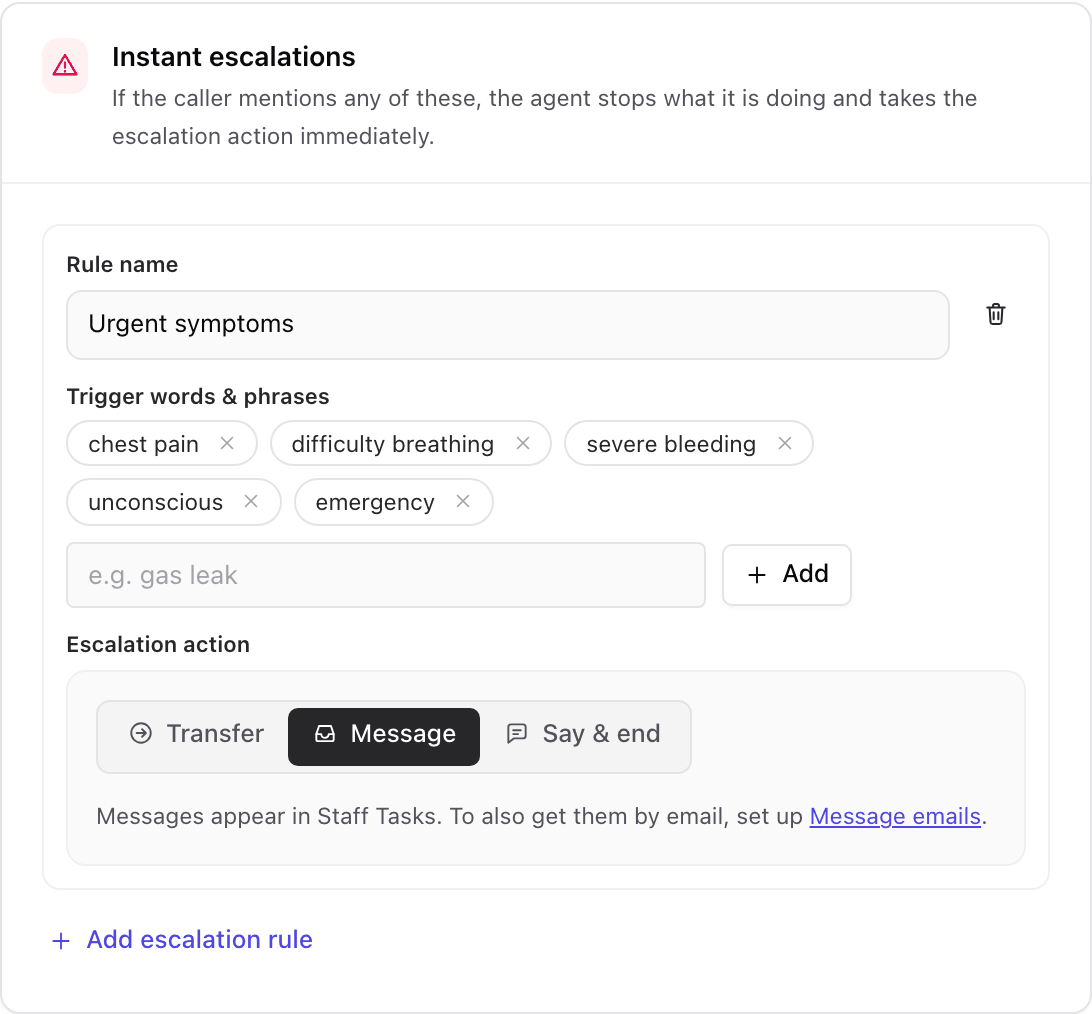
An escalation rule interrupts everything else. If the caller says one of its trigger words, the agent stops what it is doing and takes the rule's action immediately. A caller who opens with "I think I've torn something, it's an emergency" is dealt with straight away, without first being asked what the call is about.
Escalations work on agents that answer calls and on agents that make them. The moment's summary shows how many rules you have.
To add a rule:
- Open Instant escalations and click Add escalation rule.
- In Rule name, say what it is for, such as "Emergency" or "Complaint".
- Under Trigger words & phrases, type a word or phrase a caller would really use and press Enter, or press Add. Add the natural variations, such as "emergency", "urgent" and "can't move". A rule can have up to 20.
- Under Escalation action, choose Transfer, Message or Say & end. For anything genuinely urgent, a transfer to a person is usually right. A new rule starts with Message, so change it if you want a transfer.
To remove a rule, click the bin icon beside its name.
Keep the list short and truly urgent. A rule on a common word pulls ordinary calls out of your normal flow. For subjects the agent should always pass to a person but that aren't emergencies, use Always hand to a human in the agent's Answers from your knowledge moment instead. Settings shows the same list as Topics that always go to a human. See Agent knowledge.
When changes take effect
Business hours and escalations are part of the agent's draft. Click Save draft to keep your changes. To put them on calls, click Publish if the agent has never been live, or Update live if it already is. Until then, callers get the agent as it was last published. See Testing and publishing.
Business hours decide when the agent answers normally. They don't decide when appointments can be booked, which is set separately on each booking row. See Calendars.
Everyday tasks
- Answer differently at night → choose Weekly schedule and set what happens after hours.
- Close for a public holiday → add the date under Holidays (closed all day). Nothing else needs changing.
- Match the agent to how you already open and close → choose the third option, the one that follows a service flag, and pick your flag in Service flag.
- Send after-hours callers to the on-call physio → set the after-hours action to Transfer and pick their extension.
- Get emergencies to a person immediately → add an escalation rule with a transfer action.
- Stop an escalation firing on ordinary calls → narrow its trigger words to phrases that only come up in a real emergency.