
Agent knowledge
Write down what your business knows in libraries of articles and files, then choose which libraries each voice agent answers from.
Your voice agents answer callers' questions from knowledge: information you write down once, such as your opening hours, what a treatment involves or how insurance claims work. You keep it in libraries, then tick the libraries each agent may use. When a caller asks something your knowledge doesn't cover, the agent doesn't guess. It follows the "no answer" action you choose, such as taking a message.
Good knowledge is the most direct way to improve the answers your agents give, and it is quick to change. Edits reach your agents as soon as they have been processed, with no publishing step.
To get there, open Voice agents and choose Knowledge in the panel on the left, under Shared resources. On a phone, Knowledge is one of the tabs across the top.
How knowledge is organised
There are three pieces, and only the first is required.
- Library. A collection of information about one thing you sell or support. Bayside Physio & Wellness might keep "Clinic information", "Treatments and fees" and "Insurance and claims" as separate libraries. An agent can use as many libraries as you tick for it.
- Articles and files. The items inside a library. An article is text you type in. A file is a document you upload, such as your new-patient information sheet.
- Products. Optional names inside a library, for when a question could be about more than one thing. If a caller asks "how much is it?", the agent can ask "Is that for physiotherapy or remedial massage?" using the product names you set.
Some accounts can also connect a help centre or website and import its pages into a library. See Connect a help centre or website below.
The Knowledge page
The Knowledge page lists your libraries. Each row shows the library's name and description, its products, how many sources it holds against the library's limit, such as "3 of 500 sources", how many items are ready, and which agents use it ("Used by 2 agents" or "Not used by an agent yet"). The count beside New library shows how many libraries you have and how many your account can hold, for example "1 of 20 libraries". If you have none yet, the page says No libraries yet and New library sits in the middle of the page.
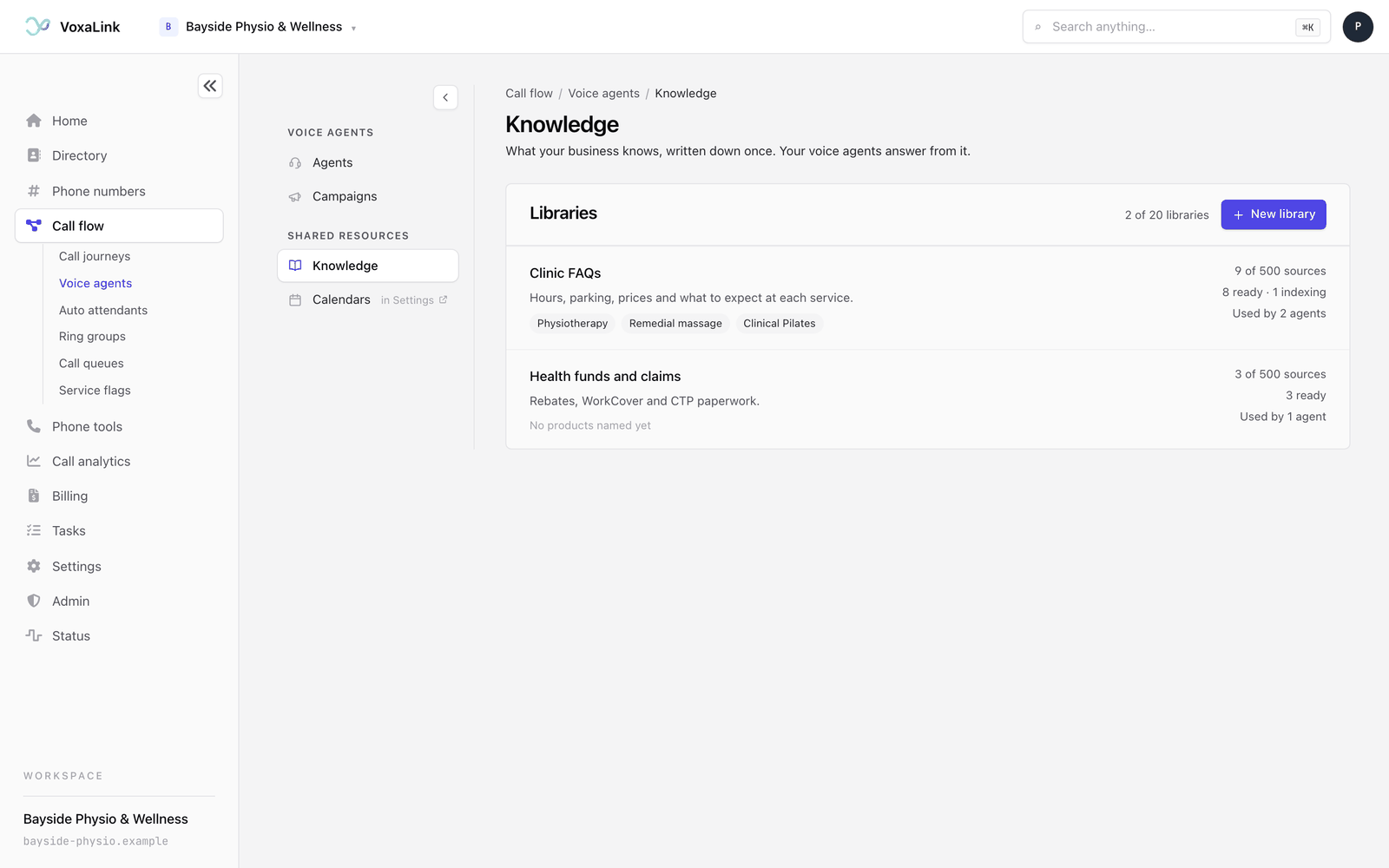
Click a library to open it.
Create a library
- On the Knowledge page, click New library.
- In Name, type what you call it, for example "Treatments and fees". Agents never read this name out, so it only needs to make sense to you.
- Optionally fill in What's in it, a short description for your own reference.
- Click Create library.
The new library is empty and isn't used by any agent until you add something to it and tick it on an agent.
Inside a library
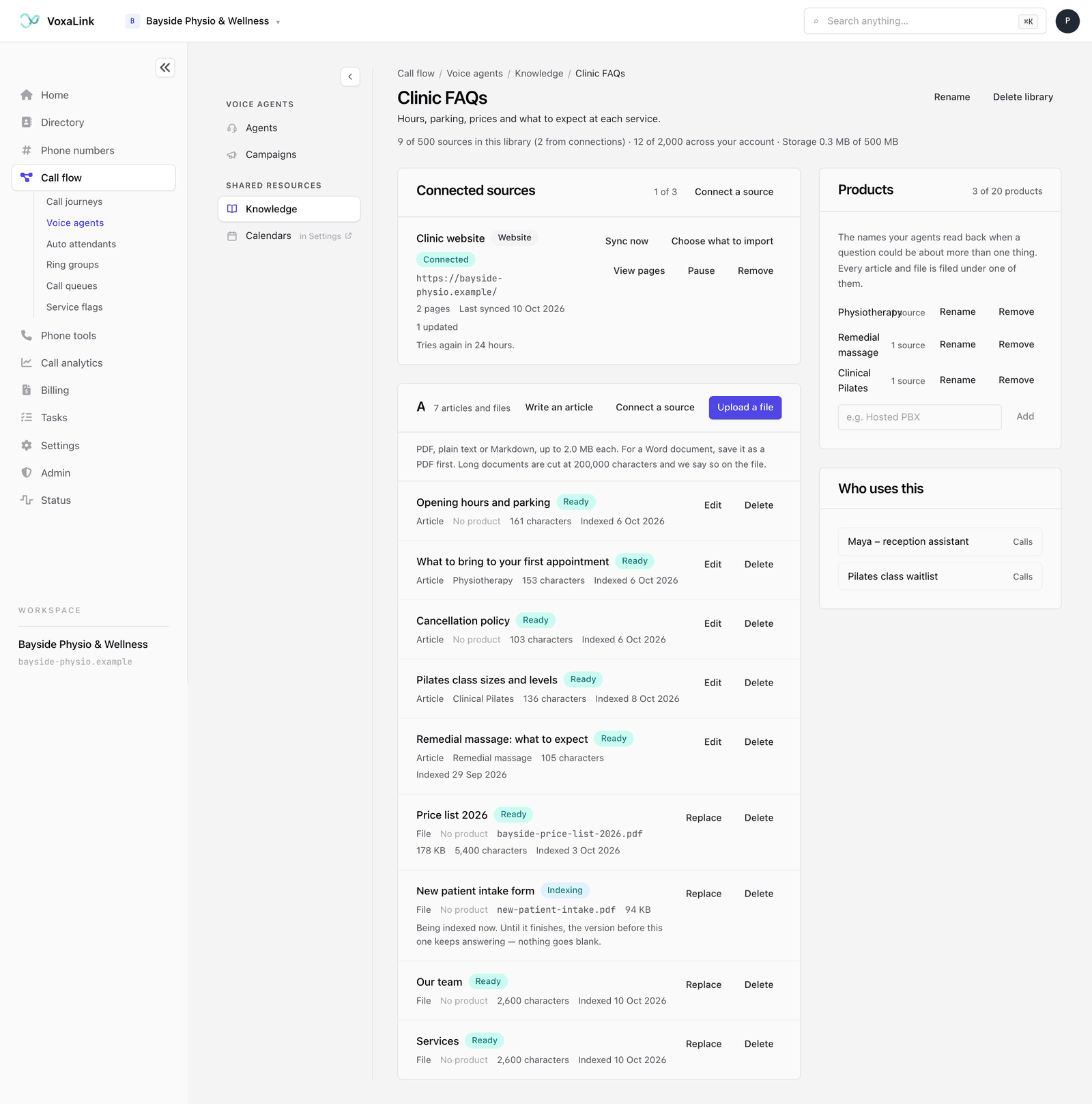
A library page has three parts:
- Articles and files, the main list, with buttons to add more.
- Products, on the right, where you name the products this library covers.
- Who uses this, on the right, listing every agent that has this library ticked. Click an agent's name to open it.
At the top you'll see Rename and Delete library, plus a line showing how full the library and your account are.
Write an article
Articles suit anything you explain often: your cancellation policy, parking and directions, what to bring to a first appointment.
- Click Write an article.
- Give it a Title, such as "Cancellation policy".
- Choose a Product if the library has any, or leave it as No product.
- Type or paste the text into What it says. A counter underneath shows how many characters you've used.
- Click Add article.
Write it the way you would explain it to a customer. Your agents quote from it, so plain sentences work better than notes.
Upload a file
- Click Upload a file.
- Click Choose a file and pick a PDF, plain text or Markdown file of up to 2 MB.
- Check the Title. It fills in from the file name, so change it to whatever you would call the document.
- Choose a Product if it applies.
- Click Upload.
Word, Excel and PowerPoint files can't be uploaded. Save a Word document as a PDF first and upload that. A scanned page has no text in it for the agent to read, so use a PDF that was saved from a document, not one made by a scanner. Very long documents are cut at 200,000 characters, and the file's row says so when that happens.
What the statuses mean
After you add something, it is indexed: VoxaLink processes the text so agents can search it during a call. Each item shows one of these statuses:
- Waiting: in line to be indexed.
- Indexing: being processed now. If you edited or replaced it, the previous version keeps answering until this finishes, so nothing goes blank.
- Ready: your agents are using it.
- Not indexed: something went wrong. The row says why in plain words, for example that the file is password-protected. Fix the cause, then click Try again if the button appears.
The page refreshes these statuses on its own while anything is waiting or indexing.
Change or remove an item
- To change an article, click Edit, make your changes and click Save changes. It re-indexes, and the previous version keeps answering until the new one is ready.
- To update a file, click Replace and choose the new file. The old file comes out once the new one is in.
- To remove an item, click Delete, then Yes, delete. This takes it away from every agent that uses the library straight away, and it can't be undone.
Products
Products help when one library covers several things that callers might mix up. Every article and file can be filed under one product.
- To add one, type a name in the box at the bottom of the Products panel and click Add. You can also pick Create a new product… while writing an article or uploading a file.
- To change a name, click Rename. Your agents use the new name from the next call.
- To take one away, click Remove, then Yes, remove. A product can only be removed once nothing is filed under it, so move those articles and files to another product first.
A small library doesn't need products at all. Without them, everything in the library is treated as one subject.
Connect a help centre or website
If you already keep help articles somewhere else, a connection can import them into a library and keep them in step. This is only available on some accounts. If yours has it, the library page shows a Connected sources section and a Connect a source button.
You can connect:
- Website: the address of a public help centre.
- Freshdesk: your Freshdesk address and an API key.
- Zendesk Help Center: the address of a public Help Center.
- Zoho Desk: your data centre, and a self-client id, secret and code.
- Notion: a token, and one page shared with it.
To connect one:
- Click Connect a source and pick the kind.
- Fill in the details the form asks for. Each kind explains exactly what it imports, for example only articles visible to everyone.
- Check the Name. Pages this connection brings in are labelled with it.
- Click Connect. VoxaLink checks the details work before saving them.
- In Choose what to import, tick the parts of the source you want, then click Save and import. Nothing is imported until you do this.
Pages show up in the library as they come in, and agents use each one once it has been indexed. Imported pages are read-only here, so edit them where they live.
Each connection has its own card with these buttons:
- Sync now fetches the latest version. A connection syncs when you ask it to, at most once every five minutes. Pages removed at the source disappear from the library at the next sync.
- Choose what to import changes which parts come in. Pages from a part you untick leave the library at the next sync.
- View pages lists everything this connection brought in.
- Pause and Resume stop and restart syncing. While paused, the pages already imported keep answering.
- Reconnect appears for kinds that sign in, for when the saved sign-in stops working.
- Remove takes the connection and all its pages out of the library, straight away and for every agent that uses it. Nothing changes at the source.
The card's status tells you where it is up to: Connected, Syncing…, Waiting to resume, Not chosen yet, Paused or Needs attention. If something didn't come in, open What didn't come in last time on the card to see which pages and why.
Give an agent its knowledge
Libraries do nothing until an agent uses them. For the basics of opening and finding your way around an agent, see Voice agents overview.
- Open the agent and make sure you are in the Call view.
- Click the Answers from your knowledge moment to open it. A moment is one section of the call, read from top to bottom.
- Turn on Answer questions from knowledge.
- Under When there is no approved answer, choose what the agent does if your knowledge doesn't cover the question: Message (takes the caller's details), Transfer (puts them through to a person or team) or Say & end (reads out a message you write, then ends the call).
- Under Libraries, tick each library this agent may use. Everything ticked is searched together. An agent can use up to 20 libraries.
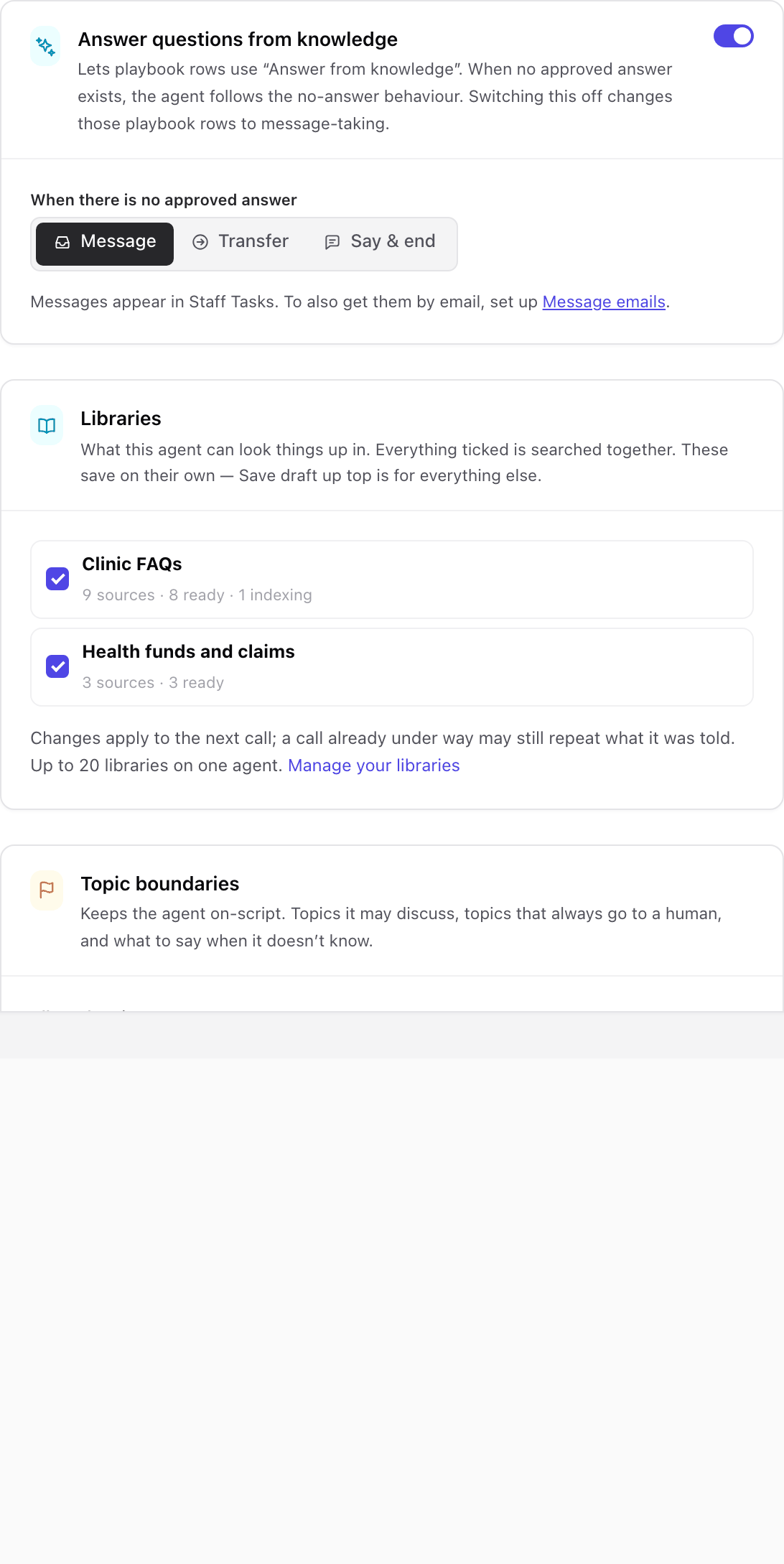
Ticks take effect on the next call Ticking or unticking a library saves on its own and applies from the agent's next call, without publishing. A call already under way may still use what it was told. The switch and the no-answer choice are different: they are part of the agent's draft, so press Save draft, then Publish or Update live, as described in Testing and publishing. Ticking the first library on an agent also turns the switch on in your draft, which is another change that waits for Save draft and Publish.
The same moment has Topic boundaries to keep the agent on track:
- Allowed topics: up to 10 short topics the agent may discuss.
- Always hand to a human: topics the agent must never handle alone.
- When asked something off-script: what the agent says when a question falls outside its brief.
These are the same settings that Settings shows as Topics the agent may discuss, Topics that always go to a human and If asked something outside its scope, in the Guardrails & topics group. See Persona, voice and instructions.
Turning Answer questions from knowledge off changes any playbook rows that answer from knowledge into message-taking. See Playbook and transfers for how those rows work.
Writing knowledge that answers well
A tidy library gives better answers than a big one. These habits help most:
- One subject per article, with a clear title. Keep opening hours, fees, policies and directions apart, and name each for what it holds.
- Write facts that make sense on their own. VoxaLink splits each item into short passages and hands the agent only the passages closest to the caller's question. "Bayside Physio is open Monday to Friday, 7 am to 7 pm" works on its own. "Same as above" doesn't.
- Keep each fact in one place. If the same detail appears in two items and they disagree, the agent can't tell which is right. Update the one item that owns it.
- Use products when questions overlap. If both physiotherapy and massage have a "first visit" price, file each under its product so the agent can ask which one the caller means.
Good to know
- A library can't be deleted while an agent uses it. Untick it on those agents first. Deleting a library removes everything in it, including the files you uploaded, and can't be undone.
- Each library can hold up to 500 articles, files and imported pages, and up to 20 products. See Limits and troubleshooting for every limit.
- If your account doesn't have knowledge switched on yet, ticking a library shows a message saying so. Ask your provider.
Everyday tasks
- Teach agents a new fact → write an article in the right library. It answers once it shows Ready.
- Use a document you already send patients → upload a file, saved as a PDF if it started in Word.
- Change an answer the agent gives → find the article and click Edit, or Replace the file. See Change or remove an item.
- Stop an agent using a library → untick it in the agent's Answers from your knowledge moment. See Give an agent its knowledge.
- Decide what happens when there's no answer → set When there is no approved answer on the agent.
- Bring in your existing help centre → connect a source, if your account has it.