
Collecting details from the caller
How message and appointment rows collect details: questions, checks, read-backs, One of a list and Only when rules.
When a playbook row is set to Message or Appointment, the agent collects a list of details from the caller before it creates a task. A detail is one piece of information you want back from the call: a name, a phone number, a preferred date, whether they'd like a session in the clinic or by video. Rows set to System collect details the same way before sending them on.
The short version You describe each detail once. On the call, the agent asks for them one at a time, in the order you listed them. It checks each answer, reads back the ones that matter, and won't finish the request until it has everything you marked as required.
What the agent collects arrives in Staff Tasks. Row settings such as task priority and the confirmation text are covered in The playbook and transfers.
Finding the details list
Open the agent, stay in the Call view, and click a row in the playbook. The details are under Collect from the caller. Each detail is a single line showing:
- an icon for the kind of answer, such as a phone for a phone number,
- the detail's name,
- Required, Optional or Conditional,
- a padlock if another setting needs this detail,
- Needs review if it was brought across from an older setup and needs a check.
Click a detail to open it. Only one opens at a time. Press Add field at the bottom to add a new detail, which starts as "New detail" and opens straight away.
Setting up a detail
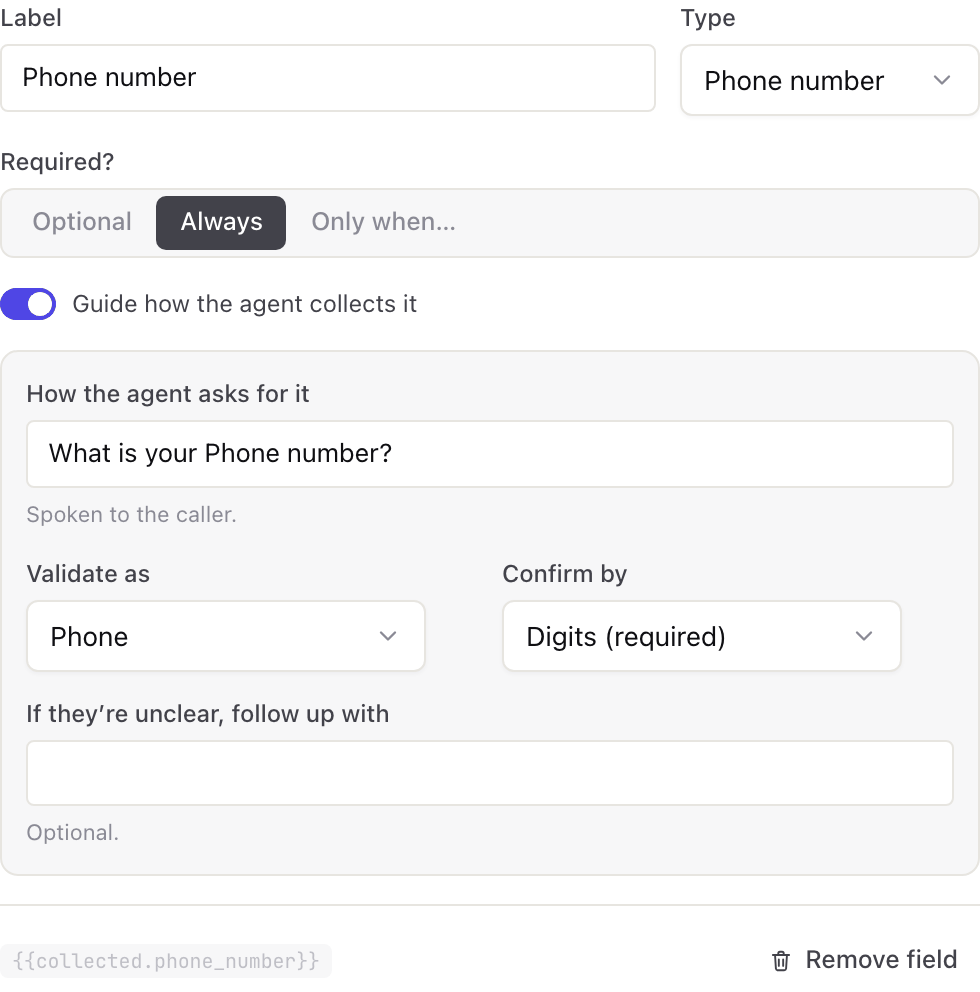
An open detail starts with three settings:
- Label is what you call the detail, like "Preferred date". The agent uses this wording when it needs to mention the detail, so write it the way you'd say it out loud.
- Type is the kind of answer: Text, Phone number, Email, Date or Number. It tells the agent what it's listening for, and it sets sensible checks for you.
- Required? is Optional, Always or Only when…. The last one is a rule that depends on another answer, explained in Making one detail depend on another.
Optional surprises people. The agent still asks for an optional detail. The difference is what happens when the caller can't or won't answer. With Optional the agent moves on. With Always it comes back to it and won't complete the request without it.
At the bottom of an open detail is a grey tag like {{collected.preferred_date}}. That's the detail's placeholder, for use in a confirmation text or when sending details to another system. You can ignore it otherwise. Remove field deletes the detail. If a padlock and Needed by another setting show instead, switch off that setting first, which is usually the confirmation text.
Putting details in order
The agent asks in the order of the list, top to bottom. To move a detail, drag it by the icon on the left of its line. You can also click that icon and use the up and down arrow keys.
Put what matters most first and keep the list short. The task is only created once the caller has finished, so a long list that makes people give up costs you the whole enquiry. Five details a caller completes beat ten they abandon.
Making one detail depend on another
Set Required? to Only when… and a small rule appears: Required only when a detail you choose equals a value.
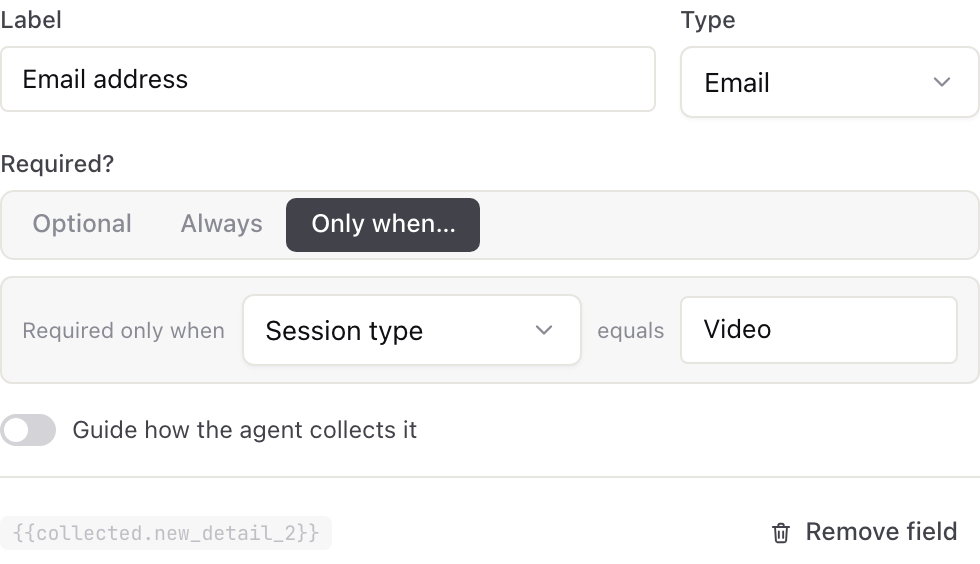
A physio clinic example:
- Session type accepts one of a list: In clinic, Video.
- Email address is required only when Session type equals Video.
Callers booking in the clinic are never asked for an email. Callers booking a video session can't finish without one.
When the deciding detail accepts one of a list, the value is a dropdown of those options, so you can't mistype it. For any other detail you type the value, and it has to match what the caller's answer was saved as, ignoring capital letters. That's why a list pairs so well with these rules: the deciding detail can only ever hold one of a few known values. If a saved value no longer matches any option, the dropdown marks it not in list so you can pick again.
There are a few limits. A rule can test one other detail, and only whether it equals a value. A detail can't depend on itself, and if it's the only detail on the row you'll see add another field first. If you delete the detail a rule depends on, the rule is dropped when you save and the detail goes back to Optional.
Guiding how the agent collects it
Every detail works without any extra setup. The agent asks a plain question such as "What is your Preferred date?", checks the answer in a way that suits the type, and reads back phone numbers and emails.
To control exactly what the caller hears, switch on Guide how the agent collects it in the open detail. A panel appears with up to five settings, described below. It stays open on any detail where you've changed something from the standard behaviour. Switching it off puts the detail back to the standard behaviour.
How the agent asks for it
These are the words the agent says to ask for this detail, up to 240 characters. Write them as a question to a customer, not as an instruction to the agent:
- Good: "What's the best number to reach you on?"
- Not good: "Get the caller's phone number and check it"
Validate as
This is the check an answer must pass before it counts. It's a fixed rule, not the agent deciding whether it liked the answer.
| Choice | An answer passes when it… |
|---|---|
| No validation | is anything at all, as long as it isn't blank |
| Full name | has at least two words, so "Jane Doe" passes and "Jane" doesn't |
| Full date | contains numbers and is long enough to be a real date |
| looks like an email address, such as name@example.com | |
| Phone | contains at least 7 digits |
| Postal address | contains both numbers and letters |
| One of a list | matches one of the options you list. See One of a list, explained |
You often don't need to change this. The type sets it for you: Email checks as Email, Phone number as Phone, and Date as Full date. A detail with "name" in its label checks as Full name, unless it's a company or business name, and one with "address" in its label checks as Postal address.
Confirm by
This decides whether the agent repeats the answer back and waits for a "yes":
- Don't confirm.
- Read it back says it normally.
- Spell it out goes letter by letter.
- Digit by digit reads numbers in short groups.
Phone numbers and emails are always confirmed. See Getting numbers and emails right.
Accepted options
This only appears when Validate as is One of a list. It's covered below.
If they're unclear, follow up with
This is optional, up to 240 characters. It's what the agent says when an answer fails the check. Without it, the agent asks the original question again, which sounds robotic the second time. With it, the agent can help the caller along:
Question: "What date suits you?" Follow-up: "Sorry, could I get the day and month? For example, the 4th of March."
One of a list, explained
This is the setting that trips people up, so here it is in full.
One of a list means the answer must be one of a few values you give. Use it when a detail only has a handful of sensible answers.
Choose One of a list under Validate as and Accepted options appears underneath. Type each option and press Enter, or paste them separated by commas:
In clinic, Video
Then write the question so the caller hears the choices:
How the agent asks for it: "Would you like to come into the clinic, or have a video session?" Validate as: One of a list, with Accepted options In clinic and Video If they're unclear, follow up with: "Sorry, was that in the clinic, or by video?"
On the call it goes like this:
| The caller says | What happens |
|---|---|
| "Video" | Saved as Video |
| "Video please, if that's okay" | The agent matches it to Video and saves that |
| "I'll come in to see you" | The agent matches it to In clinic and saves that |
| "Whichever is quicker" | It doesn't match either. The agent says your follow-up and asks again |
The agent saves your option, not the caller's exact words. That's what makes this rule useful. Callers answer naturally, and your tasks come back with tidy, consistent values.
The two things everyone gets wrong:
- The agent doesn't read your options out. The list is a check, not a menu. If your question is "How would you like your session?", the caller has no idea that In clinic and Video are the only answers you'll accept. Put the choices in the question.
- An empty list doesn't check anything. If you choose One of a list and leave the options empty, the detail is saved with No validation instead and marked Needs review. Always fill the list in.
Some practical notes:
- You can have up to 20 options, each up to 80 characters.
- Matching ignores capital letters and spaces at either end, so "video" and "Video" are the same.
- What you type is what's saved and shown on the task, so write options the way you'll want to read them later: "In clinic" rather than "IC".
- Keep the options few and clearly different. "Morning, Afternoon" works. "Morning, Early afternoon, Afternoon, Late afternoon" frustrates everyone.
It suits session type, new or existing patient, which clinic, how urgent, and preferred contact method.
When the caller doesn't cooperate
Real callers mumble, ramble and give the wrong thing. The agent won't trap them in a loop:
- If an answer fails the check, the agent says your follow-up and asks again, twice at most. After the second miss it accepts what it has and moves on, so the caller is never stuck. The imperfect answer still reaches your task, and a slightly odd note is better than a caller who hung up.
- Confirmation works the same way. If the caller doesn't confirm a read-back after two goes, the agent accepts the value and continues.
- If the caller corrects themselves, "no wait, it's 0412…", the new answer replaces the old one and the agent confirms it again from scratch.
- If the caller gives up partway, "actually, never mind", no task or booking is created.
Because of the two-try limit, treat a check as a nudge towards good information, not a lock. If a detail must be right, set it to Always and give it a way to confirm.
Getting numbers and emails right
Phone numbers and email addresses are what voice systems get wrong most often, so the agent handles them strictly and you can't switch that off:
- Phone numbers are always read back digit by digit and must be confirmed. The agent says "eight, eight, eight" rather than "triple eight", but still understands a caller who says it the other way. If the caller corrects it, the agent asks for the whole number again rather than patching a guess.
- Email addresses are always spelled back and must be confirmed the same way.
That's why Confirm by shows Digits (required) for a phone number detail and Spell back (required) for an email detail. For every other detail, the choice is yours.
Details from an older setup
Agents first set up some time ago may show Needs review on a detail. Open it and you'll see "Imported from an older setup", asking you to confirm the settings are right. Check the settings in the panel read the way you want, then press Mark reviewed and save. Until you do, the Guide how the agent collects it switch stays on.
Some of these details also have a collapsed box called Legacy guide history (not sent to the agent). It's a note kept from the older setup for your records. It has no effect on calls. Everything that shapes the call is in the panel above it.
Common mistakes
| What you notice | Why it happens | What to do |
|---|---|---|
| Callers seem confused by a question with set answers | The options aren't in the question. The agent never reads the list out | Rewrite How the agent asks for it to offer the choices |
| A One of a list detail accepts anything and says Needs review | The Accepted options were left empty | Fill in the options |
| An Only when… detail is never asked | The value in the rule doesn't match what's saved | Make the deciding detail One of a list and pick the value from the dropdown |
| Odd answers still reach tasks | The agent gives up checking after two tries so the caller isn't trapped | Expected. Write a clearer question and follow-up |
| The agent asks in the wrong order | Details are asked top to bottom | Drag them into the order you want |
Everyday tasks
- Offer the caller a set choice → set the detail's Validate as to One of a list, add the Accepted options, and put the same choices in the question. See One of a list, explained.
- Make one detail depend on another → set Required? to Only when…, then pick the deciding detail and its value.
- Change the exact words the agent uses → switch on Guide how the agent collects it and edit How the agent asks for it.
- Stop the agent sounding robotic when it asks again → write an If they're unclear, follow up with line.
- Text the caller once their request is captured → that's a row setting. See Text confirmations.
Nothing changes for callers until you publish Detail changes stay in your draft until you press Save draft and then Publish, or Update live if the agent is already live.