
Auto attendants
Set up a phone menu that greets callers and sends them on by the key they press, then try a call before you save.
An auto attendant is a phone menu that answers a call for you. It plays a greeting, then sends the caller wherever the key they press leads: "press 2 for bookings, press 3 to speak to a physio". Callers who already know someone's extension can dial it straight away, and you can choose a person or team for callers who press nothing. It's the usual front door for a business's main number.
You'll find auto attendants under Call flow in the sidebar. Nothing you change reaches your callers until you press Save changes, so you can explore safely.
Auto attendant or voice agent? An auto attendant is a fixed keypad menu: the caller presses a key and the call goes where you pointed that key. If you'd rather callers speak and be routed by what they say, use a voice agent instead. Choose an auto attendant when a simple "press 1, press 2" menu is all you need.
How an auto attendant works
An auto attendant's screen follows a call in the order it happens. There are five steps:
- Call arrives. Someone dials the attendant's number.
- Special rules. Before anything plays, the attendant checks your redirection rules. A rule can send certain calls straight somewhere else, for example every call on a public holiday.
- What callers hear. The attendant answers and plays your welcome greeting.
- Caller presses a key. The key sends the caller to the destination you chose for it. The caller can also type an extension number instead.
- If nobody presses anything. After a wait you choose, the caller goes to a fallback, usually reception.
Two things are worth knowing before you start:
- Your greeting has to tell callers what the keys do. The menu doesn't announce its options on its own unless you pick a built-in phrase for an option, so write the greeting with the keys in it: "For bookings, press 2."
- Menu keys and typed extensions share the keypad. If 1 is a menu key and your extensions also start with 1, the phone system can't tell straight away whether the caller chose the menu option or started typing an extension. Where you can, use menu keys that none of your extensions start with.
The auto attendants list
The list shows one card per auto attendant. Each card has the attendant's name, the numbers callers dial to reach it, and a chip for every key with the place that key sends callers. A key with nowhere to go yet shows No destination, and an attendant with no keys says No keys set up yet. Click a card to open that attendant. A count such as "3 auto attendants" sits above the cards, and once you have more than eight attendants a search box appears beside it. Type a name or a number to narrow the list, and press Clear search if nothing matches. A line under the list reminds you that changes apply when you press Save changes.
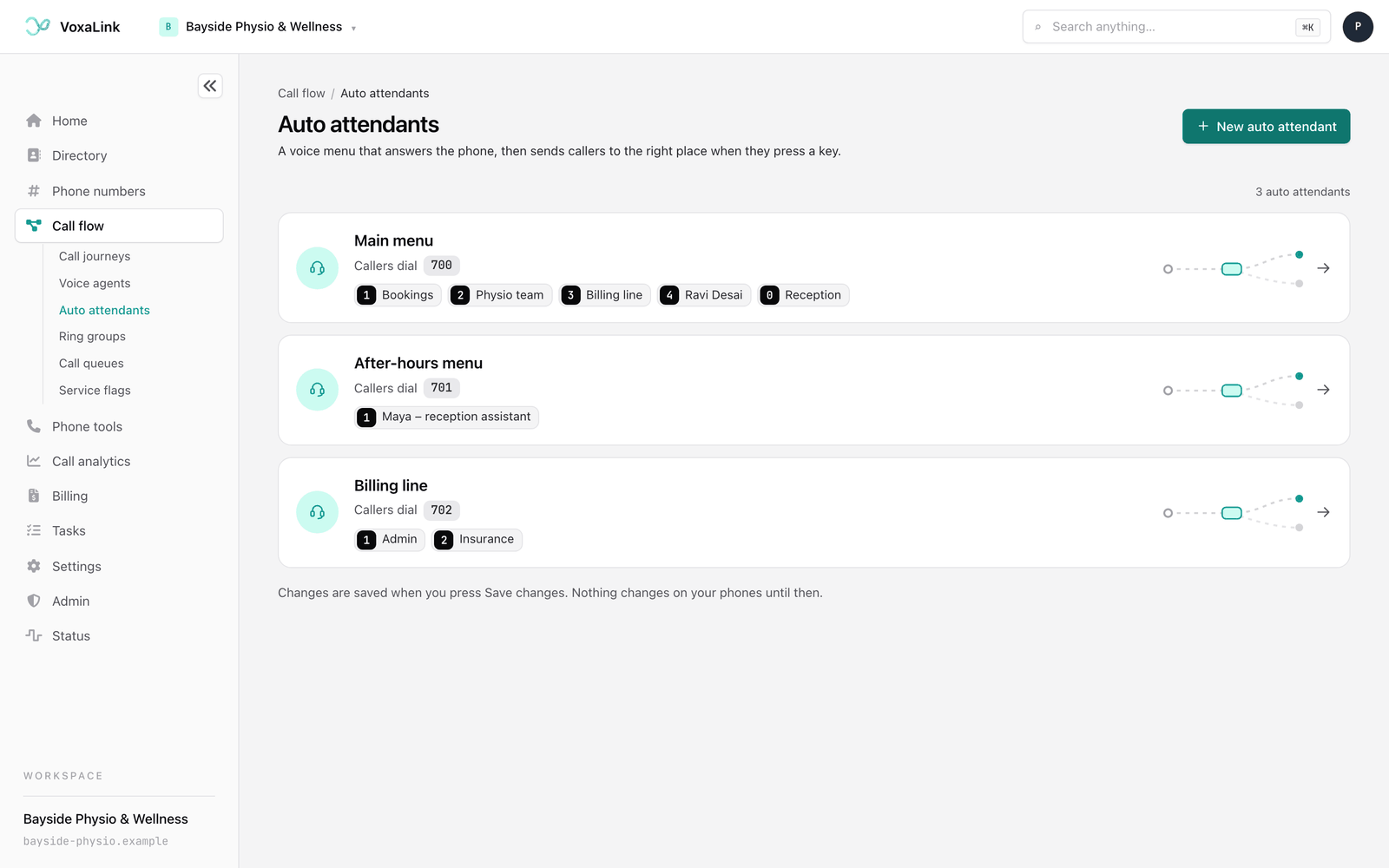
If you don't have any auto attendants yet, the page shows a short example menu that plays through a few sample calls. It's only a sample and isn't connected to your phone system.
Creating an auto attendant
- Press New auto attendant at the top of the list.
- Under 1 · Start from, pick a starting point:
- Reception menu gives you keys 1, 2 and 0, with a greeting for bookings, accounts and reception.
- After-hours greeting tells callers you're closed and offers keys 1 and 2 for a message or an emergency.
- Department directory gives you keys 1, 2 and 3 for sales, support and accounts, and invites callers to dial an extension.
- Start blank begins with a simple "Thanks for calling" and no keys.
- Under 2 · Name it, type a Name, such as "Main menu", and an Account number(s). The account number is the internal number that reaches the attendant. It must be 3 to 15 digits and not already used by anything else. You can add more numbers later.
- Under 3 · What callers hear, check the greeting. The starting point fills it in for you, and you can change the words. A computer voice reads it out, and you can swap in a recording later.
- Press Create auto attendant. (Cancel takes you back to the list.)
The Preview panel beside the form shows what a caller will experience as you fill it in.
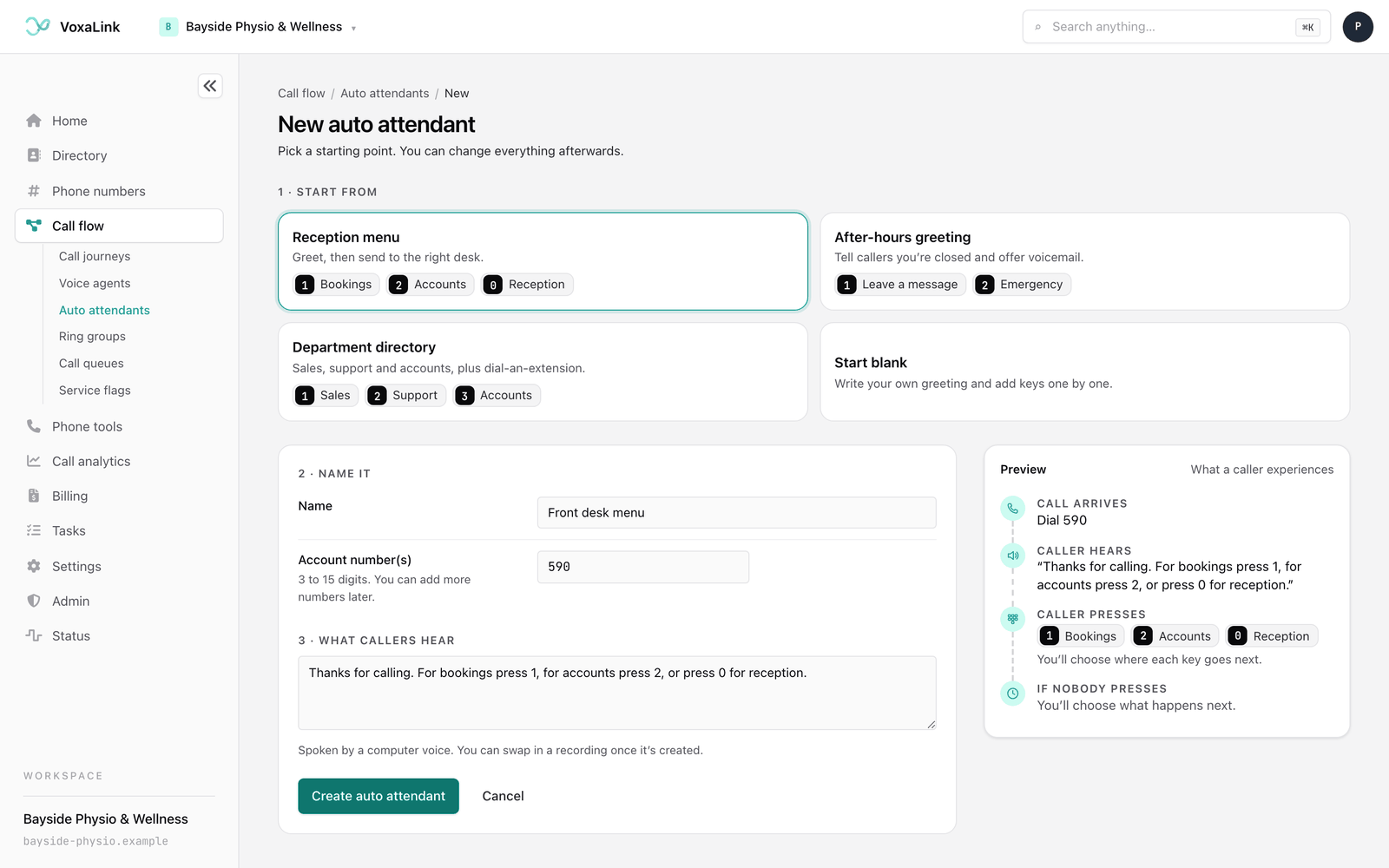
When you press Create auto attendant, the attendant is created on your phone system straight away, with its name, number and greeting. The keys from your starting point are added to the menu but not saved yet, because each key still needs a destination. Choose where each key goes under Caller presses a key, then press Save changes.
To give the attendant a public phone number, point one of your numbers at it from Phone numbers.
The auto attendant workspace
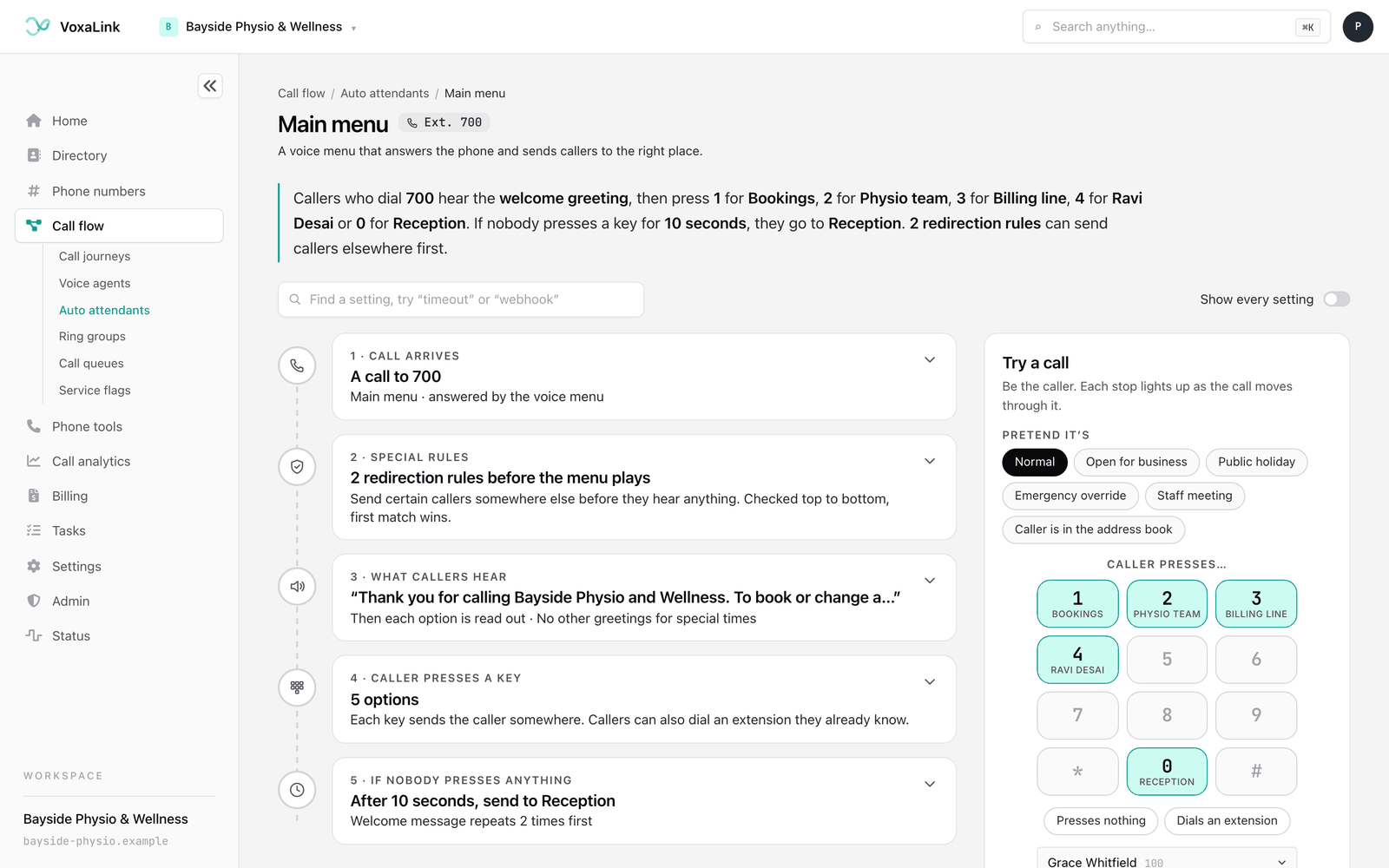
Open an attendant and you'll see its name and first number at the top. Under that, one sentence sums up what callers experience right now, for example: "Callers who dial 500 hear the welcome greeting, then press 2 for Bookings, 3 for Physio team or 0 for Reception. If nobody presses a key for 10 seconds, they go to Reception." It updates as you make changes.
Below the sentence are the five steps of the call, each in its own box. Every box shows a one-line summary. Click it to open the settings inside. The Try a call panel sits beside them on a wide screen, and above them on a narrow one.
Find a setting and Show every setting
Each box shows the settings most people need. The less common ones stay tucked away until you turn on Show every setting. When it's on, each setting also shows a small grey label with the phone system's own name for it. You won't need those labels day to day, but support may ask about them.
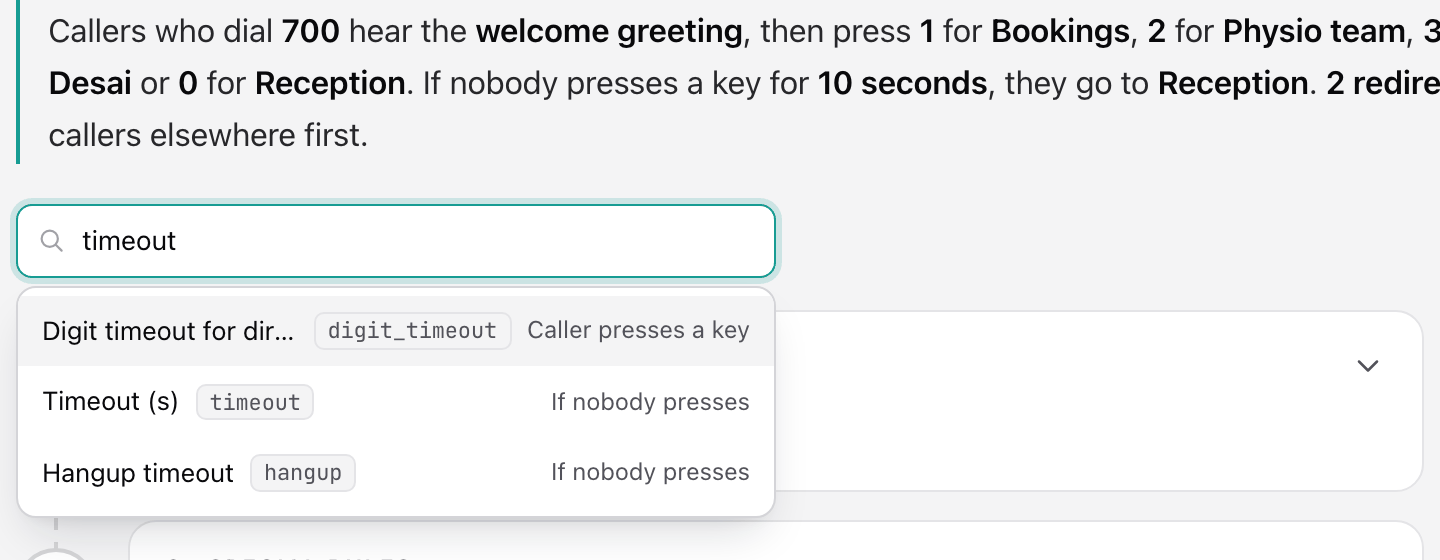
If you know what you're looking for, type it in the Find a setting box, for example "timeout" or "webhook". Pick a result and the page turns on Show every setting, opens the right box and highlights the setting for a moment.
Call arrives
This box is about how callers reach the attendant.
- Name is how the attendant appears in lists and on staff phones.
- Account number(s) are the numbers that reach it. Type a number and press Enter to add it, and add as many as you need. The attendant always needs at least one.
With Show every setting on, you'll also see:
- Caller ID, the number shown to the other person when the attendant sends a call to an outside number.
- Short name, a shorter version of the name for small phone screens.
- Pronunciation, a phonetic spelling the computer voice uses when it says the name.
- Note field, private notes for you and your team. The phone system ignores it.
Special rules
Special rules send certain callers somewhere else before they hear anything. The phone system checks the rules from top to bottom, and the first one that matches wins. Callers who match no rule go on to the greeting.
Each rule under Redirection has three parts:
- Trigger, the condition to check. The choices are When service flag is active, When service flag is not active, Always, Use call forward all from extension, Caller in address book and Caller not in address book.
- Parameter, which depends on the trigger. For the service flag triggers, pick the flag. For Caller in address book, pick the address book category. Other triggers don't need one.
- Destination, where matching calls go. Pick anything from the list, or choose Custom number… to type an outside number.
A service flag is an on/off switch for your business, such as "Open for business" or "Public holiday". It can follow a schedule or be flipped by hand. See Service flags for how to set them up.
To add a rule, fill in the empty row at the bottom. A new empty row appears each time you finish one. Press Remove to delete a rule. A rule that's missing its trigger, flag or destination isn't saved.
Below the rules, Redirect destination for suspected SPAM calls sends calls the phone system flags as spam to a place you choose, instead of letting them reach the menu.
What callers hear
This is your greeting and anything said after it.
Welcome greeting is the main greeting. Choose how to provide it:
-
Text: type the words and a computer voice reads them out.
-
File: a label shows where the recording stands: Recording saved, Not saved yet, Removed when you save or No recording. Choose an audio file from your computer, or press Generate with AI. Hover over that button to read what it does: it makes a recording of the announcement with an AI voice, and the recording goes to the phone system when you save.
The Generate with AI voice window asks What should the voice say?. Type your words, press Generate voice, listen, then press Use this recording (or Regenerate to try again). It uses the voice set in your workspace's AI recording settings under Settings. Nothing is uploaded until you press Save changes. Once a recording is saved, Play lets you listen to it, and Remove recording takes it off when you next save. Undo remove brings it back first.
The small code beside Text and File lets you record a greeting by phone: dial it from one of your office phones and follow the prompts.
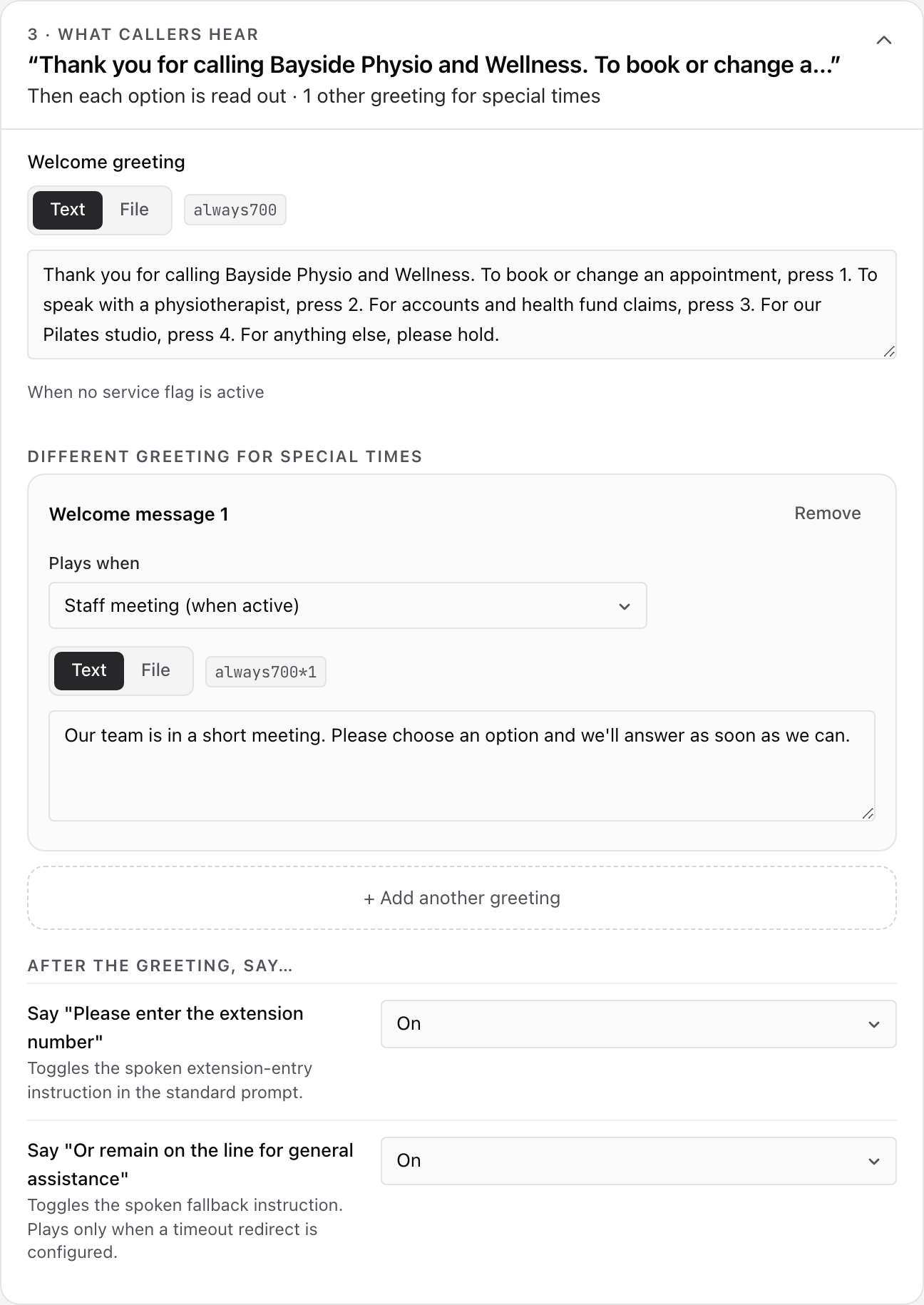
Under Different greeting for special times, press + Add another greeting to play a different greeting at certain times. You can add up to five, named Welcome message 1 to Welcome message 5. For each one, choose when it plays under Plays when: while a service flag is on, shown as "flag name (when active)", or while it's off, "flag name (when inactive)". If more than one could play, the lowest-numbered one wins. The main welcome greeting plays when none of them apply.
Under After the greeting, say…, choose whether the attendant adds standard lines after your greeting:
- Say "Please enter the extension number"
- Say "Or remain on the line for general assistance", which only plays when callers who press nothing are sent somewhere. You set that in If nobody presses anything.
With Show every setting on, you'll also find:
- Say "For our dial by name directory, press [number]". This only plays when a dial-by-name key has been set up for the attendant, and this page has no setting for creating one. Leave it alone unless you know your attendant has a directory.
- Wait before answering the call (secs), which lets the attendant ring for a moment before it answers so someone can pick up first. The default is Answer immediately.
- Time between prompts, the pause in seconds between parts of the announcement.
- Music on hold source and Background music, the music behind the spoken prompts and how far it's turned down while someone speaks. Mute Completely silences it during speech.
- Set language and Second language, the language of the system's own prompts, and an optional second language callers can choose.
Caller presses a key
This box is the menu itself. Under Menu options, a counter shows how many of the 10 options you've used, and a strip of keys shows which ones are taken.
Each option shows its key, where it goes and what it says. Click an option to change it:
- User input is the key the caller presses: 0 to 9, * or #.
- Audio file is an optional built-in phrase the attendant reads for this option after the greeting, such as "For sales, ...". Leave it on No playback if your greeting already explains the keys.
- Destination is where the call goes: a person, a ring group, a call queue, another auto attendant, or an outside number through Custom number….
- Gap time (sec) appears with Show every setting on. It's the pause after this option's phrase before the next one is read.
Press + Add an option to add a key. The page suggests the next free key, and you can change it. Press Remove this option to delete one. If two options use the same key, a warning tells you, because callers can only reach one of them. Every key needs a destination before you can save.
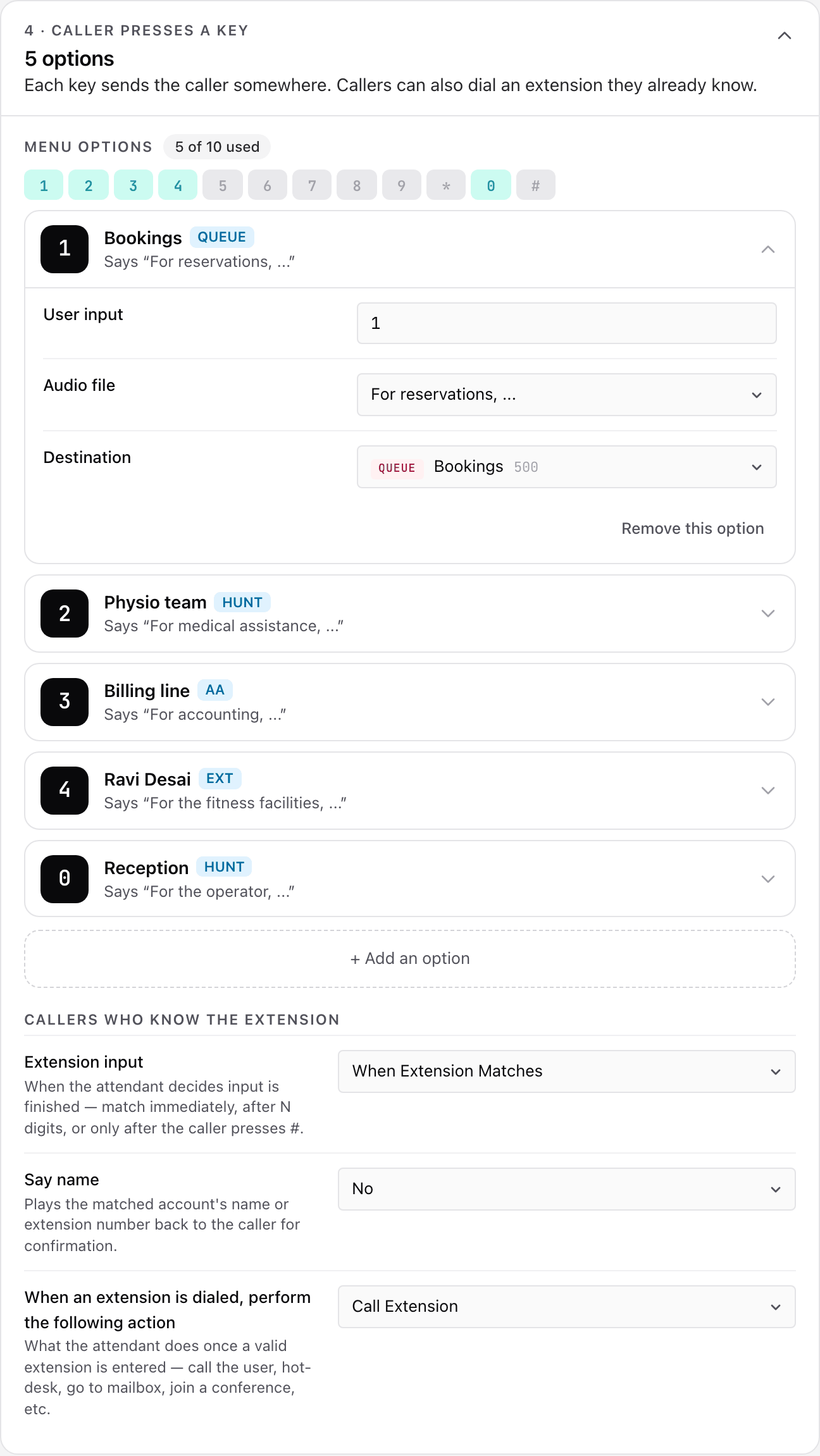
Under Callers who know the extension, you decide what happens when a caller types an extension number instead of choosing a menu key:
- Extension input decides when the number counts as finished. When Extension Matches connects as soon as the digits match an extension. You can also wait for a set number of digits, or for the caller to press # with User Must Hit Pound.
- Say name: choose Yes to have the attendant say the person's name before connecting, so the caller knows they've reached the right person.
- When an extension is dialed, perform the following action is usually Call Extension. The other choices send the caller to that person's voicemail with Go to Mailbox, or use the extension for Hot Desking, Start Call Review, Go to conference or Set wake up call. Hot Desking also asks for a Parameter for the action.
With Show every setting on, you'll also see Treat star (*) as special key and Digit timeout for direct destinations, which is how many seconds the attendant waits between key presses before it treats the input as complete.
If nobody presses anything
Some callers don't press anything. This box makes sure they still reach someone.
- Timeout (s) is how many seconds the attendant waits for a key. At 0, callers who press nothing aren't sent anywhere, so pick a time such as 10 seconds.
- Redirect number is where those callers go, usually your reception ring group.
- Number of times to repeat the welcome message plays the greeting again before the timeout sends the caller on.
With Show every setting on, Hangup timeout ends the call after that many seconds with no key pressed. Leave it at 0 unless you want silent calls to end.
Reports, calling out and connections
Below the five steps, under Not part of the call path, is a box for settings that don't change what callers hear:
- Daily call report: put email addresses in Send daily CDR report to to get a daily list of this attendant's calls. Set the time in Send daily CDR report at (24 hour format, 15 minute intervals). Type a time such as 18:30 for 6:30 pm. The box shows 18:30/sun as its example, where the part after the slash names a day or period. You can type several times separated by spaces. If the format isn't accepted, the page says so and asks for 24-hour times in 15-minute steps. Choose the format in Send nightly CDRs as.
- Calling out and paging: Dial plan for outbound calls is used when the attendant sends a call to an outside number. Leave it on Domain Default unless you've been told otherwise. Page incoming calls announces each new call over a paging group. With Show every setting on, you'll also find From-header, which chooses what the answering phone shows as the caller, and Allow VPA, which lets the phone system's virtual assistant handle calls from mobile callers. Most businesses leave both as they are.
- Webhooks let the phone system tell another system you use, such as a CRM, when something happens. There's one row per event, for example When a new call comes in, When a call is answered and When a call ends (CDR). Each row says On or Not set. Open a row to enter the web address to notify and how to sign in to it.
Try a call
Try a call lets you act as the caller and watch what happens, without ringing any phone. It uses the settings on screen, including changes you haven't saved yet, so you can check a change before you save it.
- Under Pretend it's, choose the situation. Normal means no service flags are on. Pick one or more of your service flags to pretend they're switched on, or choose Caller is in the address book and pick a category.
- Under Caller presses…, press a key on the keypad. Keys that have a menu option show where they go. Or press Presses nothing, or choose an extension and press Dials an extension.
- Watch the steps appear one by one. Each of the five boxes lights up as the call passes through it, and a text greeting appears word by word.
The last line tells you where the call ends up: the place that rings, or the reason it gets stuck, such as "No menu option uses 5" or "Key 2 has no destination yet". If you change a setting afterwards, the panel tells you to press a key again to check.
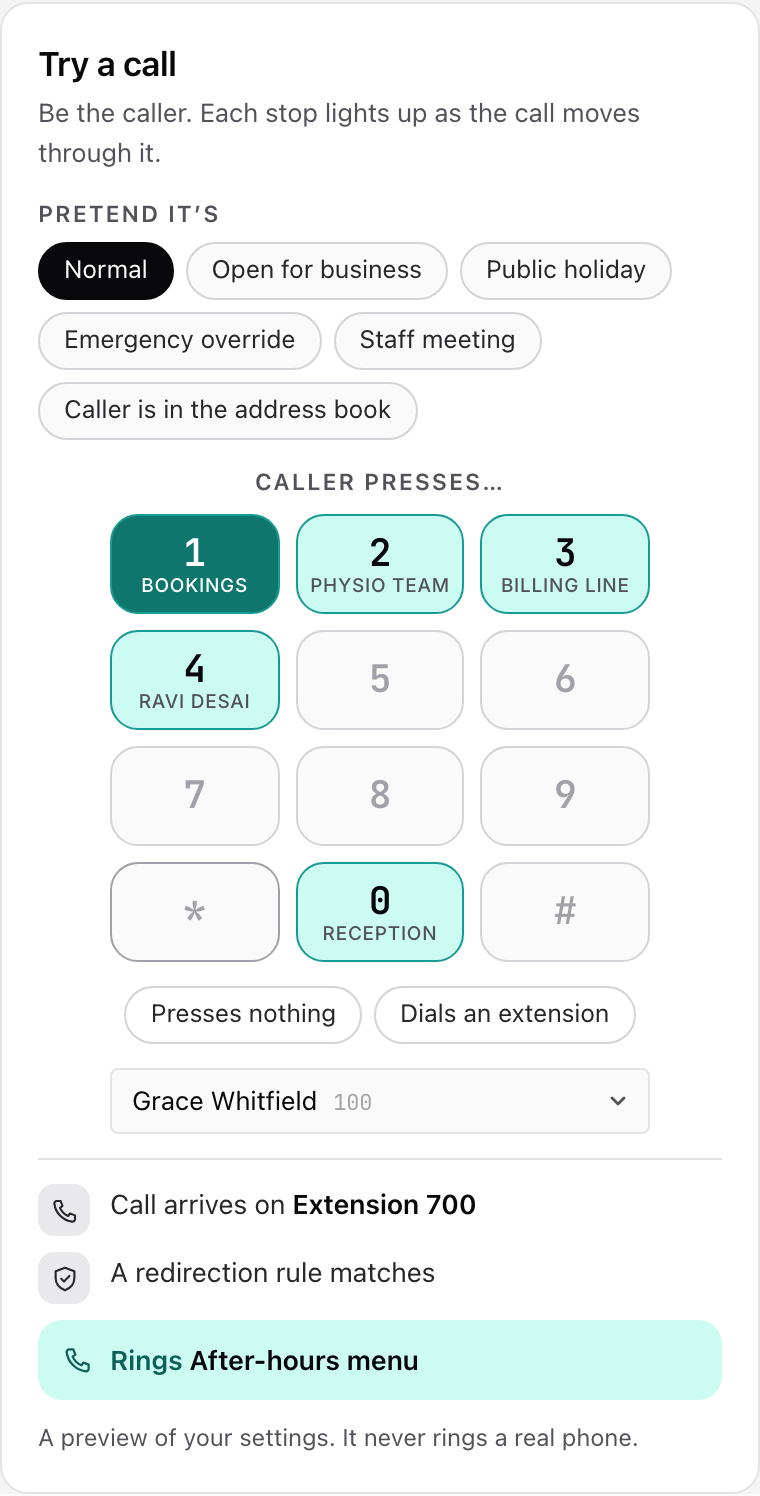
Try a call is a simulation of your settings. It never rings a real phone and plays no sound. A recorded greeting shows as a line saying it plays. A few things can't be simulated, and the panel says so: options that need more than one key press, and rules that use Use call forward all from extension. To hear the real thing, call the attendant's number after you've saved.
Saving your changes
As soon as you change something, a bar appears at the bottom of the screen showing Unsaved changes and how many there are.
- Save changes applies everything to your phone system. Uploaded recordings go first, then the settings. When it's done, the bar says Saved.
- Discard changes puts everything back the way it was when you last saved.
If something needs fixing first, such as a key with no destination, the bar says that a setting needs a look, and the page jumps to it and marks it with a message that explains the problem. Nothing is saved until it's fixed. If you try to leave the page with unsaved changes, it asks Discard your unsaved changes? so you don't lose work by accident. Press Keep editing to stay.
Deleting an auto attendant
Deleting removes the attendant for good, so the button sits at the very bottom of its page, below the five steps and Try a call. Look for the box headed Danger zone with the line Delete this auto attendant.
- Open the attendant and scroll to the bottom.
- Press Delete auto attendant. The button is greyed out while a save is in progress.
- A window titled "Delete Main menu?" (with your attendant's name) says this removes the auto attendant from the phone system, and that callers sent to it will no longer reach a menu. If you had unsaved changes, it adds that they will be discarded.
- Type the attendant's account number into the box, exactly as the window shows it. The red Delete auto attendant button stays off until it matches.
- Press Delete auto attendant. The button says Deleting… for a moment, then you land back on the list with a message such as "500 was deleted." Cancel closes the window without deleting anything.
If the phone system refuses, the window shows a message and nothing is deleted. If the attendant is deleted but VoxaLink can't finish tidying up some related records, the list also says so, and you should contact support before creating a new attendant with the same number.
Nothing updates the places that point at the attendant. Before you delete one, move any phone numbers, menu keys, ring group stages or rules that send calls to it somewhere else.
A worked example: Bayside Physio's main menu
Bayside Physio & Wellness wants its main number answered with a short menu. Calls should go to the right team, and on public holidays callers should hear the after-hours menu instead. Their staff are on extensions 100 to 113, so the menu leaves key 1 free and uses 2, 3, 4 and 0.
- Create the attendant. Press New auto attendant, choose Start blank, name it "Main menu" and give it account number 500. In What callers hear, type: "Thanks for calling Bayside Physio and Wellness. To book or change an appointment, press 2. To speak to a physio, press 3. For billing, press 4. For reception, press 0, or dial an extension at any time." Press Create auto attendant.
- Map the keys. Open Caller presses a key and press + Add an option four times. Set key 2 to the Bookings call queue, 3 to the Physio team ring group, 4 to the Billing line auto attendant and 0 to the Reception ring group.
- Catch callers who press nothing. In If nobody presses anything, set Timeout (s) to 10 and Redirect number to the Reception ring group.
- Handle public holidays. In Special rules, add a rule: When service flag is active, parameter "Public holiday", destination "After-hours menu".
- Add a staff meeting greeting. In What callers hear, press + Add another greeting. Set Plays when to "Staff meeting (when active)" and type: "Our team is in a short meeting. Your call is important to us, so please choose an option and we'll answer as soon as we can."
- Try it. In Try a call, press 2 and check the result says it rings Bookings. Press Presses nothing and check it rings Reception. Choose "Public holiday" under Pretend it's, press any key, and check that the rule sends the call to the After-hours menu.
- Save and connect. Press Save changes, then point the main number at "Main menu" from Phone numbers.
Everyday tasks
- How do I set up a phone menu? Press New auto attendant, pick a starting point, then give each key a destination under Caller presses a key. See Creating an auto attendant.
- How do I change the greeting? Open What callers hear and edit the Welcome greeting, or switch it to File to upload a recording. See What callers hear.
- How do I play a different greeting after hours or on holidays? Add a greeting under Different greeting for special times and tie it to a service flag.
- How do I skip the menu entirely at certain times? Add a rule under Special rules with a service flag trigger. See Special rules.
- How do I make sure silent callers reach someone? Set Timeout (s) above 0 and choose a Redirect number. See If nobody presses anything.
- How do I check a change before saving? Use Try a call. It includes your unsaved changes.
- How do I find a setting that isn't on screen? Type it into Find a setting, or turn on Show every setting.
- How do I stop typed extensions clashing with menu keys? Use menu keys that none of your extensions start with.
- How do I route callers by what they say instead of what they press? Use a voice agent.