
Call journeys
Set when a phone number is answered, what callers hear and who picks up, including lunch, after hours and public holidays.
A call journey decides what happens when someone rings one of your phone numbers. It knows when you're open, what the caller hears first, and who picks up, and it covers lunch breaks, after hours, public holidays and the odd day you close early. Each journey looks after one phone number. It's a good way to set up how a number answers calls, and you find it under Call flow → Call journeys.
Nothing changes until you turn it on You can build a journey and change it as often as you like. Your phones keep answering exactly as they do today until you assign a number to the journey and confirm. After that, saved changes stay a draft until you press Put changes live.
How a call journey works
Every call to a journey's number follows the same path:
- The call arrives on your number.
- The journey checks the time where you are, using the time zone you chose for it.
- The caller hears the message for that part of the week, if there is one.
- The call is put through to whoever answers that part of the week, or it ends after the message.
A few words you'll see throughout:
- Opening hours are the times you answer calls. Any time you haven't covered counts as closed.
- Closed times are the gaps outside your hours. The journey names them the way people say them, such as "Weeknights", "Weekend" or "Lunch break", and each one can have its own message and answer or share one with the others.
- Public holidays and special dates are days that don't follow your normal week, such as a Christmas shutdown or a late start.
- A message is a short recording callers hear before the call goes through or ends. You write the words and VoxaLink records them in your journey's voice.
- Who answers is where the call goes: a person, a ring group that rings several phones, a call queue that holds callers until someone is free, or a phone menu where callers press a key. Phone menus are the same thing as auto attendants.
You set a journey up in four steps: Opening hours, What callers hear, Who answers, and Check and turn on.
The Call journeys list
The list shows every journey, newest change first. Each row has the journey's name, its time zone, when it was last updated, and a badge that tells you where it stands.
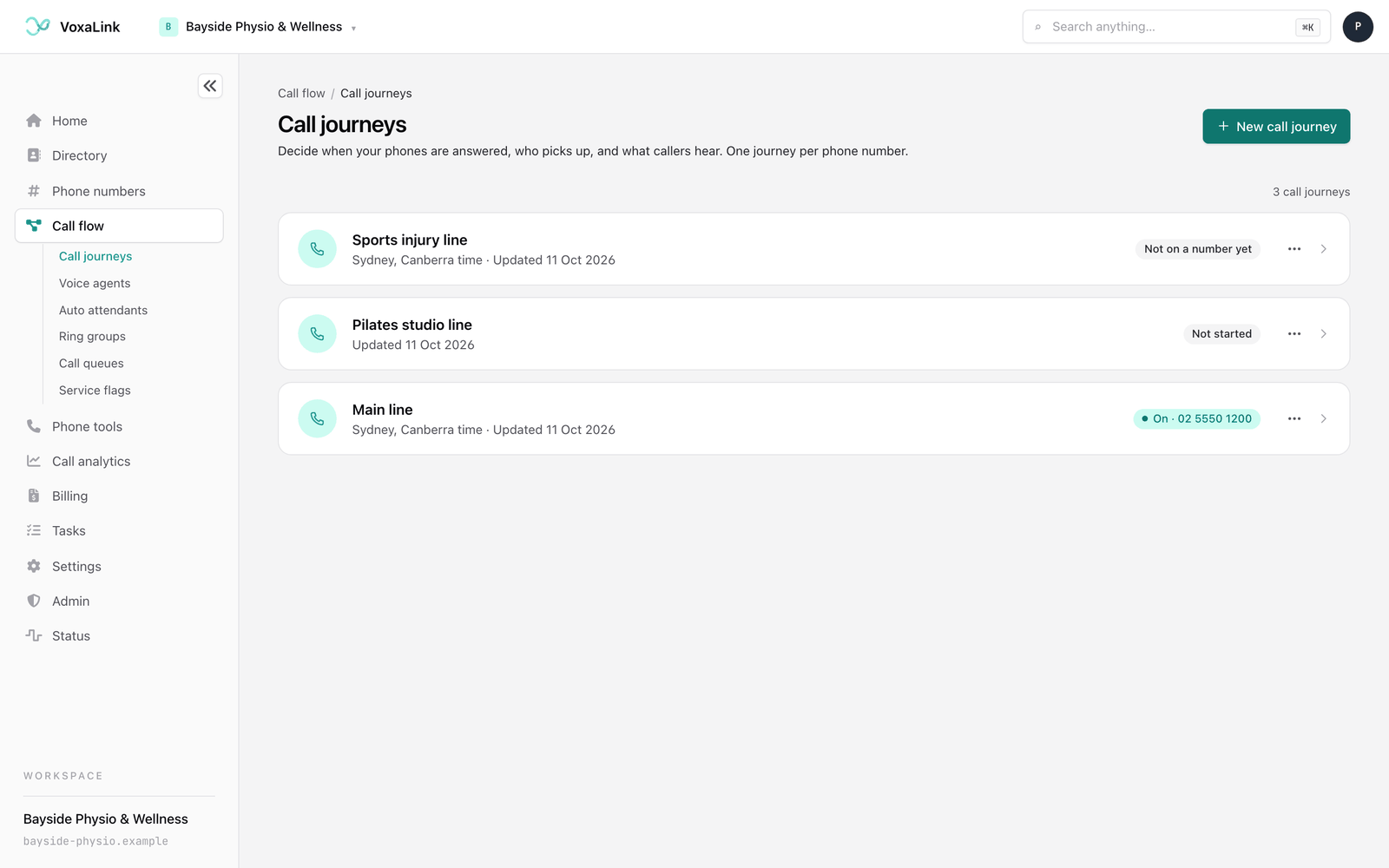
What the badges mean:
- On · 02 5550 1234 means the journey answers that number, and callers get the version you last put live.
- On · changes not live yet means it answers the number, but you've saved changes callers don't get yet.
- Not on a number yet means the journey is set up, or partly set up, but isn't answering any number.
- Not started means nothing has been set up yet.
- Change waiting means a suggested change is waiting for your yes or no at the top of the journey.
- Changed outside this page or Off, or changed outside this page means someone changed the number somewhere else, for example by giving it to a voice agent. Open the journey to see where things stand.
- Number status unknown means the list couldn't tell where the number stands. Open the journey to check.
- Checking the number… shows briefly while the list confirms the number, and Couldn't check the number means that check failed. Reload the page to try again.
A line above the list counts your journeys, for example "3 call journeys". Once you have more than eight, a search box appears beside it. It looks at names, numbers and the badge text, and says so if nothing matches.
Click a row to open the journey. The more actions button at the right of each row (three dots) has Rename… and Delete….
If you haven't made a journey yet, the page shows a short example of a dental practice's day instead, with the four steps underneath. The example is sample data only.
Create a journey
- Click New call journey.
- Under Journey name, name it after the number or team it answers for, such as "Main line". You can rename it later.
- Under Your time zone, check the time zone. It starts on your account's own zone. The list covers the Australian time zones, from Sydney and Canberra across to Perth.
- Click Start with opening hours. The journey opens on step 1.
Finding your way around a journey
The top of a journey shows its name, its time zone and Voice: followed by the voice its messages use. On the right is a card for the phone number. Once the journey answers a number, the card shows that number with an on/off switch. Before then it shows an Assign a number button. The more actions button next to it (three dots) has Rename…. Deleting a journey is at the end of the page. See Rename or delete a journey.
Under the header, one line sums up the whole journey in words, such as what happens during opening hours and what happens otherwise.
Below that is the step bar: Overview, then the four steps. Each step shows a tick when it's done and a warning triangle when something in it needs attention. The overview becomes available once you've added opening hours.
At the bottom of every view you'll see Prefer to describe it? Ask Ellis. Ellis is the portal's assistant. You can type something like "closed Boxing Day" and Ellis prepares the change. It shows at the top of the page for you to check, and nothing is saved until you say yes.
The overview
Once a journey has hours, it opens on the overview. This is the place to see what's happening right now and to check a day before it arrives.
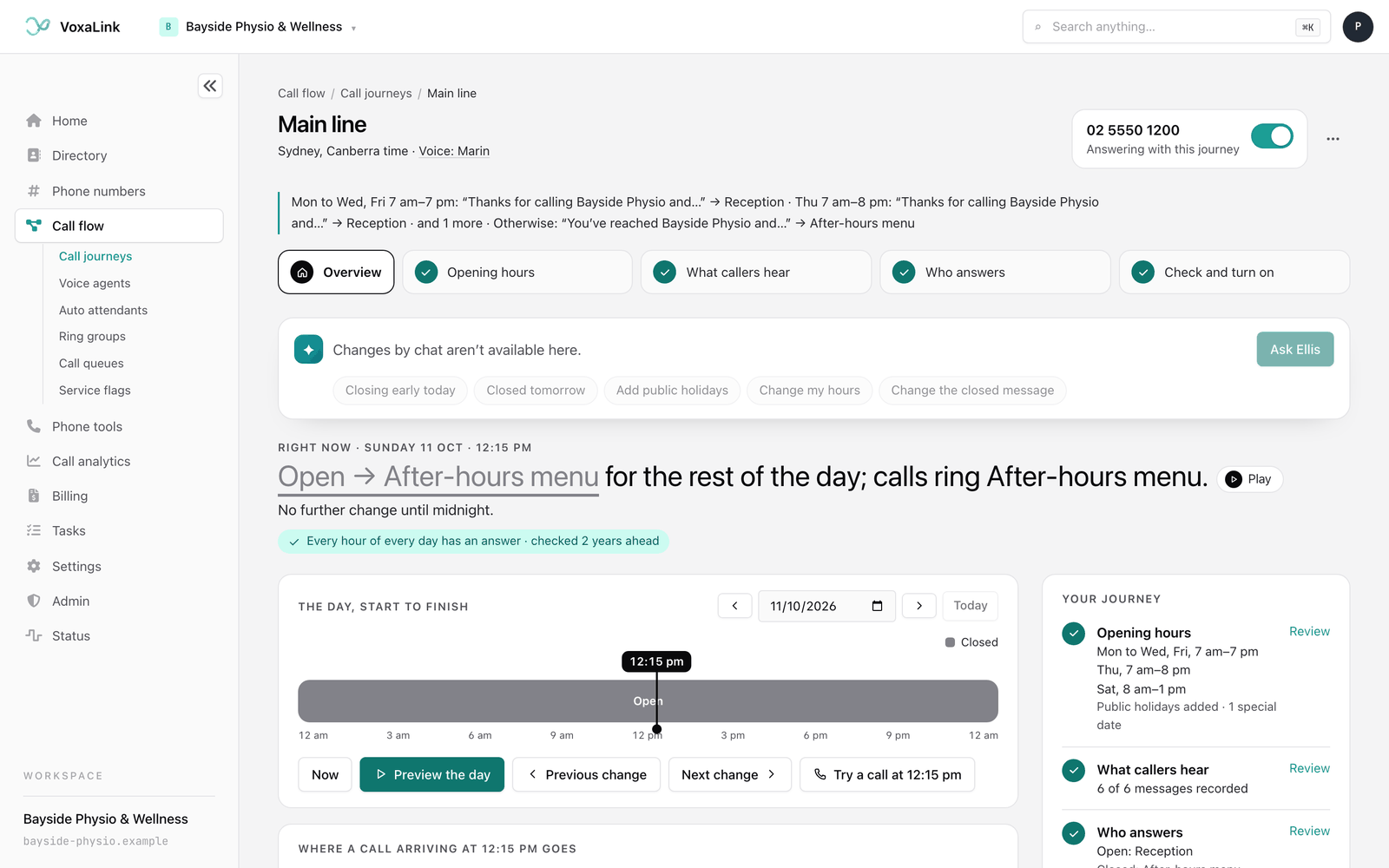
From top to bottom you'll find:
- The Ask Ellis box, with quick changes underneath: Closing early today, Closed tomorrow, Add public holidays, Change my hours and Change the closed message. The first two let you set a time or date and the wording, then press Show me to see the change before it's saved. Change my hours and Change the closed message take you to the step that changes them.
- A sentence about right now, for example "Opening hours until 5 pm; calls ring Reception." Press Play next to it to hear the recorded message.
- The day, start to finish, a coloured strip for the day. Click anywhere on it to move the marker to that time. Use the date picker or the arrows to look at another day, Today to come back, Preview the day to play the day through, and Previous change and Next change to jump between changes. Try a call at a given time shows what a caller would get at that moment. When the journey is on and up to date, that's exactly what a caller gets. Otherwise it shows your saved journey, which may not be live yet.
- Where a call arriving at a given time goes, which draws each route a call can take that day.
- Your journey, a summary of the four steps with Review or Edit next to each.
- Your call flow, the whole journey drawn as a diagram from the call arriving to who answers. Click any box to open the step that changes it.
- Danger zone, the last section, where you can delete the journey. See Rename or delete a journey.
Step 1: Opening hours
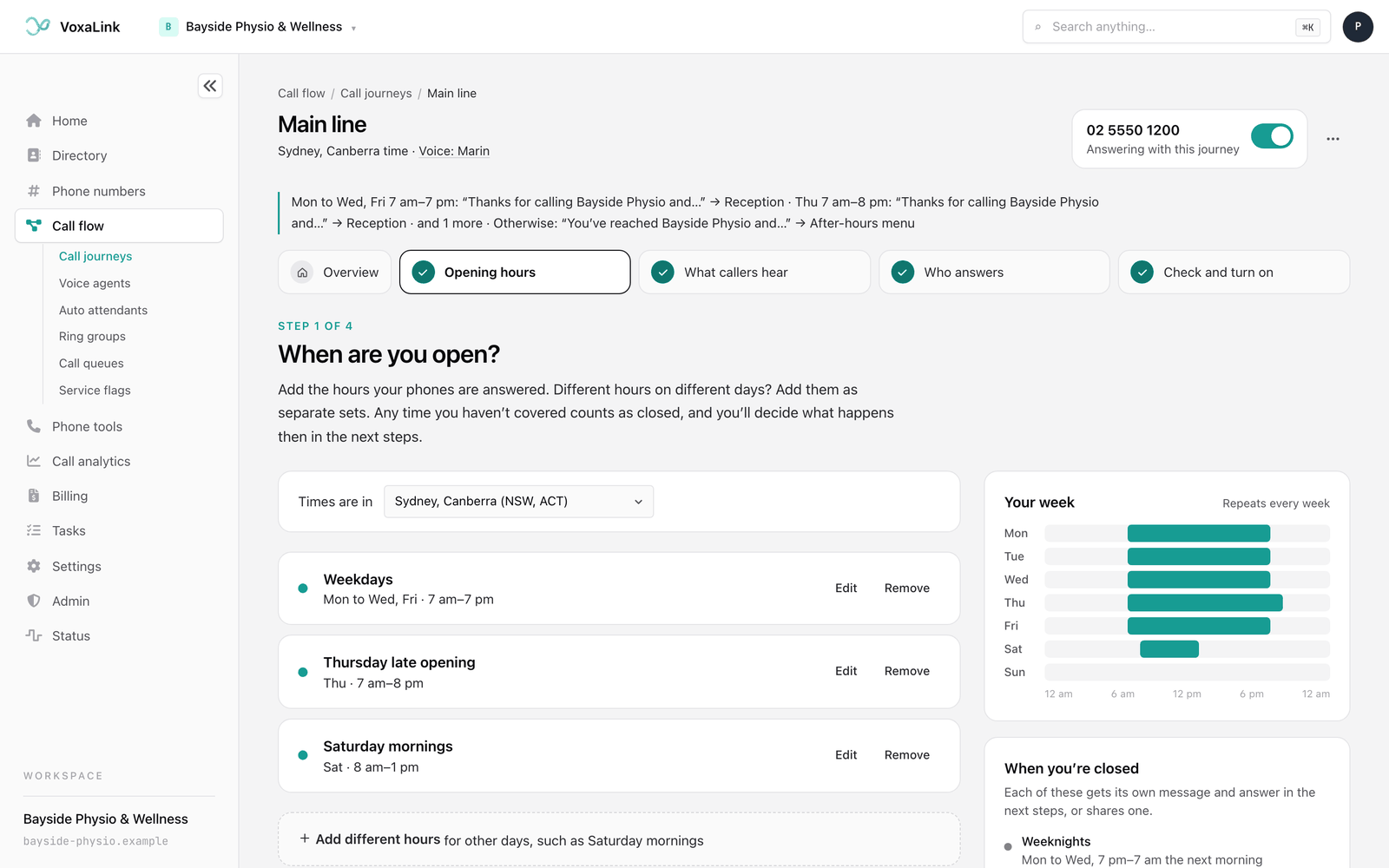
On screen this step asks When are you open? Add the hours your phones are answered. Different hours on different days are added as separate sets.
Set the time zone
Times are in shows the journey's time zone. Change it here if you picked the wrong one when you created the journey.
Add your hours
A new journey starts with a set ready to save: Monday to Friday, 9 am to 5 pm, named "Opening hours".
- Under Which days?, click the days to turn them on or off, or use the shortcuts Weekdays, Weekends or Every day.
- Under Which hours?, choose the opening and closing times. Times go in 15-minute steps. A closing time earlier than the opening time runs overnight, and the list marks it "(next day)".
- To close for lunch, click Add a break, such as lunch. It splits the hours around a one-hour gap that you can then adjust. A set can have up to four time ranges.
- Check the Name. It's shown in your journey, for example "Opening hours" or "Saturday hours".
- Click Save these hours.
For other days, such as Saturday mornings, click Add different hours and repeat. Each saved set has Edit and Remove.
The right side of the step keeps you oriented:
- Your week draws your open hours for each day.
- When you're closed lists your closed times by name, such as "Weeknights" or "Lunch break". Each one gets its own message and answer in the next steps, or shares one.
- Check a date shows what happens across any date you pick, including public holidays and special dates.
If you change your hours and a message you wrote still mentions a time that's no longer in them, the journey tells you so you can fix the wording in step 2. Messages that still use the suggested wording are updated to the new hours for you.
Public holidays
The Holidays and special dates card starts with public holidays. Until you choose a state, it says Public holidays follow your normal week, which means the journey treats a public holiday like any other day.
- Click Choose your state. A Public holidays window opens.
- In States, pick the states you follow.
- Under Include, choose Public, Regional or Both. Regional holidays apply only in particular areas, such as a show day. If Areas appears, tick the areas your business is in.
- The list shows each holiday with a tick. Untick any day you stay open.
- Click the button under the list, Apply to schedule followed by the number of days, to add those days to the journey. If you've applied holidays before, it reads Update the schedule instead.
The card then shows your states and the next holiday. Public holidays become their own part of the journey in steps 2 and 3, so you can give them their own message and answer.
The window also has a Defaults card with Default destination and Default timezone, which the assistant uses when you haven't said otherwise. You can leave it alone. Its own Save changes and Discard changes buttons only affect those two settings, not the holidays above.
Special dates
Use a special date for anything that changes your normal week on particular days. Special dates replace your normal week on those days only, and they take priority over public holidays.
Click one of the buttons on the card:
- Closed for some days closes for a run of dates. Give it a Name, such as "Christmas shutdown", then choose From and Until (included).
- Different hours on a day sets different opening times for one date. Give it a Name and a Date, then the Open times. You can add a second range. During those hours calls go where your normal opening hours go, and the rest of the day gets your closed answer.
- Closing early today closes from a time you choose today. Only today changes, and tomorrow goes back to your normal hours on its own.
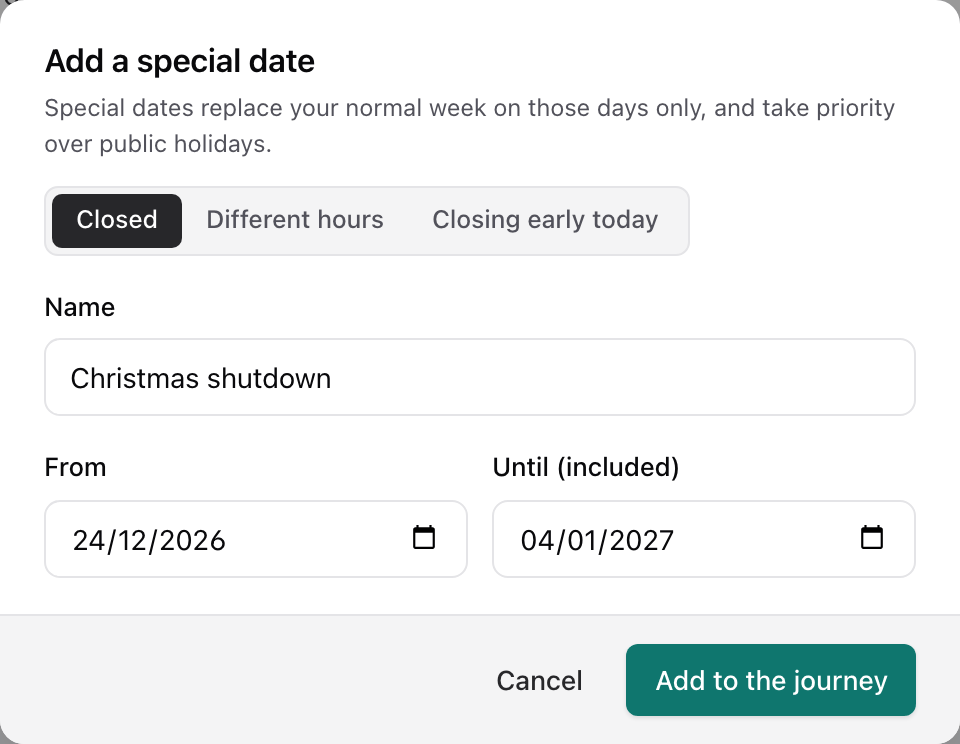
The dialog is called Add a special date, and you can switch between the three kinds at the top. Click Add to the journey to save it. Dates must be today or later. Each special date shows on the card with a Remove button.
A special date uses your closed answer unless you give it its own. Like public holidays, it appears in steps 2 and 3, where you can write what callers hear that day.
When your hours are saved, click Next: what callers hear.
Step 2: What callers hear
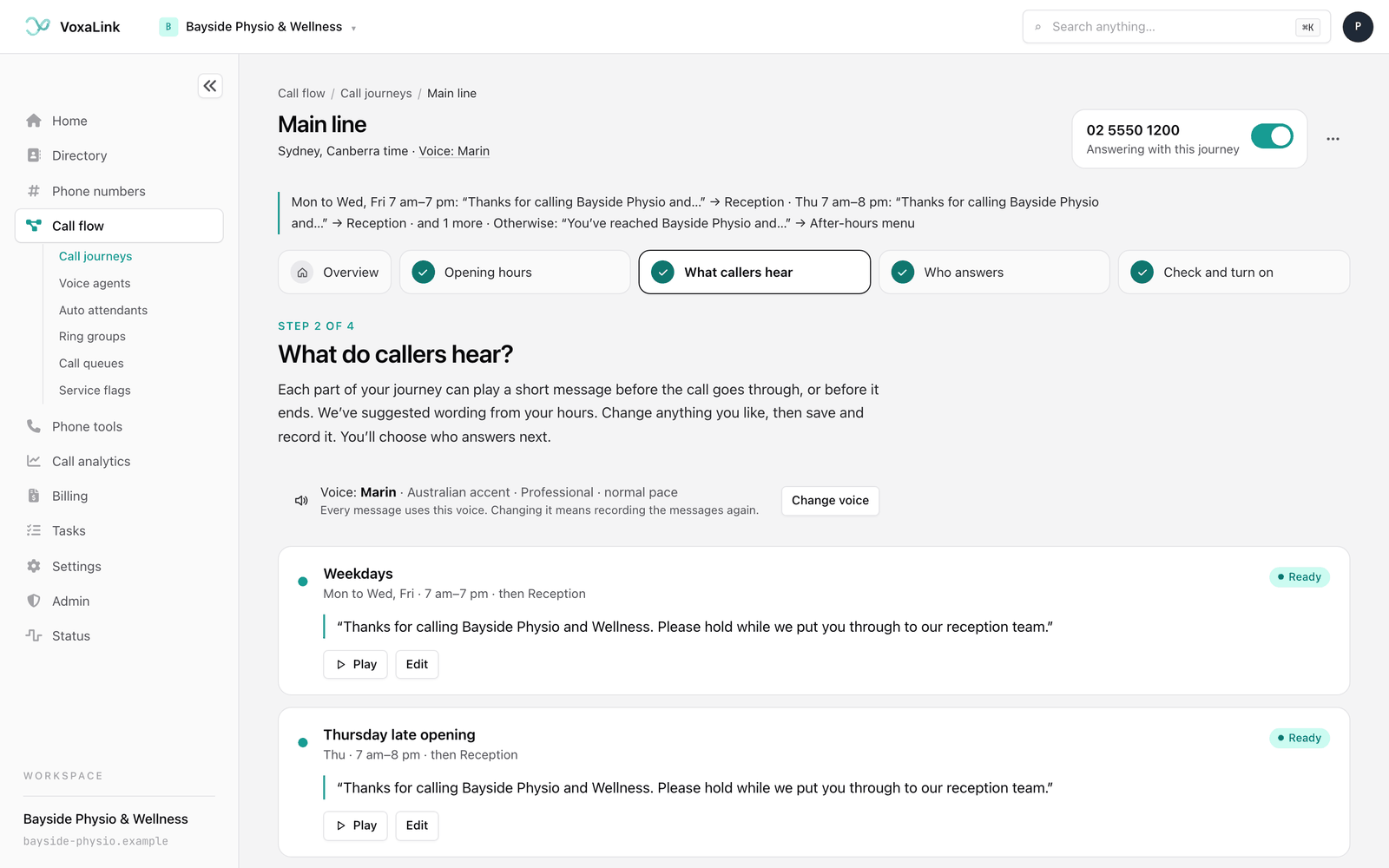
On screen this step asks What do callers hear? Each part of your week can play a short message before the call goes through, or before it ends.
The voice
The bar at the top shows Voice: and the voice in use. Every message uses this voice. Click Change voice to pick another. The voice is shared by every AI recording in your workspace, so changing it here changes it there too, and your messages need recording again in the new voice.
Writing a message
There's a card for each part of your week: each set of opening hours, each closed time, public holidays and each special date. The card shows when it applies and what happens next, and a status:
- Needs recording: the words are saved but not recorded yet.
- Out of date: the wording or voice changed since it was recorded. Record it again so callers hear the current wording.
- Recording…: the recording is being made.
- Ready: recorded and ready to play.
- Needs a message: a closed time that ends the call, with nothing written yet.
To write or change a message:
- Click Add a message, Review and record or Edit on the card.
- Type The exact words callers should hear. Use suggested wording fills in wording based on your hours and your journey's name, which you can then change.
- If you've already recorded something similar, pick it from Or reuse a message you already have. A message already recorded in this voice is reused as it is, so nothing new is recorded.
- Click Save and record. The words are saved first, then recorded. You'll see Record when the words are already saved, and Use this message when you picked an existing recording.
When it's ready, press Play to hear it before any caller does. Record again makes a fresh take of a message that's already ready.
If more than one message needs recording, a bar at the top offers Record all with the number of messages. It opens every message for a last check, then records them one after another.
Which parts need a message
During opening hours a message is optional. With No message, calls ring straight through, and that's what the step recommends. If you do add one, keep it short, such as "Thanks for calling Bayside Physio & Wellness. Please hold while we put you through."
A closed time that ends the call needs a message, because otherwise callers would hear nothing before the line goes dead. Writing that message is enough to answer the closed time: callers hear it and the call ends. You only need step 3 for a closed time if you want calls put through to someone.
Closed times that share an answer also share the message. Their card says Same message as followed by the time they share with. Click Give it its own message to word one differently, for example "We're closed for the weekend" instead of "We're closed for the night".
If a part of the week goes to a phone menu that already plays its own greeting, leave that message empty so callers don't hear two greetings.
Messages must be recorded before you turn on A journey can't be turned on, or have changes put live, while any message is waiting for a recording. Step 4 tells you how many are left.
Click Next: who answers when you're done.
Step 3: Who answers
On screen this step asks Who answers? For each part of your week, you put calls through to someone or end the call after the message. Your wording from step 2 stays as it is.
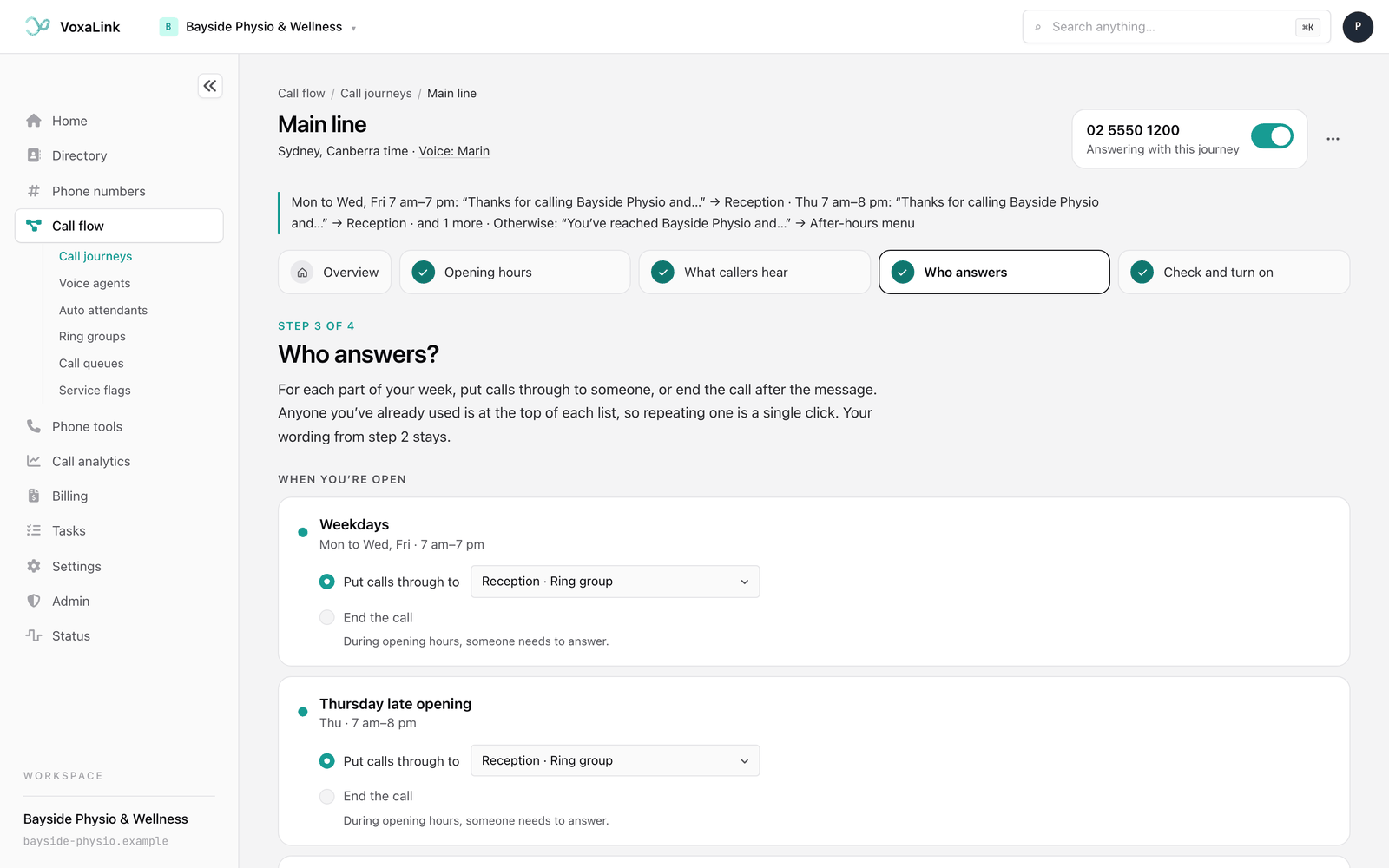
The step has two sections, When you're open and When you're closed. Each card has these choices:
- Put calls through to, with a list where you choose who answers. Anyone already used in this journey is at the top under Already used in this journey, so repeating a choice is one click. Everyone else is under Everyone and everything else, labelled Person, Ring group, Call queue or Phone menu.
- End the call, which plays the message and hangs up. This is greyed out during opening hours, because someone needs to answer then.
- Same as another closed time, for closed times that share one answer.
Each choice saves straight away to your draft, and the card shows Saved. Your first choice for opening hours also fills in any other opening-hours set that has no answer yet, since most businesses answer the same way all day.
Want callers to leave a voicemail? Choose a person. If they don't answer, their voicemail takes the call.
Build a ring group, queue or menu on the spot
If the right group doesn't exist yet, choose Build a new ring group, queue or menu… at the bottom of the list. The dialog shows everything you already have, with Build something new underneath:
- Ring people builds a ring group. Give it a Name, tick Who rings, choose All at once or One at a time, and set how long it rings with Ring for. One at a time takes up to three people in the order you set. If nobody answers says where the call goes next.
- Let callers wait builds a call queue, where callers wait with hold music until an agent is free. Tick the Agents. Only people with an Agent licence can take queue calls. If nobody picks up in time says where callers go when they wait too long. Once you choose a place, Longest wait sets how long that is.
- Offer a menu builds a phone menu. Add Choices, each with a key, a name such as "Bookings" and where it goes. You can have up to nine. If they don't press anything says where the call goes if the caller doesn't choose. The dialog shows what callers will hear, for example "For Bookings, press 1." That wording becomes this part's message, so callers hear one greeting.
Click Create ring group, Create queue or Create menu. It's created in your phone system straight away and chosen for this part of the week, but it only takes calls once your journey is on. Occasionally the dialog lists a few settings that still need setting, with a link to open the new group in Directory.
If Ellis wrote rules for this journey that don't fit a step, they're listed under Made in chat, with a link to change them by chatting.
Click Next: check and turn on when every part has an answer. The button bar tells you how many are still to choose.
Step 4: Check and turn on
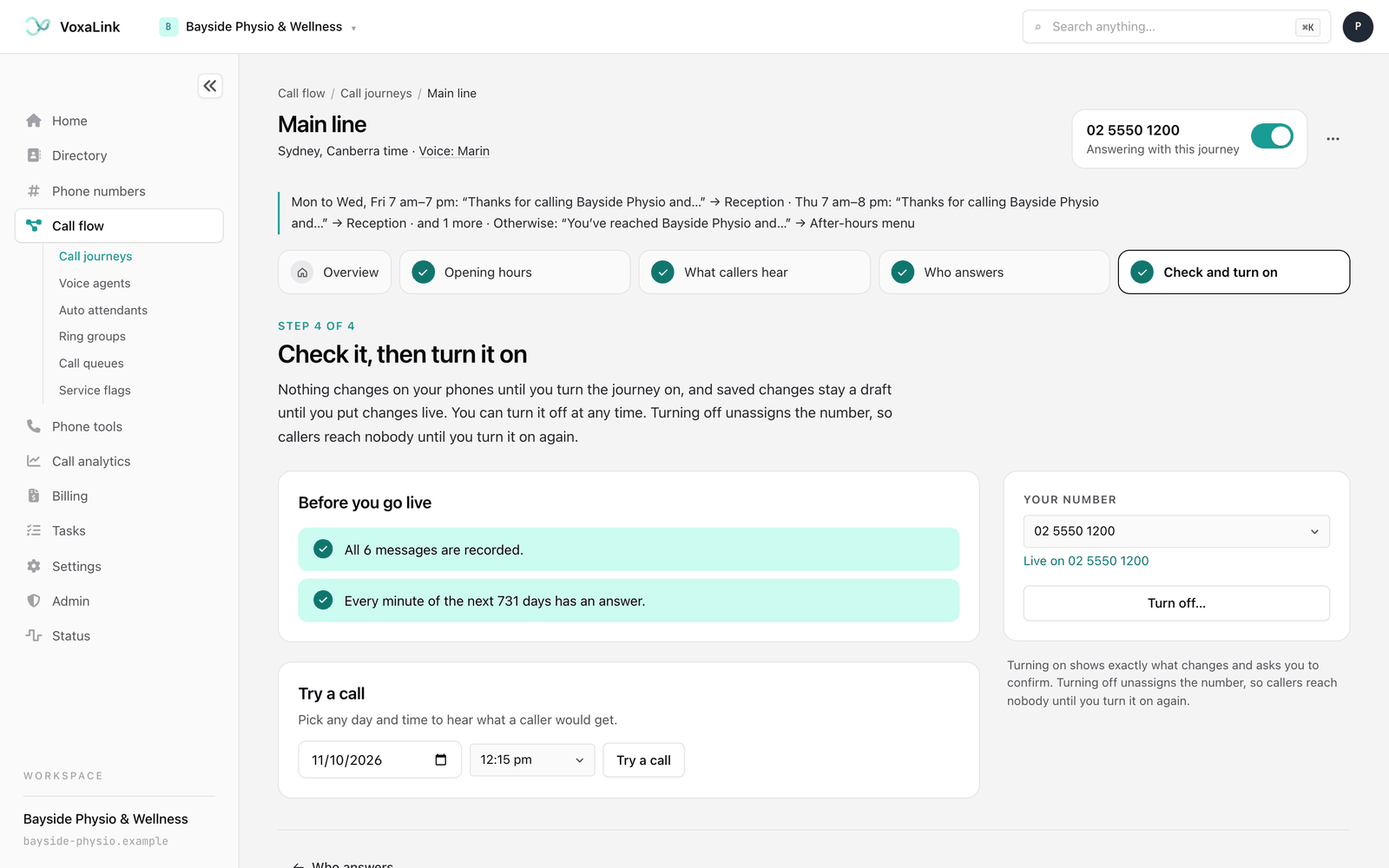
On screen this step says Check it, then turn it on.
Before you go live
This list shows what's left. Items marked ! must be fixed before the journey can go on, and each has a link straight to the fix:
- Add your opening hours.
- A count of messages that aren't recorded yet, with Record them.
- Choose who answers, followed by the parts of the week still to choose, with Choose.
You may also see a question, Are you closed on public holidays? Right now they follow your normal week., with Choose your state. It doesn't stop you turning on.
Ticked items confirm what's ready, such as all your messages being recorded and every minute of the coming days having an answer.
Try a call
Pick any date and time and click Try a call to see what a caller would get: the message they hear, with Play, and where the call goes. Here it always shows your saved journey, not the live one, so you can check a change before you put it live.
Turn it on by assigning a number
A journey goes on by assigning it a number. The Your number card says No number yet until you do.
- Click Assign a number… on the card, or Assign a number in the header.
- The Assign a number dialog lists your numbers, free ones first. Each shows what answers it today, such as Not used, Person: followed by a name and extension, Ring group: Reception, Voice agent: Maya or Journey: followed by another journey's name.
- Pick a number and click Continue.
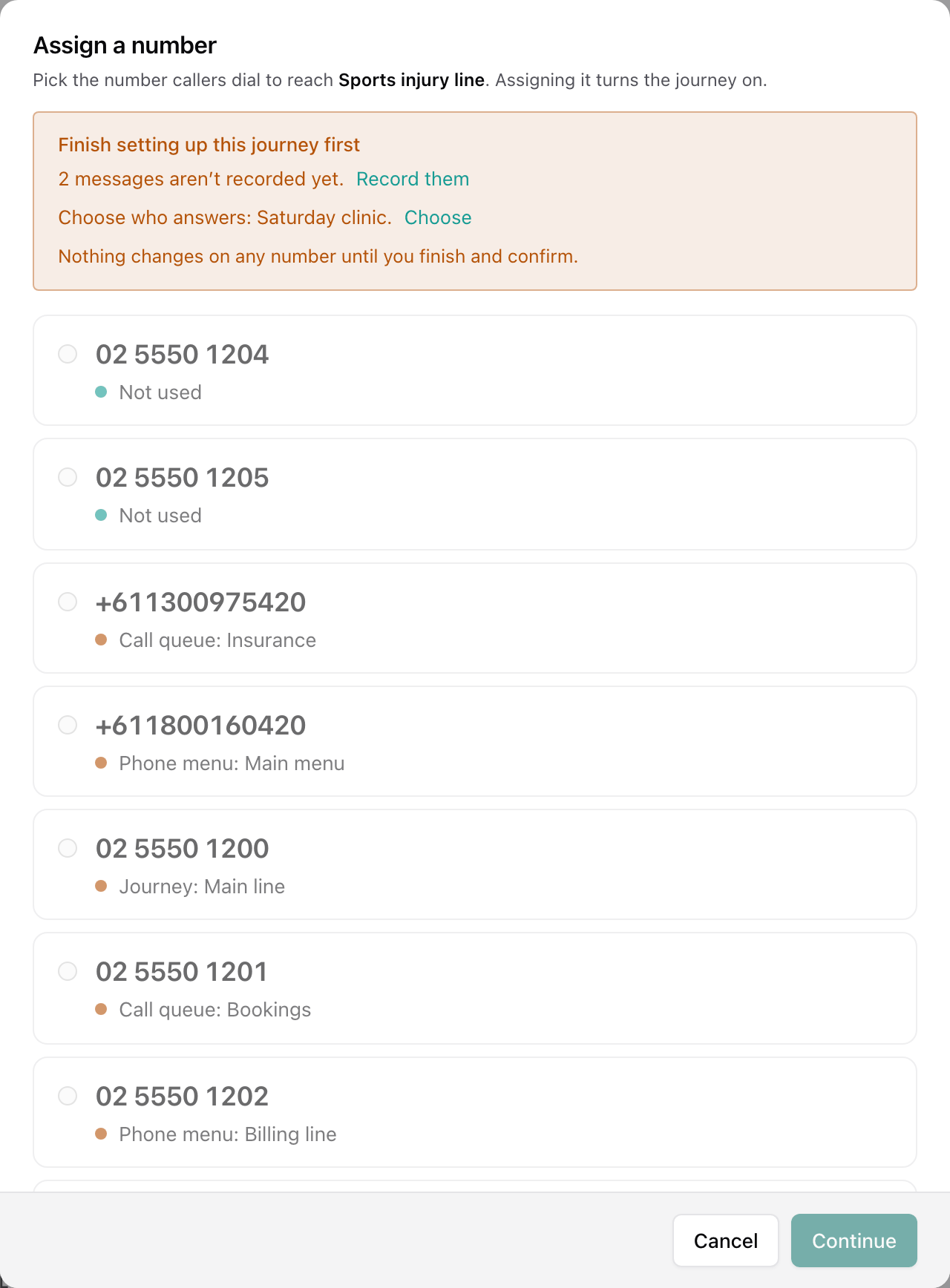
Some numbers can't be picked here. This journey already answers it is self-explanatory. A number answered by a call screener says Turn it off in the mobile app first, and a number where VoxaLink can't tell for certain what answers it says Check it in the phone system first. If the journey isn't ready, the dialog lists what to finish first, and nothing changes on any number until you finish and confirm.
After Continue, a confirmation opens with the number as its title. It shows:
- Ticks for Your hours are set, how many messages are ready, and the number.
- If something goes wrong, send calls to, a safety net in case the journey can't run. Pick somewhere sensible, such as your Reception ring group. It remembers your last choice.
- If the number is in use today, a warning such as "Calls to 02 5550 1234 go to Reception today. They'll go through this journey instead.", with who answers it today and who answers it after. Tick Move 02 5550 1234 to this journey to agree.
- Two lines to tick: what happens if the journey can't run, and that sending a call somewhere doesn't mean someone answers, because that place's own settings decide what happens next.
Click Assign and turn on for a free number, or Move number and turn on for one that's in use. When it's done you'll see "It's on. New calls to 02 5550 1234 use" followed by the journey's name.
From then on, the Phone numbers page shows that number as answered by the journey and won't let anyone change it there. Changes to who answers it happen in the journey.
Changing a journey that's on
You can keep editing a journey while it answers calls. Every save is a draft, and the page tells you so: "Saved. Your number still uses the earlier version until you put changes live." A banner then appears on every view of the journey, with a Put changes live button.
Click Put changes live. The same confirmation opens, with your fallback filled in. Tick the two lines and click Put changes live. New calls get your changes straight away.
A change waiting at the top of the page Most changes save as soon as you click Save. A change that also touches a public holiday or special date you weren't editing waits at the top of the page instead, with lines to tick. Click Yes, do it to save it or No to leave things as they were. Changes Ellis prepares always wait there for your answer.
Turning a journey off
Use the switch on the number card in the header, or Turn off… on step 4. The confirmation asks Turn it off? and warns: "Turning it off unassigns 02 5550 1234. Callers to 02 5550 1234 won't reach this journey, or anyone else, until you turn it back on."
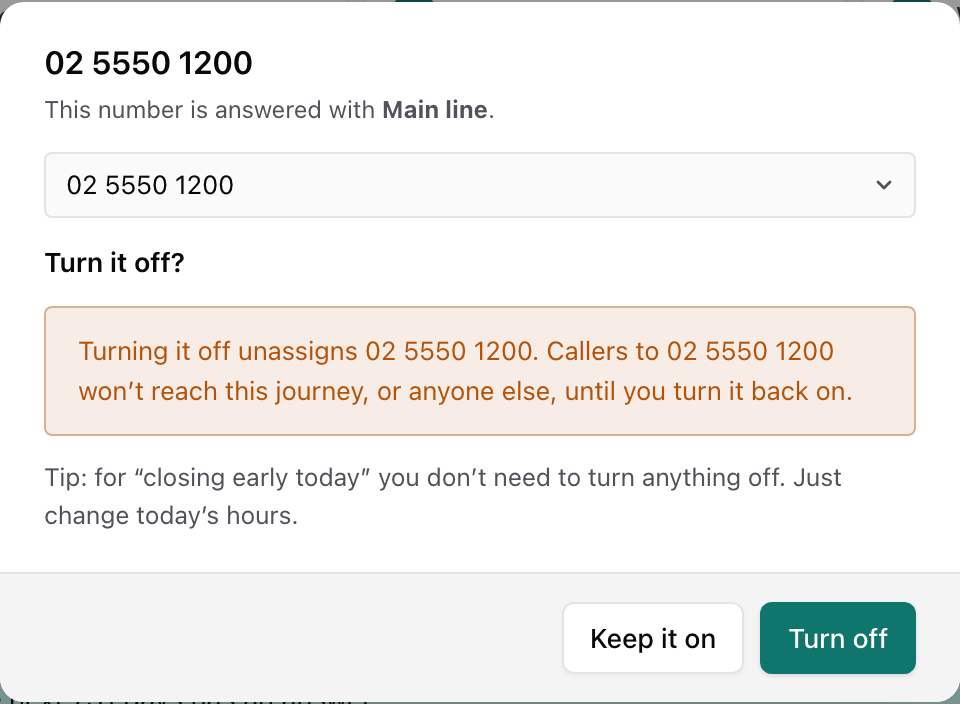
Click Keep it on to back out, or Turn off to go ahead. Once it's off, the number isn't assigned to anything, so calls to it aren't answered. That's a big change for a main line, so think about what callers need before you do it.
To get the number answering again, either turn the journey back on with Assign a number, which takes you through the confirmation again, or assign the number to someone on the Phone numbers page.
Closing early? Don't turn it off For a short closure, change today's hours instead. Use Closing early today or a special date, record the message, then put changes live. Callers hear your message instead of nothing.
Rename or delete a journey
Rename… is in the more actions menu (three dots), on the list or in the journey's header. It opens Rename journey with the current name filled in. Change it and click Save. The phone system shows the new name too.
To delete a journey, use the Danger zone at the end of its overview. It says that deleting removes the journey's opening hours and messages, and that a number it answers is released, so calls to it aren't answered. A journey with no hours yet has no overview, so the Danger zone sits at the bottom of the step instead. You can also choose Delete… from the more actions menu on a row in the list.
The red button reads Delete call journey, or Release and delete when the journey answers a number or is set to come back on for one. It opens a box that first checks what the journey is connected to, then says in plain words what deleting does. If the journey answers a number, it says deleting releases that number and leaves it unassigned. The opening hours and messages are deleted with it, and this can't be undone. The button in the box reads Release and delete when a number is involved, or Delete when it isn't. If something is in the way, such as a change in progress, the box explains it and offers Check again.
Worked example: Bayside Physio's main line
Bayside Physio & Wellness wants its main number, 02 5550 1234, to ring reception during the day, send lunchtime calls to the Bookings queue, and tell after-hours callers when the clinic reopens.
- New call journey, named "Main line", time zone Sydney, Canberra.
- Step 1: opening hours Monday to Friday, 8 am to 6 pm, with Add a break, such as lunch set to 12:30 pm to 1:30 pm. A second set for Saturday, 8 am to 12 pm. Choose your state → NSW, then apply the dates. Closed for some days → "Christmas shutdown", 24 December to 4 January.
- Step 2: no message for opening hours, so calls ring straight through. The lunch break gets "Thanks for calling Bayside Physio & Wellness. We're on a break until 1:30. Please hold while we find someone for you." The main closed time, public holidays and the Christmas shutdown each get a closed message. Record all, then Play to check each one.
- Step 3: opening hours → Put calls through to the Reception ring group, which fills the Saturday set too. Lunch break → the Bookings queue. Closed times → End the call after the message.
- Step 4: Try a call at 12:45 pm on a Tuesday to hear the lunch message. Then Assign a number… → 02 5550 1234, which rings Reception today. Choose Reception as the fallback, tick the move and the two lines, and click Move number and turn on.
When the clinic later moves its Saturday hours to 9 am to 1 pm, it edits the Saturday set in step 1, checks the messages in step 2, and clicks Put changes live.
Everyday tasks
- How do I close early today? On the overview, click Closing early today, or use Closing early today under special dates in step 1. Record its message in step 2, then click Put changes live. See Special dates.
- How do I add a Christmas shutdown? Step 1, Closed for some days. Then record its message and put changes live.
- How do I change who answers at lunch? Step 3, the lunch break card, Put calls through to someone else. Then Put changes live.
- How do I change what callers hear after hours? Step 2, Edit on the closed card, then Save and record, then Put changes live.
- How do I hear exactly what a caller gets at a certain time? Use Try a call on the overview, or Try a call on step 4. See Try a call.
- How do I move a number from a person to a journey? Step 4, Assign a number…, pick the number and confirm the move. See Turn it on by assigning a number.
- How do I stop a journey answering? Turn it off from the header switch. This unassigns the number. See Turning a journey off.
- Why aren't callers hearing my change? You saved it but haven't put it live. Look for the banner with Put changes live. See Changing a journey that's on.
Related: Phone numbers, Ring groups, Call queues, Auto attendants, Call flow.