05Chapter 5 of 22
Microsoft Dynamics 365
Connect VoxaLink to Microsoft Dynamics 365 so calls match across the phone fields and a Phone Call Activity is logged to the right contact and user.
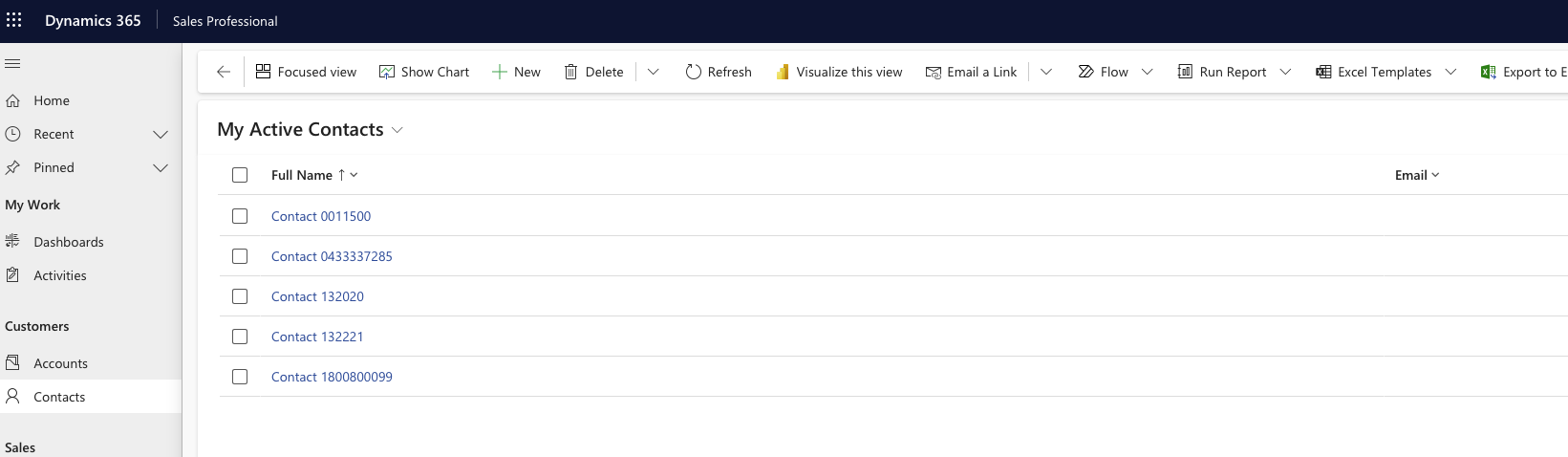
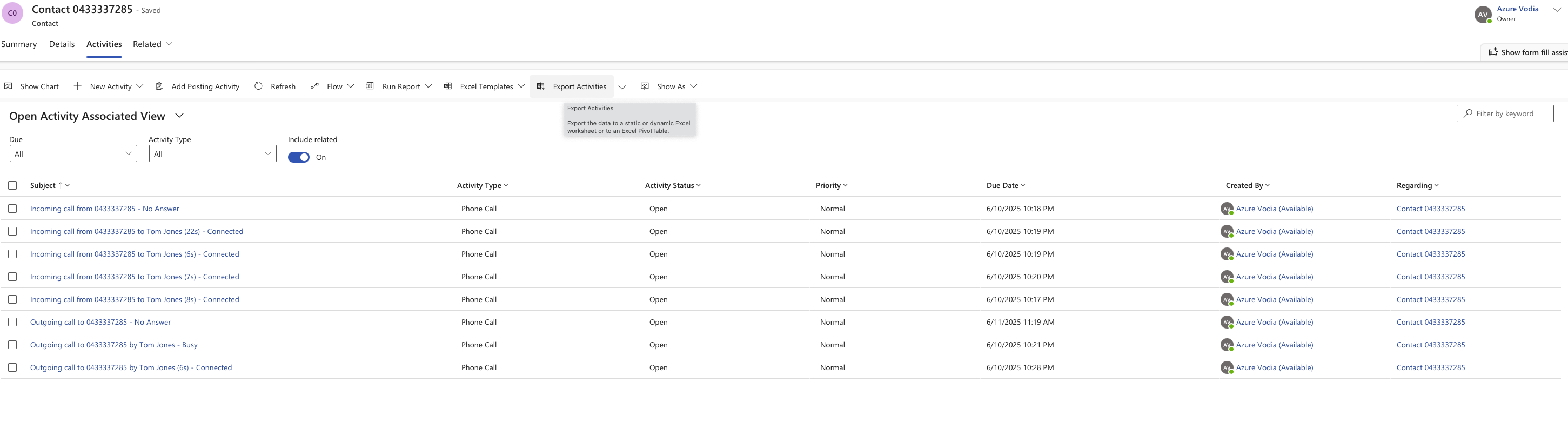
The Dynamics 365 integration links your phone system to your Dynamics CRM. When a call happens, VoxaLink looks the number up across the contact's phone fields, and after the call creates a Phone Call Activity under the matched contact, attributed to the right staff member. It can also create a contact for numbers Dynamics doesn't already have.
Connecting takes a little more than the others — it needs an Azure AD admin to consent first — and two things have to line up for matching and attribution to work. Read Before you connect first.
Before you connect
- An active Dynamics 365 subscription with rights to create contacts and activities.
- An Azure AD admin to grant consent for the requested permissions (Dynamics read/write, offline access, profile).
- Phone numbers stored consistently. VoxaLink searches the Mobile, Business, Home and Other Phone fields; for reliable matching, store numbers in E.164 — full international form, e.g.
+61…. Check how a number appears in Call Analytics (Call Analytics) and store Dynamics records the same way. - Each person's email in VoxaLink must match their email in Dynamics 365. Calls are attributed to the Dynamics user whose email matches the VoxaLink extension on the call — so if the addresses differ, the call logs against the wrong user (or none). Set the extension's email under Directory → the person → Email (Directory).
Connect Dynamics 365 in VoxaLink
- Open Admin → CRM Integrations and find Microsoft Dynamics 365 under CRM.
- Click Configure. In the dialog:
- Grant Admin Consent — an Azure AD admin clicks this and approves the requested permissions (Dynamics read/write, offline access, profile).
- Dynamics 365 Organization URL — enter your org's URL, e.g.
https://yourorg.crm.dynamics.com. - Apply to — All accounts (tenant-wide), or a single permission group to pilot it with one team first.
- Get OAuth Token — click this and authenticate with a Dynamics user, then approve access. Dynamics hands VoxaLink a token; there's nothing to copy or paste by hand.
- Click Save.
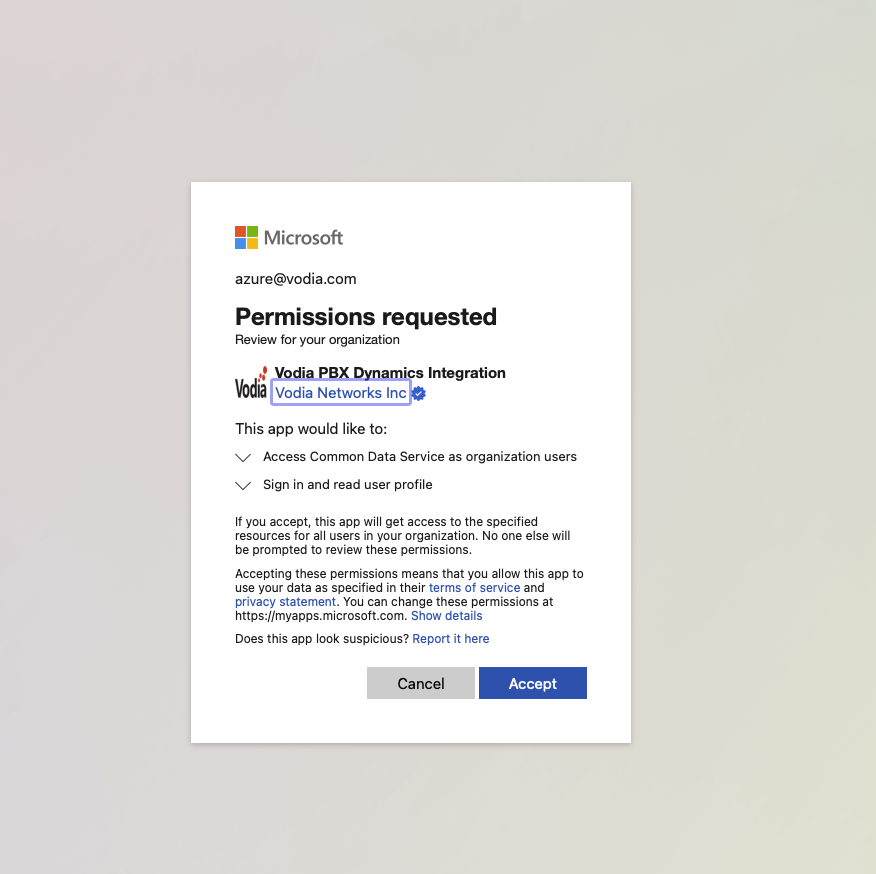 Matching and logging start on the next completed call.
What happens on a call
- Inbound — VoxaLink matches the caller's number across the Mobile, Business, Home and Other Phone fields and pops the matching contact for the person answering.
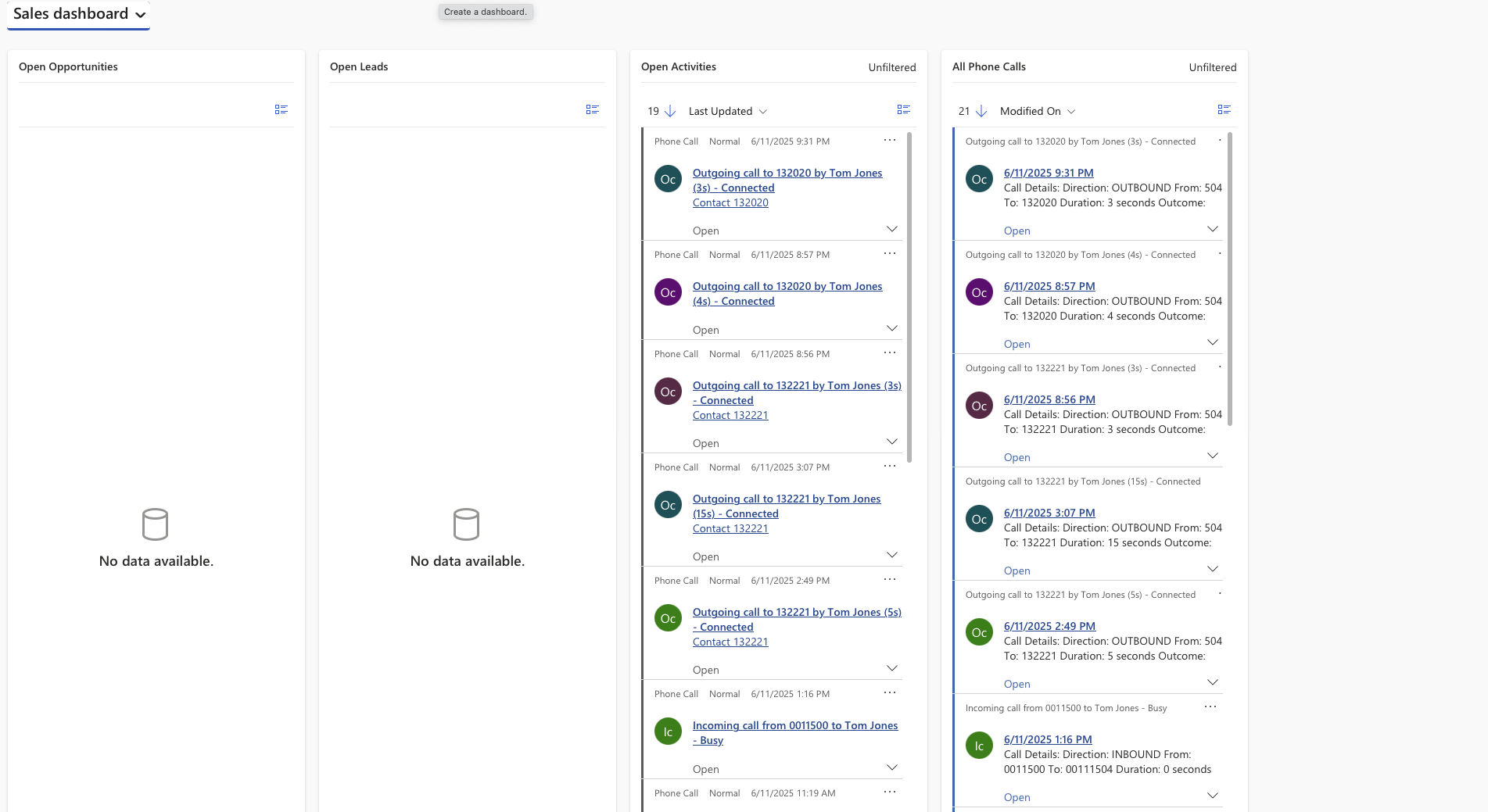
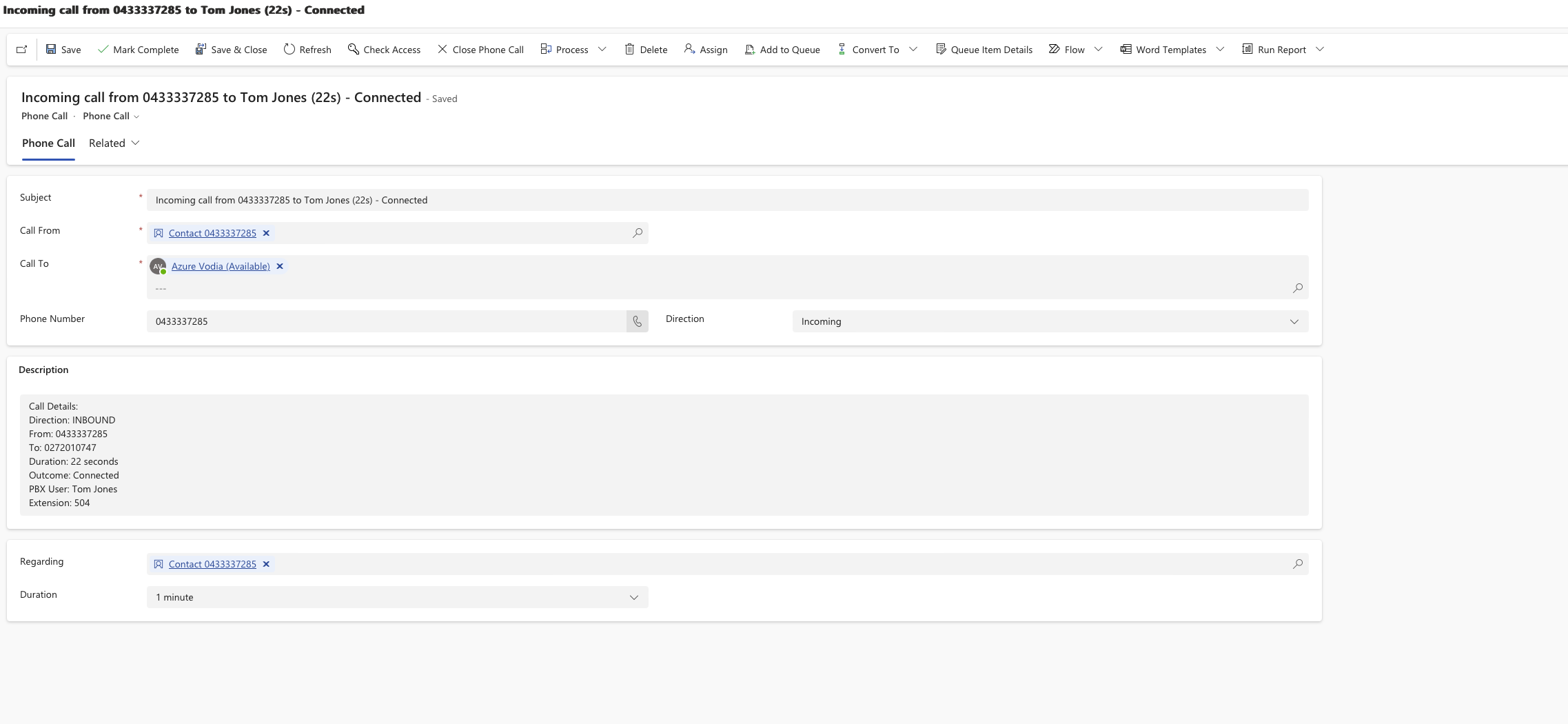
- After the call — once the call completes, VoxaLink creates a Phone Call Activity (direction, participants, duration, outcome, timestamps). It appears in the Dynamics Activities timeline, linked to the contact and the staff member.
- Unknown numbers — for a number Dynamics doesn't recognise, VoxaLink creates a new contact automatically.
Limitations
- Calls sync only after they complete — very short calls may not be recorded.
- Internal calls aren't synchronised — extension-to-extension calls are skipped.
Troubleshooting
- No contact pops — usually a number-format mismatch. Compare the number in Call Analytics (Call Analytics) with how it's stored in the Mobile, Business, Home or Other Phone fields; E.164 is the safest format.
- Activity logged against the wrong (or no) user — the extension's VoxaLink email doesn't match a Dynamics user's email. Align them under Directory (Directory).
- Nothing logs at all — confirm an Azure AD admin has completed Grant Admin Consent, then re-run Configure → Get OAuth Token; the authorisation may have lapsed or been revoked.
- A short call didn't record — calls only sync after they complete, so very brief calls may not appear. Internal extension-to-extension calls aren't synced at all.