
11Chapter 11 of 22
Freshdesk
Connect VoxaLink to Freshdesk so calls match the contact by number, record into a dedicated call-records custom object, and create a contact for unknown callers.
The Freshdesk integration links your phone system to your Freshdesk helpdesk. When a call happens, VoxaLink searches Freshdesk for the caller's number and records the call against the matching contact. Call records are written into a dedicated custom object so your team has a tidy history of every call alongside their tickets.
Two things have to line up for this to work, and there's one plan requirement — read Before you connect first.
Before you connect
- A Freshdesk account and your Freshdesk domain, e.g.
yourcompany.freshdesk.com. - An API key from your Freshdesk profile, which you'll paste into VoxaLink. The key needs enough permission to search contacts and to create and write the custom object.
- A Freshdesk plan that supports custom objects. The integration creates a dedicated custom object for call records and writes each call into it, so your plan must allow custom objects.
- Phone numbers stored consistently. VoxaLink searches the phone and mobile fields, matching exactly, so store numbers the same way VoxaLink presents them. Check how a number appears in Call Analytics (Call Analytics) and store Freshdesk records the same way.
- Each person's email in VoxaLink must match their email in Freshdesk. The call is attributed to the Freshdesk agent whose email matches the answering extension — if the addresses differ, attribution is wrong. Set the extension's email under Directory → the person → Email (Directory).
Connect Freshdesk in VoxaLink
- Open Admin → CRM Integrations and find Freshdesk.
- Click Configure. In the dialog:
- Apply to — All accounts (tenant-wide), or a single permission group to pilot it with one team first.
- Freshdesk domain — enter your account's domain, e.g.
yourcompany.freshdesk.com. - API key — paste the key from your Freshdesk profile.
- Click Save.
Matching and logging start on the next call.
What happens on a call
- Matching — VoxaLink searches Freshdesk contacts by number across the phone and mobile fields.
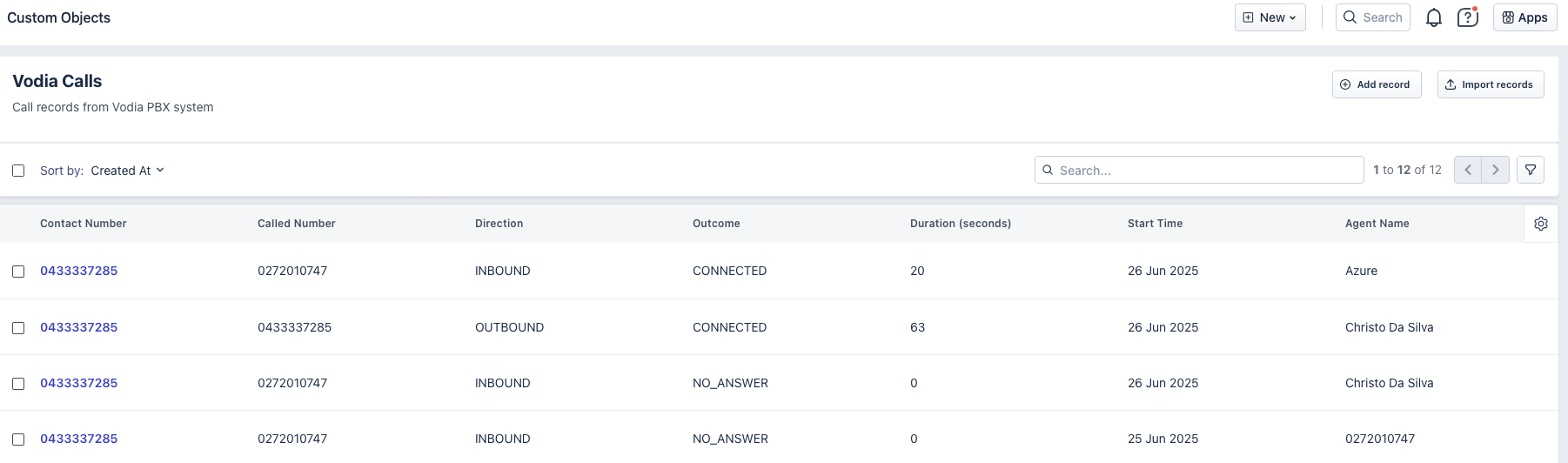
- Recording — each call is written into that call-records custom object, capturing the direction, outcome, duration, timestamps, the numbers involved, the matched contact, and the agent.
- Unknown numbers — for a caller Freshdesk doesn't recognise, VoxaLink creates a contact automatically, with a placeholder email, a tag marking it as call-created, and a note, then records the call against it.
Troubleshooting
- No contact matched, or a duplicate created — usually a number-format mismatch. Compare the number in Call Analytics (Call Analytics) with how it's stored in the phone and mobile fields; they must be identical.
- Calls don't record — confirm your Freshdesk plan supports custom objects and that the API key has permission to create and write the call-records object.
- Call attributed to the wrong (or no) agent — the extension's VoxaLink email doesn't match a Freshdesk agent's email. Align them under Directory (Directory).
- Nothing logs at all — re-check the domain and API key in Configure; a revoked or mistyped key stops recording.