
Portal & sign-in branding
Brand the sign-in page and signed-in portal: custom domain, logo, colours, fonts and login-screen text.
The Branding tab controls how a customer's sign-in page and signed-in portal look — from the hostname in the address bar down to the colour of the sign-in button. Open it from Reseller portal → Tenants → open a tenant → Branding. This page walks the form top to bottom; skim the headings and read the parts you need.
How saving works Text, colour, font and background changes preview live on the right and save together when you press Save. Images (the logo and favicon) are different — they save the moment you upload them and are not part of the Save button. Keep an eye on the live preview on the right: it shows the sign-in page updating as you type, so you can see exactly what your customer will get before you commit.
Custom domain
By default your customer signs in at a VoxaLink URL. Custom domain puts the sign-in page on your own hostname instead — for example login.acme.com.
Before you save, create a DNS A record for that hostname pointing at 31.97.188.138, and give it time to propagate. When you press Save, VoxaLink verifies the DNS record, sets up the web server, and issues a TLS certificate automatically — typically within 15–60 seconds.
Once the domain is live, that hostname is where your customer signs in — and it is also the portal link used in their notification emails, so the whole experience stays on your domain.
Identity
- Brand name — "Shown in the portal title bar and tab title." It works harder than that one line suggests: it is also the wordmark on the sign-in page when no logo is uploaded, the app name in the mobile app, and the wordmark in notification emails. Leave it blank and your customer sees VoxaLink.
- Logo click destination — the URL your logo links to when clicked. Point it at your own website.
Images
Remember: images save on upload, not with the Save button.
- Logo — "PNG or SVG. Shown in the portal title bar." It also appears on the sign-in page, in the mobile app, and in notification emails. Maximum 4 MB. It also becomes the phone system's own login logo — see the callout below.
- Favicon — "ICO, PNG, or SVG. Shown in the browser tab." Maximum 1 MB.
The login logo is shared Your customer can also upload their own light and dark logo from the phone system's own Appearance page. That logo and the Logo you upload here update the same login logo — so whichever was set last wins. If your customer's sign-in page ever shows a logo you didn't upload, this is why.
Background
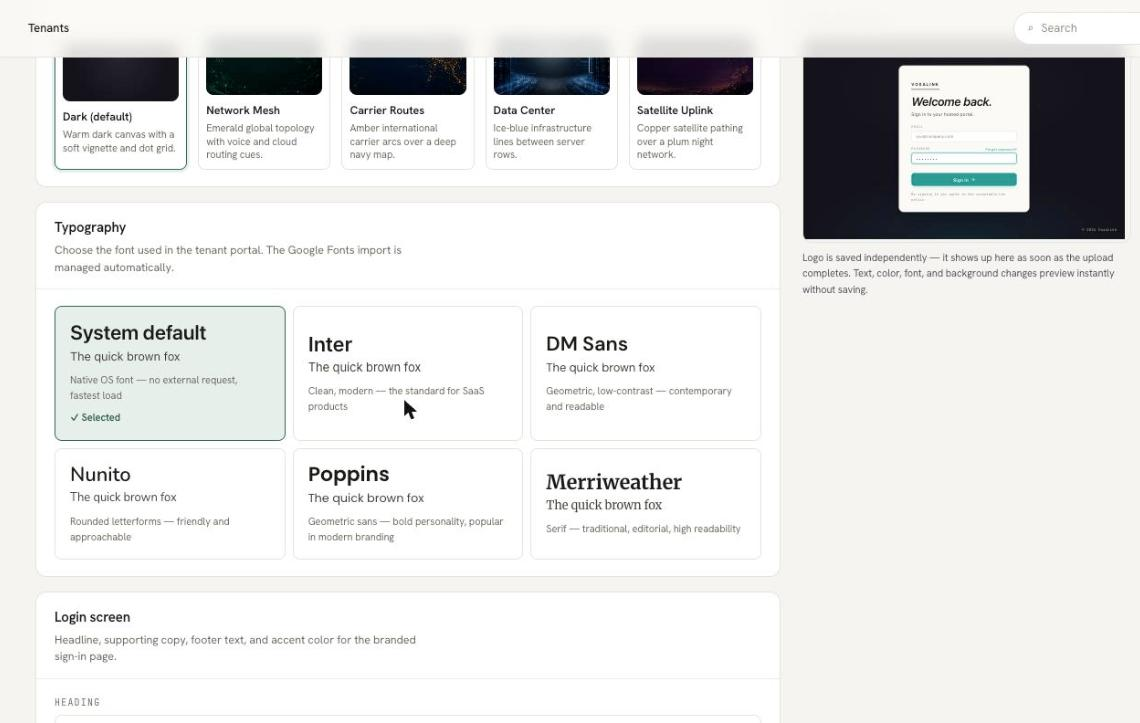
"Pick one of the curated canvases. Each is designed to keep the login card legible." There are five to choose from: Dark (default), Network Mesh, Carrier Routes, Data Center, and Satellite Uplink. Because they are curated, you don't need to worry about contrast or readability — any of them keeps the sign-in card easy to read.
Typography
"Choose the font used in the tenant portal. The Google Fonts import is managed automatically." Your options are System default, Inter, DM Sans, Nunito, Poppins, and Merriweather. Pick one and the portal handles the rest — there is nothing to install or import.
Login screen
These fields control the text on the sign-in card itself. Each one has a sensible default, so you only need to change what you want to change.
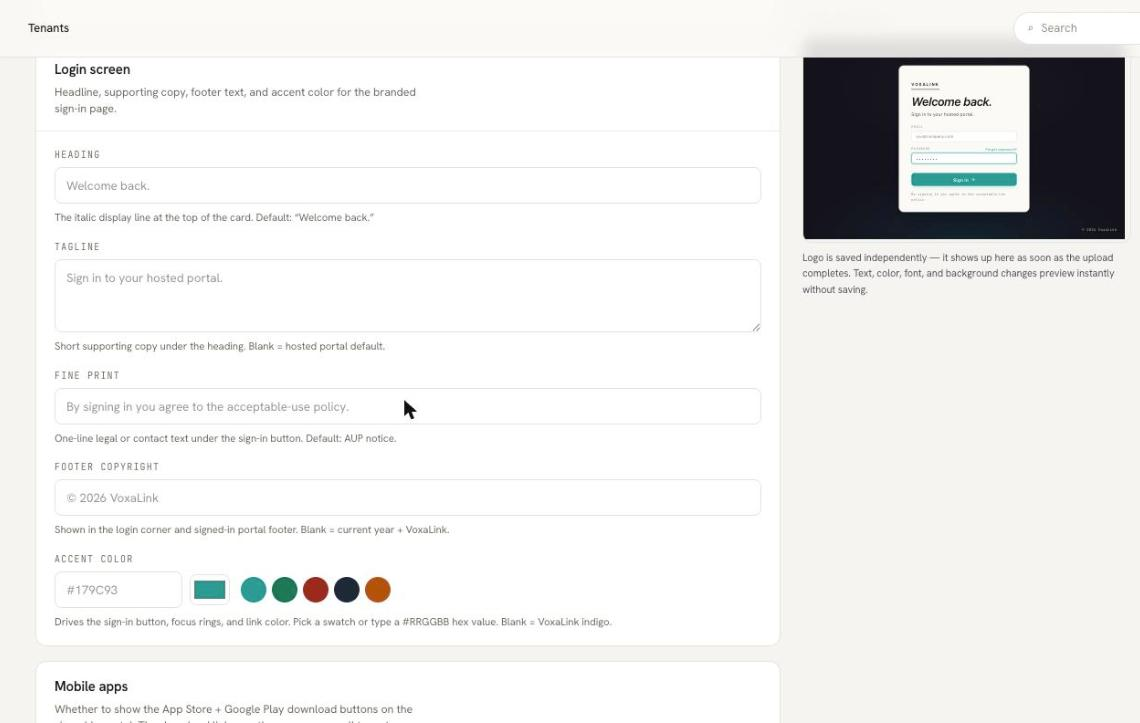
- Heading — the italic display line at the top of the card. Default: "Welcome back."
- Tagline — short supporting copy under the heading. Leave it blank and it reads "Sign in to your hosted portal."
- Fine print — one-line legal or contact text under the sign-in button. The default is an acceptable-use notice.
- Footer copyright — shown in the login corner and in the signed-in portal footer. Leave it blank and it shows the current year plus VoxaLink.
- Accent color — "Drives the sign-in button, focus rings, and link color." Pick a swatch or type a
#RRGGBBhex value. The default is VoxaLink teal (#179C93).
Mobile apps
Choose whether to Include or Exclude the App Store and Google Play download buttons on the signed-in portal. The download links themselves are the same for every customer — they are managed centrally, so this setting only controls whether the buttons appear.
See it come together
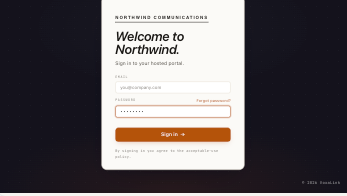
Here is a fully branded example: a customer branded as "Northwind Communications", with an amber accent colour, signing in on their own domain. Nothing on the page says VoxaLink — which is exactly the point.
Once the portal looks right, move on to Notification emails — most of the work there is already done for you.