
Notification emails
Send notification emails from your own mailbox, and brand how they look automatically.
The phone system sends your customer notification emails — voicemail, missed call, fax, and welcome emails. As a reseller you control two distinct things about them: who the email comes from, and how it looks. The first is a small form you fill in; the second happens automatically from the branding you have already set up.
Who the email comes from
The PBX emails panel sits on the same Branding tab as everything else. It tells the phone system to deliver notifications from your own mailbox, so the From line shows your name and address instead of a generic one.
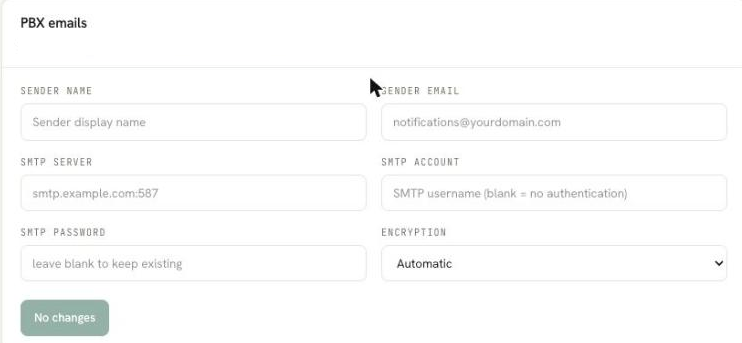
The fields:
- Sender name — the display name your customer sees in their inbox.
- Sender email — the From address the emails are sent as.
- SMTP server — the mail server the phone system delivers through.
- SMTP account — the username for that server.
- SMTP password — its password.
- Encryption — how the connection is secured. The default, Automatic, works for most providers.
Fill these in with your own mail provider's details and every voicemail, missed-call, fax and welcome email arrives from you.
How the email looks
This part needs no separate form. The emails are branded automatically from the same Identity and Login screen fields you set on the Branding tab:
- The header shows your logo and brand name.
- The body is written by the phone system — the voicemail or missed-call details themselves.
- The footer shows a Customer Portal link, your copyright line, and a do-not-reply notice.
Which field drives what:
- Logo → the logo in the email header.
- Brand name → the header wordmark.
- Accent color → the button and links.
- Footer copyright → the footer copyright line. Blank = current year plus your brand name.
- Custom domain (once live) → the Customer Portal link. Without one, the link points at portal.voxalink.cloud.
What follows your branding, exactly The header logo, the header brand name, and the footer copyright all follow the customer's branding. If you upload a logo but no brand name, the email shows just your logo on its own — no text beside it; and if you set neither a logo nor a brand name, the email carries full VoxaLink branding. A brand name that isn't "VoxaLink" shows as plain text in the header; and if you upload no logo at all, the brand name simply shows as text on its own.
The two outcomes, side by side
An unbranded customer gets the VoxaLink defaults:
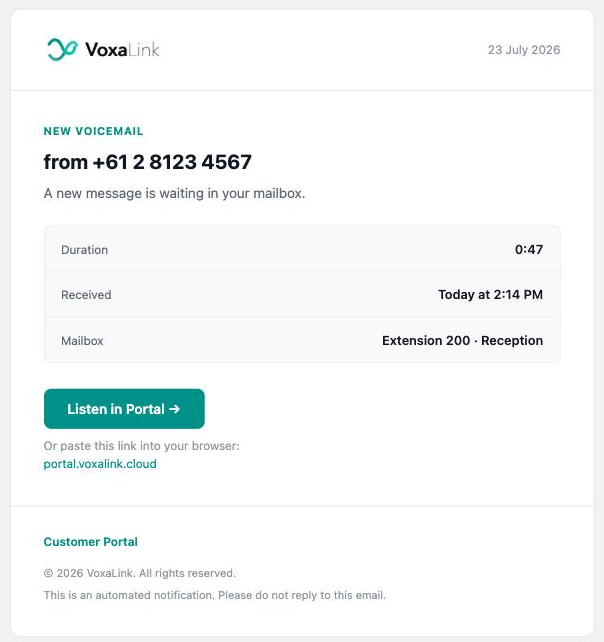
A branded customer gets your look — here, "Northwind Communications" with an amber accent and their own portal domain. No logo was uploaded, so the brand name shows as text in the header:
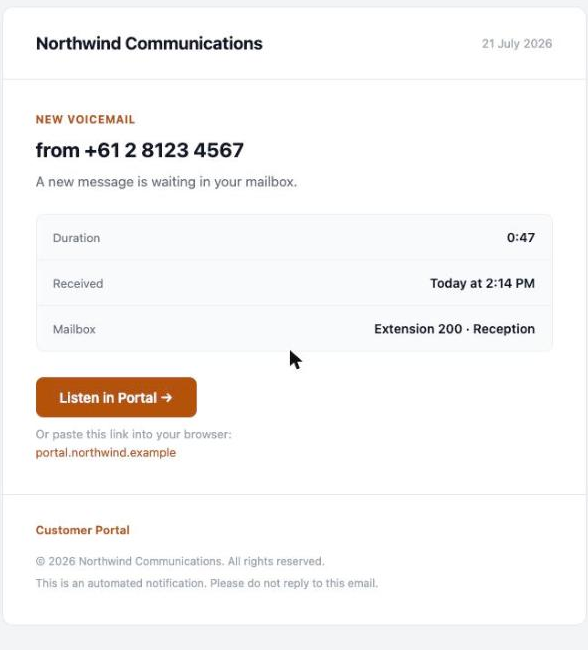
Changes take effect automatically the next time you save branding — you never need to touch the emails directly.