
Odoo
Connect VoxaLink to Odoo so each user's calls show the matching contact or lead in the user portal, with call detail logged to Odoo.
The Odoo integration links your phone system to Odoo on a per-user basis. An admin chooses which extensions use it, and then each user enters their own Odoo credentials in their user portal. From then on, when a call happens, VoxaLink searches the number in that user's Odoo and shows the matching contact or lead in the user portal, with a clickable link straight to the record. It can also tie into CRM leads and opportunities and Helpdesk tickets.
Because the credentials are per-user, there are two stages: the admin enables it for the right extensions, then each user enters their details. Read Before you connect first.
Before you connect
- An Odoo instance each user can sign in to, and the details for their account: Username (usually their email), Database name, the instance URL, and an API Key. Generate the API Key in Odoo under My Profile → Account Security → New API Key.
- Phone numbers in Odoo must be stored in the same format VoxaLink uses. Matching is exact — if the formats differ, the search finds nothing and no record is shown. Check how a number appears in Call Analytics (Call Analytics) and store records in Odoo the same way (VoxaLink presents numbers in full international form, e.g.
+61…).
Enable Odoo in VoxaLink (admin)
- Open Admin → CRM Integrations and find Odoo under CRM.
- Click Configure. In the dialog:
- Apply to — All accounts (tenant-wide), or a single permission group, to choose which extensions use Odoo.
- Click Save.
Enabling it only turns the feature on. Each user still has to enter their own Odoo credentials before calls match for them.
Enter your Odoo details (each user)
- In your user portal, open the Odoo settings.
- Enter your Username (usually your email), Database name, instance URL, and API Key.
- Save. Matching starts on your next call.
What happens on a call
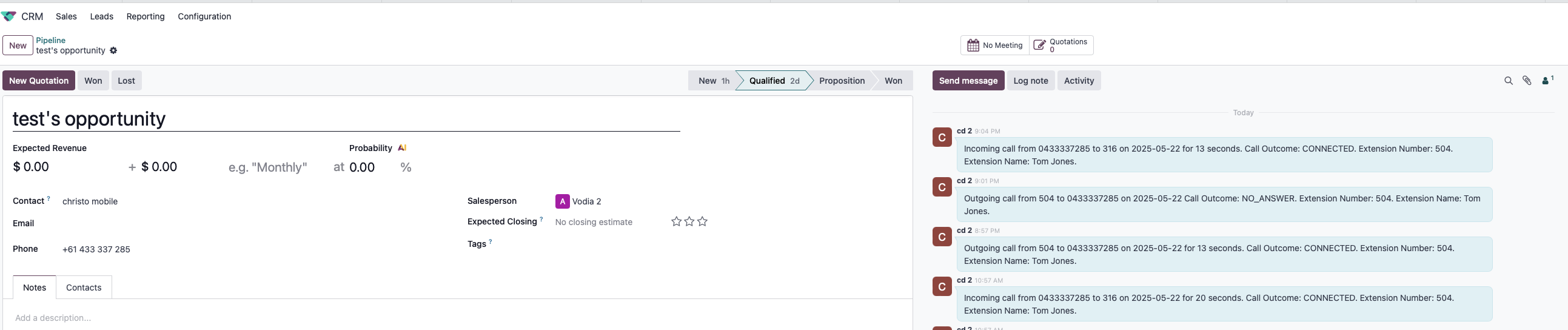
- Matching — VoxaLink searches the number in your Odoo and shows the matching contact or lead in the user portal, with a clickable link to open the record.
- Logged detail — the call is recorded with from, to, time, duration, a recording link (if the call was recorded), a missed flag, and whether the call was transferred.
- CRM and Helpdesk — matches can also tie into CRM leads and opportunities and Helpdesk tickets.


Troubleshooting
- No contact or lead is shown — almost always a number-format mismatch; compare Call Analytics (Call Analytics) with how the number is stored in Odoo.
- Nothing matches for one user — make sure that user has entered their Odoo details in the user portal; until they do, nothing matches for them.
- Matching stopped working — check the API Key in your user portal; it may have been revoked in Odoo, in which case generate a new one under My Profile → Account Security → New API Key.