
Click to Dial browser extension
Call any phone number straight from your web browser — right-click a number on any page and VoxaLink starts the call on your app or desk phone.
The VoxaLink Click to Dial extension turns any phone number on a web page into a call. Right-click a number — in a customer record, a supplier's website, an email — and VoxaLink starts the call for you, ringing your VoxaLink app or your desk phone. No copying numbers into a dial pad, no misdials.
It is a small, free add-on you install once from your browser's extension store and sign into with your normal VoxaLink account. The extension itself never handles the audio — it just tells VoxaLink who to call, and the call happens on the phone you already use.
You still need a phone to talk on
The extension places the call; it doesn't become a phone. The call rings on either the VoxaLink app on your mobile or your desk phone, and you talk there. So before it's useful, make sure the phone you want to ring is set up and signed in.
Before you start
You'll need three things:
- A VoxaLink account — the same email and password you use for the app and the portal. If you can sign into the VoxaLink app, you're ready.
- The phone you want calls to ring on:
- VoxaLink app — installed and signed in on your mobile, for calls that ring your phone; or
- Desk phone — a physical handset registered to your extension, for calls that ring your desk.
- A supported browser (below).
Supported browsers
| Browser | Install from |
|---|---|
| Google Chrome | Chrome Web Store |
| Microsoft Edge | Microsoft Edge Add-ons (or the Chrome Web Store) |
| Mozilla Firefox | Firefox Add-ons |
| Brave, Opera, Arc and other Chrome-based browsers | Chrome Web Store |
Safari doesn't support the extension — but Mac users (and iPhone/iPad users) can get the same click-to-dial with the VoxaLink Shortcut instead. See On a Mac with Safari below.
Installing the extension
Pick your browser below. In every case you're adding a free add-on from the browser's own store — the same way you'd add any other extension.
Chrome, Brave, Opera, Arc
- Open the Chrome Web Store and search for VoxaLink Click to Dial.
- Click Add to Chrome (Brave/Opera/Arc show the same button under their own name), then Add extension when the browser asks you to confirm.
- That's it — the VoxaLink icon appears in your toolbar.
Microsoft Edge
Edge can install from either store:
- Easiest: open Microsoft Edge Add-ons, search for VoxaLink Click to Dial, and click Get → Add extension.
- Or from the Chrome Web Store: open the Chrome Web Store in Edge. The first time, Edge shows a banner offering to Allow extensions from other stores — click Allow, then Add to Chrome → Add extension.
Firefox
- Open Firefox Add-ons (
addons.mozilla.org) and search for VoxaLink Click to Dial. - Click Add to Firefox, then Add when Firefox asks you to confirm.
Pin it so you can see it
By default the extension tucks itself away behind a puzzle-piece icon. To keep it in view:
- Chrome, Edge, Brave, Opera, Arc: click the puzzle-piece icon in the toolbar, find VoxaLink Click to Dial, and click the pin beside it.
- Firefox: the icon usually sits in the toolbar already; if not, right-click the toolbar → Customize Toolbar and drag it into place.
Signing in
The extension needs to know which VoxaLink extension you are before it can place calls.
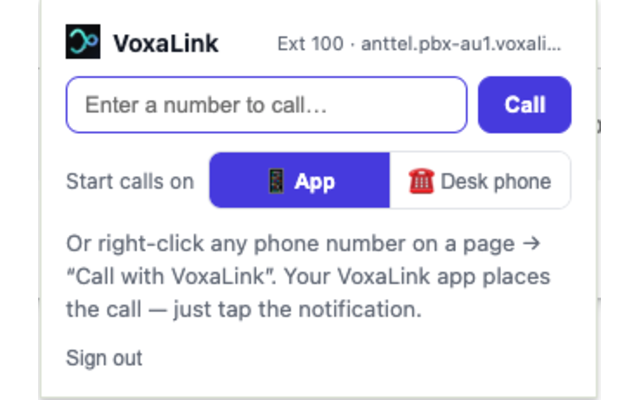
- Click the VoxaLink icon in your toolbar.
- Click Sign in to VoxaLink. A small window opens on the VoxaLink sign-in page.
- Enter your VoxaLink email and password (the same ones you use for the app). If you're already signed into VoxaLink in that browser, the window closes on its own.
- The popup now shows your extension and organisation — for example Ext 100 · yourcompany — which means you're connected and ready.
You only sign in once. If your session ever expires, the next call you try simply reopens the sign-in window — sign in again and the call goes through.
Making a call
There are two ways to start a call.
Right-click a number on a page
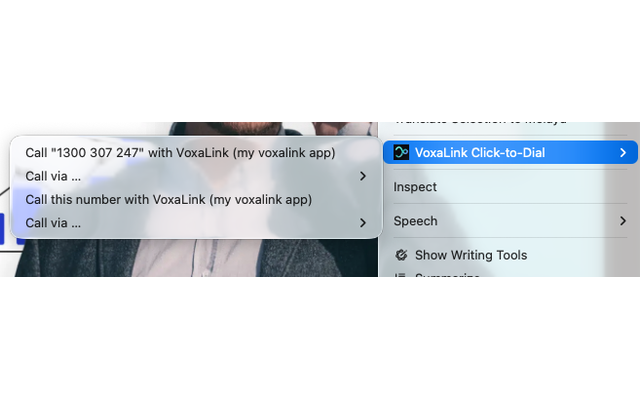
This is the main way to use it. On any web page:
- Highlight a phone number with your mouse, then right-click it and choose Call "…" with VoxaLink; or
- Right-click a phone link (many websites and CRMs already turn their numbers into clickable phone links) and choose Call with VoxaLink.
To choose the phone that rings for this one call, use the Call via… submenu instead and pick My VoxaLink app or My desk phone.
The quick-dial popup
To dial a number you already know, click the VoxaLink icon and type the number into the box, then press Call. Handy when the number isn't written on the page in front of you.
Choosing where the call starts
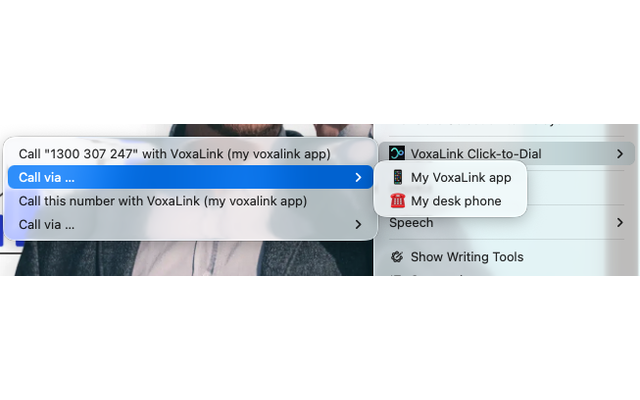
Both ways let you decide which phone rings. Set your usual preference once in the popup under Start calls on, and every plain "Call with VoxaLink" uses it:
- My VoxaLink app — your phone gets a "Call …?" notification; tap it and the app places the call, just like dialling by hand. Best if your mobile is your main phone.
- My desk phone — your desk handset rings; answer it and VoxaLink connects you to the number. Best if you work at a desk phone. (If no desk phone is registered to your extension, VoxaLink tells you so rather than failing silently.)
What counts as a phone number
VoxaLink recognises the phone-number formats people actually use in Australia — mobiles like 0412 345 678, landlines like (02) 9123 4567, and 1300 / 1800 numbers — as well as any number written in full international form (starting with +, e.g. +61 2 9123 4567). Everyday strings of digits that aren't phone numbers — an order reference, an invoice total — are ignored, so you don't get "call" buttons on the wrong thing. If a number isn't picked up (some pages format them unusually), just highlight the digits and right-click, or type them into the quick-dial popup.
On a Mac with Safari
Safari can't run the extension, so Mac users get click-to-dial through a small, free VoxaLink Shortcut instead. It does the same job — and it works in any app on your Mac (Safari, Mail, Notes, a PDF — anywhere you can select a number), not just the browser. The same shortcut also works on your iPhone and iPad.
Install it once:
- Open the install link your administrator gives you (VoxaLink Call shortcut) and choose Add Shortcut.
- The first time you use it, macOS may ask permission to run it or to access your Keychain — choose Allow (or Always Allow).
Sign in once:
Open the shortcut and enter your domain, extension number, and VoxaLink password in the fields at the top. These stay on your own device — they're never shared.
Make a call:
- Select a phone number anywhere on your Mac, then right-click → Services → Call with VoxaLink.
- Your VoxaLink app rings with a "Call …?" notification — tap it to connect (or set the shortcut to ring your desk phone instead).
- On an iPhone or iPad, select the number and use the Share Sheet → Call with VoxaLink.
If a call doesn't start, check that your domain, extension, and password are entered correctly in the shortcut, and that the VoxaLink app is installed and signed in on your phone.
Managing the extension
- Sign out — open the popup and choose Sign out. Your calls stop until you sign in again.
- Updates — the store updates the extension automatically; you don't do anything.
- Remove it — Chrome-based browsers: right-click the toolbar icon → Remove from Chrome/Edge/Brave. Firefox: right-click the icon → Remove Extension. You can always reinstall from the store later.
When something doesn't work
- I click "Call" but nothing rings. Check the phone that should ring: is the VoxaLink app installed and signed in (for app calls), or your desk phone registered (for desk calls)? The extension can only ring a phone that's set up for your extension.
- It keeps asking me to sign in. Your session expired — sign in again from the popup and the call will go through. This is normal every so often.
- A number on a page isn't clickable. Some sites format numbers in ways the extension can't spot. Highlight the digits and right-click, or type the number into the quick-dial popup.
- "No desk phone is registered." You chose desk phone but don't have a physical handset signed into your extension. Switch Start calls on to My VoxaLink app, or ask your administrator about a desk phone.
Everyday tasks
- Call a number on a customer's website → highlight it, right-click, Call with VoxaLink.
- Ring straight from your CRM → right-click the record's phone link → Call with VoxaLink (no need to retype it).
- Dial a number someone just read out → click the VoxaLink icon, type it in, Call.
- Switch between ringing your mobile and your desk → open the popup and change Start calls on, or use the Call via… submenu for a one-off.