
Salesforce
Connect VoxaLink to Salesforce so each user's inbound calls pop the matching contact and calls are logged in their own Salesforce.
The Salesforce integration links your phone system to Salesforce on a per-user basis. An admin switches Salesforce on for the tenant, and then each user pairs their own Salesforce account. From then on, when a call happens, VoxaLink finds the matching contact in that user's Salesforce, pops it in the VoxaLink web UI, and logs the call under that contact in their own Salesforce.
Because pairing is per-user, no Salesforce credentials are ever handed to VoxaLink — every user signs in to Salesforce directly. There are two stages: the admin enables it, then each user pairs.
Before you connect
- A Salesforce edition that allows REST/API access. Some lower tiers don't, and without API access the integration can't read or write records. Check your edition before rolling this out.
- Each user needs their own Salesforce login. Calls are logged in the Salesforce of whoever was on the call, so every user who wants matching and logging must pair their own account.
- Optional but handy: store Salesforce phone numbers the way VoxaLink presents them — full international form, e.g.
+61…. If a lookup ever comes up empty, compare the number in Call Analytics (Call Analytics) with how it's stored in Salesforce.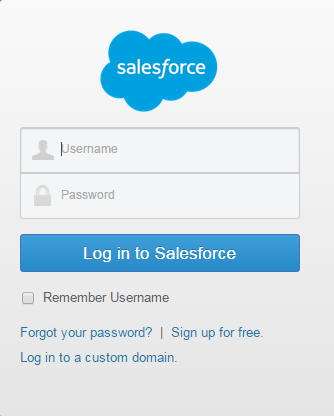
Enable Salesforce in VoxaLink (admin)
- Open Admin → CRM Integrations and find Salesforce under CRM.
- Click Configure. In the dialog:
- Apply to — All accounts (tenant-wide), or a single permission group to pilot it with one team first.
- Click Save.
Enabling it tenant-wide only turns the feature on. Each user still has to pair their own account before calls match or log for them.
Pair your Salesforce account (each user)
- In your user portal settings, find Salesforce and click Pair.
- Sign in to Salesforce and grant access when prompted. Salesforce returns a token to VoxaLink; there's nothing to copy or paste by hand.
Once you've paired, matching and logging start on your next call.
What happens on a call
- Inbound — VoxaLink finds the matching contact in the receiving user's Salesforce and shows a pop in the VoxaLink web UI. Click it to open the contact page in Salesforce.
- Both directions — inbound and outbound calls are written as call/task records under the matched contact, with the direction noted in the subject.
- Tip — keep a Salesforce tab signed in so the click-through to the contact page opens smoothly.
Troubleshooting
- No pop appears — make sure you've completed Pair in your user portal; until you do, nothing matches for you. If pairing is done, confirm your Salesforce edition allows API access.
- The pop won't open the contact — you're probably not signed in to Salesforce in the browser. Keep a Salesforce tab open and logged in.
- A lookup finds nothing — compare the number in Call Analytics (Call Analytics) with how it's stored in Salesforce, and store it the same way.
- Logging stopped working — re-run Pair in your user portal; the authorisation may have lapsed or been revoked in Salesforce.